

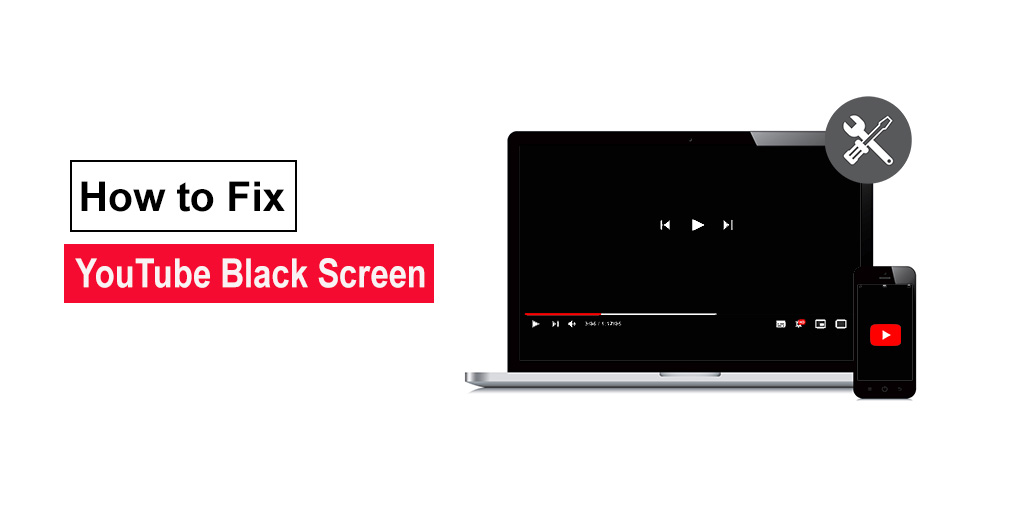
It is possible to repair a variety of YouTube playback issues quickly, but determining the cause behind the black screen on YouTube could take a long time.
Note:- This article discusses YouTube black screens without display errors. If a video is showing an error message, it could be private or restricted to certain ages. Sign in YouTube account to resolve this. If a video is not available in your area, the help of a VPN or web proxy can help unblock it.
How to Fix YouTube Black Screens Caused by Ad Blockers
The Ad Blocker includes plugins for browsers that are designed to prevent certain elements of a web page, like video and standalone ads on websites like YouTube to stop loading.
When it’s functioning properly, an ad blocker stops ads from loading, while allowing the remainder pages to function as normal. If it is not functioning properly, it could enable ads to load or block other elements of the page, like text or video.
Here’s how to tell the presence of an ad blocker creating black screens on YouTube:
- Start the video on YouTube.
- Disable the ad blocker.
- Reload the page, and then start the playback.
If the video plays properly, check the manual of the ad blocker to find alternatives to stop blocking YouTube videos.
How to Check if Your Browser Is Causing YouTube Black Screens
Multiple browser and computer issues can cause disruptions to YouTube. Issues like broken cookie caches, data, or a lack of RAM can delay the video loading. Here’s how to fix YouTube black screen issues if they’re associated with your browser or your computer:
- Reload the YouTube video that doesn’t work.
- Close the browser, then reopen it.
- Log out of your YouTube account.
- Update your web browser if needed.
- Clear the browser cache.
- Delete all YouTube app cookies.
- Disable any VPNs or proxies.
- Disable hardware acceleration.
- Try a different web browser.
- Restart the computer.
Also read: How to Get YouTube Unblocked: 7 Simple Tricks That Work
YouTube Black Screens? Find Out if Your Network or ISP Is the Problem
If your internet is not working, YouTube won’t load. Infrequent problems can result in YouTube loading in a limited manner and rendering videos as black boxes. Use these solutions related to networks to resolve YouTube black screens
- Switch to wired or Wi-Fi connections or get closer to your router.
- Stop streaming or downloading via other platforms. Stop smart speakers that play music to free up bandwidth for YouTube.
- Flush the DNS cache.
- Restart the router and modem.
- Change DNS server settings to a different company’s address
- If slow internet speed, contact your ISP for an upgrade
How to Troubleshoot YouTube Black Screens on Mobile Devices
If the YouTube app displays a black screen or plays audio with no video, it could be experiencing issues. Consider these suggestions:
- Clean your YouTube application cache from your iPhone or Android device. Clear the Cache on your mobile.
- Restart and reboot your device
- Delete the app on your phone and reinstall
If you’re seeing a black box that appears on YouTube videos, a needed update to the app may not be out at this time. In the meantime, verify if this issue is still present on the web player by visiting youtube.com in your mobile browser.
Some Common Causes of YouTube Black Screens
A black screen on YouTube is a sign that the video was not loading. It could be due to a problem with issues related to YouTube and your Internet service provider (ISP).
Possible fixes include updating the web browser, removing the ad blocker and restarting computers, restarting the network equipment, and other easy solutions. If the issue is an ISP issue or a problem with YouTube’s part, then you’ll have to wait for a resolution.
Solve the Black Screen issue on YouTube
Experience can be both disheartening and disorienting; the good news is, most issues with the YouTube Black Screen have easy solutions. From browser, ad blocker, network, and mobile device issues, through to troubleshooting steps, get your videos back online on an Android or Apple mobile device.
Be patient as you experiment with various solutions until one works for you. Once found and applied, not only will black screens stop appearing, but their prevention could become possible again, meaning binge-watching could soon return! So rest easy knowing your next binge session could soon arrive!







Leave a comment