

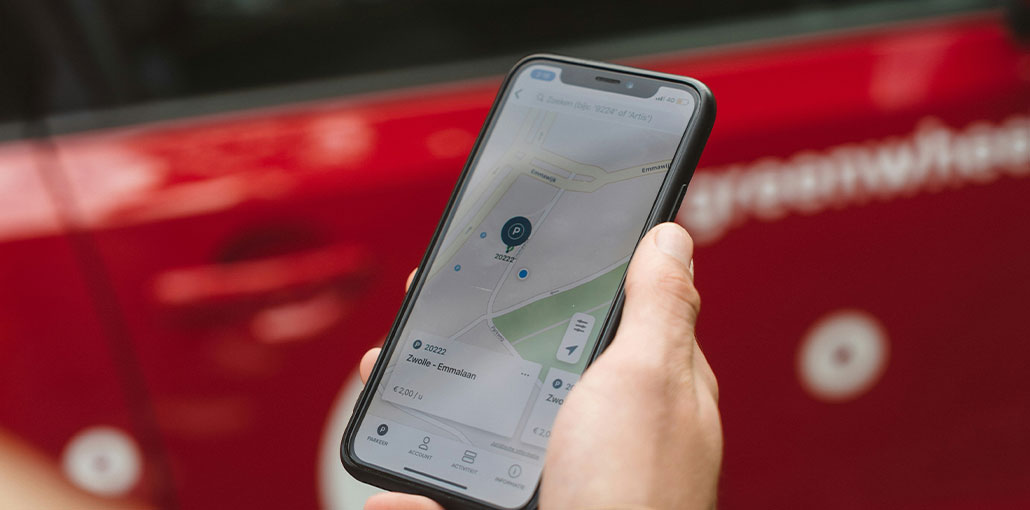
Most of the time, the iPhone works perfectly for us; occasionally, it has issues with Wi-Fi, Bluetooth, and GPS. Recently, iPhone GPS issues have happened much more often than before. We checked many question-answer platforms, where many users reported that the iPhone GPS is not working. To resolve this issue, we wrote this blog on how to fix GPS not working on an iPhone.
Common Reasons Why iPhone GPS Is Not Working
To help you understand why iPhone GPS is not working. Here are some common reasons for this cause:
- Location Services are turned off
- App location permissions are restricted
- Weak internet connection or poor signal
- Temporary software bugs or glitches
- Outdated iOS version
If you want to understand how to fix GPS not working on iPhone, identifying these causes is the first step.
Also read: No Location Found on iPhone? 8 Easy Fixes That Actually Work
How to Fix GPS Not Working on iPhone
1. Make Sure iPhone Signal is Good
The most common reason the iPhone GPS is not working is due to a weak signal. If you’re in a steel structure or in a location in which radio signals cannot be detected, apps will struggle to get a reliable GPS signal. In an area like this, you should go to areas where your iPhone gets a stronger signal.
2. Check out the Location Services
In iPhone settings, if the feature Location Services is not disabled, GPS cannot work either. If you want to enable this feature, navigate to Settings > Privacy > Location Services > toggle it on.
To access the app, when you tap the app, there will be three choices:
- Never, that is to say, always preventing the app from knowing your location.
- When using the app, which means allowing the app to access your location only when you are using it, is in the background.
- Always, which means the app will find your location, whether it’s on or off in the background.
Certain apps will require your location “always”, and if you select “always” or “while using the app” option, it won’t function properly. Check you’ve got the correct settings for every application.
3. Refresh Location Services
If Location Service is on and GPS isn’t working on your iPhone, turn it off, then reactivate it after a few minutes.
4. Reset All Location and Network
If none of the previous solutions work for the iPhone GPS not working problem. There could be something wrong with your iPhone’s location or data. To fix this issue, go to iPhone Settings, Tap General, and select Reset Networking Settings or Reset Location & Privacy.
5. Deactivate the Airplane Mode
Airplane mode stops the phone from connecting to wireless networks. Activating it will allow the device to be disconnected from the networks that interfere with the GPS.
The Airplane mode is activated through the notification shade. It is as simple as tapping on the icon to activate it. Airplane mode will remain for about a minute, and then turn it off by pressing its icon.
6. Low Power Mode or Battery Issues
Smartphones can enter a power-saving mode when their battery is almost empty. This means that this mode turns off GPS to reduce the power consumption. Keeping the device battery fully charged can help you avoid encountering any GPS-related issues.
Also read: How to Fix the Cannot Verify Server Identity Error on Your iPhone
7. Soft Reset iPhone
There could be a software problem with your device. You can try a soft reset of the phone. Follow these steps to perform a soft reset. The soft reset does not erase your iPhone information.
Hold and press both the “Sleep/Wake” and “Home” buttons simultaneously. Continue pressing the buttons for 10 seconds. Once you have seen the Apple logo, you release both buttons.
8. Restore iPhone
If none of the above methods work, the final step in how to fix GPS not working on iPhone is to restore your device. This process will erase all data and settings. Make sure to back up your iPhone before you restore.
Wrapping Up: How to Fix GPS Not Working on iPhone
If you’re searching for how to fix GPS not working on an iPhone, we’ve shared eight simple and effective solutions to help resolve the issue. If you have any questions regarding these solutions, you can leave a question in the comment section. We are also grateful for your creative methods.
FAQs: How to Fix GPS Not Working on iPhone
Why is my iPhone GPS showing the wrong location?
This usually happens due to poor signal, indoor usage, or when Precise Location is turned off.
When should I restore my iPhone to fix GPS issues?
If all other methods fail, restoring your iPhone can fix deeper software problems affecting GPS.
How to fix GPS not working on iPhone without resetting?
You can enable Location Services, restart your iPhone, toggle Airplane Mode, or refresh location settings.
Does Low Power Mode affect GPS on iPhone?
Yes, Low Power Mode can limit background activities, including GPS, which may reduce accuracy.








Leave a comment