

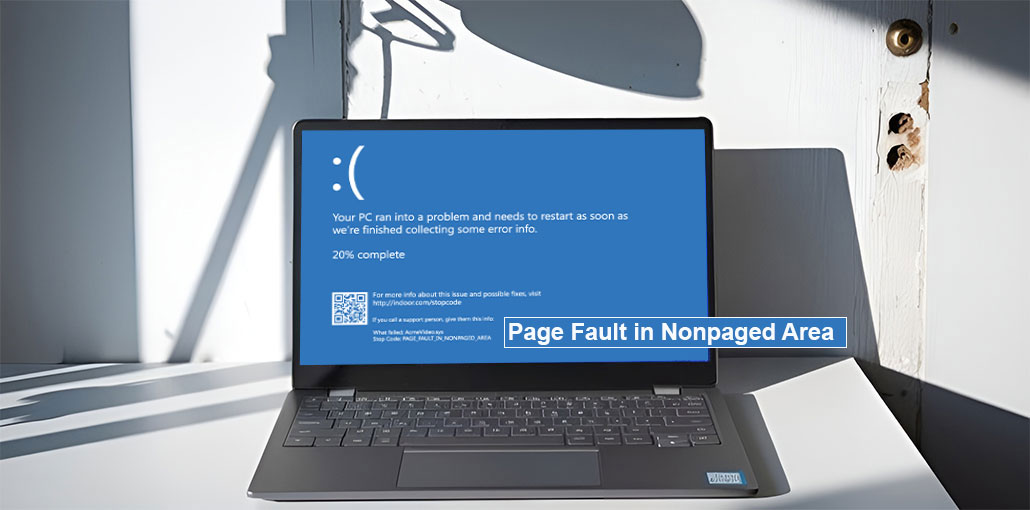
Page Fault in Nonpaged Area BSOD is a sign of a condition in which the OS attempts to request a lock-in page and gets a page fault instead. The reason Microsoft treats this as a stop code and creates a BSOD is that the error is not intended to occur and directly impacts your operating system (only highly privileged, critical memory pages are allocated to the pool without pages).
There are a variety of reasons for the Page Fault in Nonpaged Area Error in your Windows 10 PC:
- The error occurs if the Windows PC can’t find the data in the nonpaged area.
- Page Fault In Nonpaged Area error can also occur when an incorrect system service or driver is loaded on the computer.
- The error could be faulty hardware/hardware problems on the PC, corrupted RAM, or an unrepaired section on the drive.
- A corrupted NTFS and antivirus programs could be the reason.
How to Fix Page Fault in Nonpaged Area on Windows 10
Before proceeding to the remedies to solve the Page Fault Nonpaged Area Error (Stop Code 0x00000050) on Windows 10, you may try the following solutions to ensure that you’re not experiencing a system error :
Quick Fixes Try
- Reboot your computer, repeat the procedure, and check whether the issue has been resolved.
- Scan your PC with anti-malware to remove viruses or malware that could be preventing the Windows update process.
- Temporarily disable third-party antivirus or firewall software on your computer, if you have one, and then try printing the document.
If the solutions listed above do not solve the Page Fault in Nonpaged Area Error in Windows 10, you may go to the following technical solutions.
Also read: Kernel Data Inpage Error: 7 Effective Ways to Fix This Error
1. Run CHKDSK
Faulty RAM and a corrupted NTFS volume might be the cause of that blue screen error. The disk check can help you eliminate the Page Fault in Nonpaged Area Error. If you don’t know how to do this, you can follow the steps below.
- Enter Command Prompt into the box and then click Run as Administrator to start the Command Prompt.
- Enter the following command: chkdsk /f/r and then press the Enter key.
- Use the “Y” button on the keyboard.
- Then, click to select the Win+R shortcut and enter mdsched.exe in the Run box, and press Enter.
- Choose Restart now, and then check for issues (recommended), and your Computer will reboot.
Allow the scan to complete for around 15 minutes. Check again to see whether the issue is resolved. If you encounter the problem once more, you can explore the other solutions listed below.
2. Perform an SFC Scan
In Windows, the System File Checker (SFC) scans your system for corrupt files and repairs them. It can also assist you in removing the page fault in non-paged areas.
- Enter a command within the search bar and then click Run as Administrator to start the Command Prompt.
- Enter the sfc/scannow command and then press the Enter key.
3. Disable Automatic Paging File Size Management
This BSOD error on Windows 11/10 may be from the incorrect paging file settings on your PC.
As we all know, the paging files, also called virtual memory, serve as an extension of physical RAM. If the physical RAM gets overloaded, Windows moves less-used data to the paging file to free RAM for more demanding tasks.
However, the blue screen error could occur if the balance between physical and virtual memory is affected. By adjusting the paging settings, the issue could disappear.
- Press Win and E to open File Explorer.
- Select Right Click on This computer and then select properties.
- Scroll down to click on Advanced System Settings.
- In the window that appears, select from the Advanced tab, then click Settings in the Performance section.
- Choose the Advanced tab, and then click the Change button.
- Remove the Automatically manage paging files size for all drives ” option, then click “OK to save the settings.
- Finally, reboot your computer and verify that the issue is gone.
4. Update or Reinstall Drivers
We’ve often observed that outdated driver software is often the primary reason for computer problems. One thing that could cause the Page Fault in Nonpaged Area error is a damaged or outdated driver for your computer. If the driver is defective or outdated, you may uninstall and update the driver. How to do it:
- Click the Win + R shortcut and then enter devmgmt.msc in the Run box, and then hit Enter.
- Find drivers who have the yellow exclamation symbol.
- Right-click the drive and then choose the Update driver option.
- At the next prompt, click Automatically search for the most recent driver programs.
If you are unable to update the driver in question, then disable or remove it. Finally, restart your computer and test if it’s working.
Also read: How to Fix “Not Enough Memory to Open This Page” Error in Chrome
5. Run Windows Memory Diagnostic
As this issue is usually caused by RAM or driver problems, I’d suggest checking your computer’s RAM. If you are unable to check the RAM by yourself, send the computer to a certified engineer.
Sometimes, the answer to this problem could be clearing the RAM or reconnecting it. If the RAM test fails to fix the issue and you continue to see your BSOD (blue screen of death) Start your PC in safe mode and continue to the next solution found in the article.
Conclusion
As we’ve said, there are a variety of reasons that may cause the error, Page Fault in Nonpaged Area on Windows 10. If you aren’t sure of the exact reason, try the above methods.
FAQs: Page Fault in Nonpaged Area
What is 'Page Fault in Nonpaged Area' in Windows 10?
'Page Fault in Nonpaged Area' is a Blue Screen of Death (BSOD) error (Stop Code: 0x00000050) that occurs when Windows tries to access critical memory in RAM but fails. It usually indicates faulty RAM, corrupted drivers, or disk errors.
Can faulty RAM cause Page Fault in Nonpaged Area?
Yes. Defective or improperly installed RAM is one of the most frequent causes. Using Windows Memory Diagnostic can detect faulty RAM modules, which should be replaced if errors are found.
Can malware cause Page Fault in Nonpaged Area error?
Yes. Malware or viruses can corrupt system files, drivers, or memory structures, leading to a Page Fault in Nonpaged Area. Running a full antivirus scan can help eliminate this cause.
How can I quickly fix Page Fault in Nonpaged Area?
Restart your PC, run CHKDSK and SFC /scannow, check RAM with Windows Memory Diagnostic, and update or reinstall drivers.





Leave a comment