


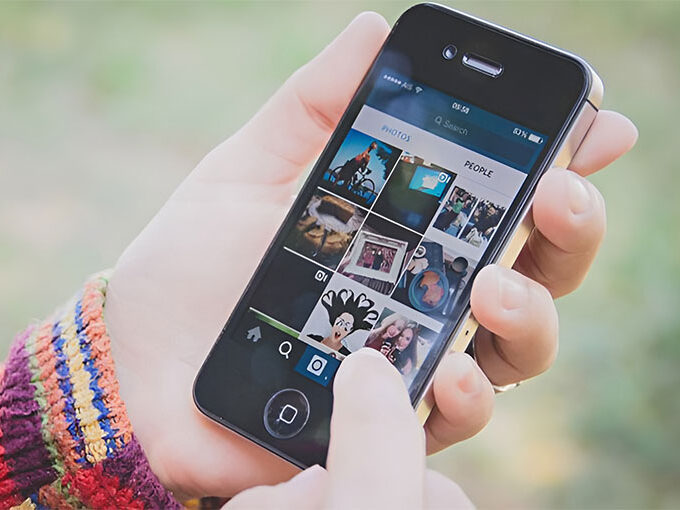
If you enjoy capturing images using your camera or love sharing them on social media, knowing how to compress your images is crucial. The problem is usually the large file size or high resolution, which makes sharing or saving media difficult. This is a major problem if you need to save more videos and photos or upload them to the internet seamlessly. To solve this problem, use a photo compressor app for iPhone.
We’ve created a list of the top photo compressor apps for iPhone that you can try. With these apps, you can optimize the iPhone storage capacity and make sharing photos much easier. Explore the most effective method of managing your media easily!
Why You Need a Photo Compressor App for iPhone
iPhones capture stunning high-quality photos, but the file sizes can be large. Compressing photos helps you:
- Free up iPhone storage space
- Share images faster via email, WhatsApp, or social media
- Upload photos quickly to websites or cloud storage
- Save mobile data while sharing files
Instead of deleting memories, you can simply reduce their size using a reliable photo compressor app.
Also read: How to Convert Photos to PDF on iPhone in 4 Easy Steps
Features to Look for in a Photo Compressor App
Before choosing a photo compressor app for iPhone, make sure it offers:
- Lossless or high-quality compression
- Batch compression for multiple images
- Custom size or resolution settings
- Easy sharing options
- Simple and user-friendly interface
These features ensure efficient compression without compromising photo quality.
Best Photo Compressor App for iPhone Without Quality Loss
As mentioned above, in this article, we’ll discuss the best photo compressor app for iPhone that can handle major issues with media files by using its own unique compression technology.
1. Photo Compress- Shrink Pics
The photo compressor app for iPhone swiftly minimizes the size of photos on your iPhone to ensure you have enough space to store important images. The services are free to iPhone users. The high-quality compressed image can be shared on social media apps such as WhatsApp, Facebook, iMessage, and more.
Pros
- Batch compression for multiple photos
- Adjustable compression level
- Preview before saving
- Works offline and keeps data private
Cons
- Some features require in-app purchases
- Over-compression may reduce image quality
Steps to Use
- Install and open the app
- Allow access to Photos
- Select single or multiple images
- Choose compression level or size
- Tap Compress and save to the gallery
2. Resize Photos
Do you want to adjust the resized photos to fit your needs? Consider using the photo compressor app for iPhone known as “Resize Photos.” It is a great method to free up space occupied by photos and save space on the iPhone.
Pros
- Easy to use interface
- Custom size and resolution options
- Quick processing
Cons
- Limited advanced features
- May reduce quality if resized too much
Steps to Use
- Open the app
- Select the photo from your library
- Enter custom size or choose preset
- Adjust quality if available
- Save or share the resized image
3. PhotoShrinker
PhotoShrinker is an efficient app to compress images on iPhone by one-tenth of their original size. It also provides you with a huge space to hold more files and data on your phone.
Pros
- Significant storage savings
- Simple compression process
- Suitable for large photo libraries
Cons
- Limited updates for newer iOS versions
- May remove some photo metadata
- Quality reduction in heavy compression
Steps to Use
- Launch PhotoShrinker
- Select photos to compress
- Tap Shrink
- Review the compressed images
- Save and delete originals if needed
4. Resize image
Resize Image allows users to compress photos using preset sizes or custom dimensions. It maintains aspect ratio and helps optimize images for online use. This photo compressor app for iPhone is ideal for bloggers, professionals, and users who frequently upload images to websites or social platforms
Pros
- Preset and custom dimensions
- Maintains aspect ratio
- Fast and lightweight
Cons
- Basic interface
- Fewer advanced editing features
Steps to Use
- Open the app
- Import the image
- Select preset or custom size
- Apply compression settings
- Save the optimized image
Also read: Best Video Compressor for Discord: 10 Free and Paid Tools
5. Pico – Compress Photos
Pico Photo Compressor App helps you compress your images and videos, so you can use them without compromising your device data and space/size issues.
Pros
- Supports photos and videos
- Fast compression
- Easy sharing options
Cons
- Limited free features
- Premium version required for full access
Steps to Use
- Open Pico and allow media access
- Select photos or videos
- Choose compression level
- Start the compression process
- Save or share the optimized files
Conclusion
Are you ready to watch videos or images on your iPhone without having to worry about low storage or large file sizes? We’re sure you have a better idea of how to compress videos on your iPhone and have enough details on the top photo compressor app for iPhone.
FAQs: Photo Compressor App for iPhone
Are photo compressor apps for iPhone free?
Yes, many photo compressor apps offer free versions with basic features. Some advanced options like batch compression or higher quality settings may require in-app purchases.
Do photo compressor apps reduce image resolution?
Some apps reduce resolution to decrease file size, while others use smart compression to maintain image clarity. You can usually choose the compression level.
What is the easiest way to reduce photo size on iPhone?
The easiest method is to install a photo compressor app, select your images, choose the compression level, and save the optimized photos.
What is the best photo compressor app for iPhone?
Some of the best photo compressor apps for iPhone include Photo Compress – Shrink Pics, Resize Photos, PhotoShrinker, and Pico. These apps help reduce image size while maintaining good quality.






Leave a comment