

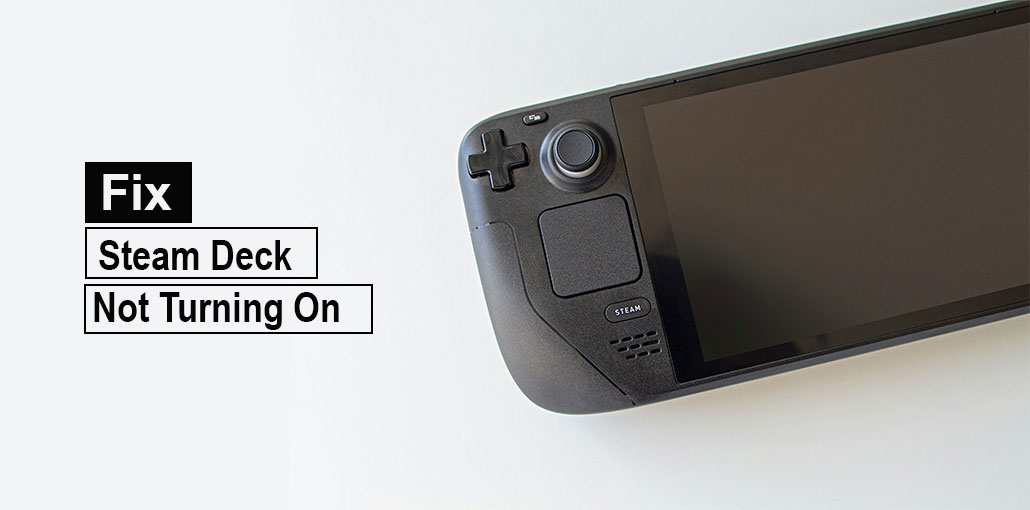
The ability to play games with your Steam account using the Steam Deck gives you the feeling of being free from desktops. However, when you find that the Steam Deck not turning on, it’s a complete pain. If you’d like to know how to turn this pity into awe-inspiring again, continue reading!
Steam Deck has revolutionized gaming. Steam Deck brings back the nostalgia of playing games with a handheld gaming console. However, this time you’re playing modern games, like Counter-Strike, Apex Legends, The Last of Us, and more. There’s no need for a gaming computer or Mac to play high-definition 3D games. It has Wi-Fi, so you can download either free or paid games using a Steam account, and play offline and online games. The battery is powerful and rechargeable, which allows you to play games for up to 8 hours.
All of these are exciting characteristics in the Steam Deck! However, as it is basically a computer in a smaller dimension (approximately 12 inches by 5 inches), it is prone to numerous PC issues that users encounter with desktops or laptops. A common and frequent issue is “Steam Deck not turning on”.
Before sending the console for repair to Steam’s authorized service centres, you can do the troubleshooting process to determine if you can resolve the Steam Deck not turning on issue. This will help you avoid paying additional costs and waiting long for Steam Deck repairs by a service center.
Why Your Steam Deck Wont Turn On? Possible Reasons
If your Steam Deck not turning on, there are a few possible reasons to blame it on:
- A recent OS-level issue could cause the hardware to access the required boot files.
- A software update was not working correctly; SteamOS applied a corrupted update file, and it’s incapable of resolving the problem.
- There’s no charge left on the battery. The charger adapter or wiring can be defective, and the Steam Deck may not be charging.
- The power button was stuck in its housing and could not transmit its click to the physical power off button on the Steam Deck motherboard.
Also read: How to Fix Steam Disk Write Error in 2025
How to Fix Steam Deck Not Turning On Issue
1. Inspect the Power Button
Steam Deck not powering on. There is a chance that there are obstructions in the buttons. If this is the case, pressing the power button will not start the device. Utilize a cleaning kit to remove any debris on the sides of the button. Then, try powering on the device. This will resolve the “Steam Deck not turning on” issue.
2. Charge Your Steam Deck
Another small issue that’s causing the Steam Deck not turning on is a low battery. There’s a possibility that the Steam Deck adapter is not working; it may be a wiring issue, or perhaps the USB connector isn’t working.
Replace the adapter for charging with a different one and recharge the gadget for between 30 and 60 mins. There should be an indicator that illuminates. This indicates that the charger is in charge. If you don’t see any LED, it means that the adapter’s power supply is defective. Thus, replacing the charging adapter is the best solution.
3. Cool Down the Device
If your Steam Deck overheats, it may be a reason behind the Steam Deck not turning on.
Here’s how it’s done:
- Remove all cable connections from the Steam Deck.
- When the Steam Deck is stuck on a blank screen, but there is a shining light at the bottom of the screen, it’s on.
- You must turn off your device using the power button (more than 10 minutes) till the display turns completely black and there’s no sign of lighting at the side of the screen.
- Then, let the device cool down a little.
- After pressing the power button softly, try to turn off the device.
4. Force Restart Steam Deck
If you encounter the “Steam Deck not turning on problem frequently. In this situation, take these instructions to reset your gaming console:
- Hold your power button for 3 minutes.
- If you’re not successful, continue pressing the button for 10 seconds.
- This will shut down the device immediately.
- Then hold the power button for a second time to turn on the device.
Also read: Why Is My PS4 Controller Not Connecting? 6 Easy Fixes Guide
5. Rollback SteamOS Update
If your Steam Deck not turning on following a game installation or software update, or an app installation that fails, try these steps to restore SteamOS:
- Confirm that your Steam Deck is off and the screen is black.
- Press and hold your power + Ellipses keys to hear a quick click sound.
- Release the power button, then press the Ellipses button.
- Then, you’ll be able to see the list of SteamOS images or restore points right in front of you.
- Select the right option and then continue to power on.
- The Steam Deck should come back to the home screen and start working.
6. Manually Select the Boot File
The Steam Deck won’t turn on if it doesn’t recognize the boot file. This is a minor glitch, and simply navigating to the correct boot file can resolve the issue completely. and building healthy habits are the steps you should follow to choose your SteamOS boot the files manually
- Locate the Volume Up along with the Power on key on your phone.
- Press these keys until you can see your boot menu.
- The Boot menu has four icons that perform the following purposes:
- Continue to use current settings
Boot Manager
Boot From File
Setup Utility - Choose Option 3. Select the boot from file option.
- You should now be able to see your File Explorer screen on your Steam Deck.
- Click to open the ESP file from the left-hand menu.
- You are now in your EFI directory.
- Within the EFI folder, tap on the SteamOS directories.
- If you are inside the SteamOS directory, click on the STEAMCL.EFI file.
That’s it! The Steam Deck boot-up system will detect the appropriate boot file and reboot the device to your home screen. After trying this method, maybe your Steam Deck not turning on problem will be solved.
7. Recover SteamOS
If you find your Steam Deck not booting, and none of the solutions above will help, you may reinstall your Steam Deck Image. This is what you should do:
- Get the Steam Deck Image from Steam for free.
- Get a USB stick of 8GB or more. Paste and copy the contents of your USB stick elsewhere, as you need to modify the USB stick to create the SteamOS bootable disc.
- Use Rufus for Windows 11/ 10 and balenaEtcher for Mac to create a bootable USB disk with the downloaded Steam Deck Image.
- Then, turn off the Steam Deck completely.
- Then connect the USB bootable disc to your Steam Deck. It may be necessary to use a USB-A or USB-C adapter to connect to the USB stick.
- Press the Power on + the Volume Up buttons together to open the Boot menu. There, tap Boot Manager.
- Press and hold the power on + Volume Down keys until you directly enter the boot manager screen.
- You can boot from the Boot Manager. Boot Manager will show an option that looks like this: you can start using your EFI USB device.
- Click this option to set up your USB stick to serve as the directory of origin for the boot file.
- Steam Deck will start reinstalling the SteamOS from the bootable USB disk.
- Wait until the Steam Deck comes to the home screen.
Also read: Top 10 Steam Alternatives For PC Gaming
8. Remove and Reconnect the Battery
If battery connectivity is the reason behind your “Steam Deck not turning on” issue, and you want to fix it, unplug and then plug in the batteries of your device. Because the Steam Deck does not have a removable battery, you have to open the Steam Deck.
You can follow the steps below if you’re comfortable with opening the cover on the back of the unit. If you’re at ease and don’t possess the necessary tools to accomplish this, don’t use this technique. If you’re interested in giving this a go in your discretion, try these steps:
- Take a suitable screwdriver to loosen all screws on the back of the Steam Deck cover.
- Then, take off the cover.
- Remove all screws on the battery cover.
- After the cover, the battery connector and the battery itself are exposed.
- The connector is a small, dark-colored plastic with eight pins.
- Use your nails carefully to remove the connector.
- Then, press and hold the Steam Deck Power button for 10 seconds to remove any static electrical charge on the motherboard.
- Place the battery connector back in the appropriate socket
- Install the battery cover on the battery and secure it with screws.
- Additionally, remove the Steam Deck cover and fasten the screws.
- Then connect the adapter for charging and let the device charge for 10 minutes.
- Hold the Power button until you turn on your Steam Deck and start gaming.
You shouldn’t do the steps mentioned above without dissolving the static electric charge on your body. To do this, contact a metal that is connected to the ground or wall. The metal’s surface must be clean and free of paint or other insulated coatings. You can use an anti-static strap to prevent static electricity from damaging the Stem Deck motherboard.
Steam Deck Not Turning On — Quick Recap & Next Steps
Here are some of the simple and quick troubleshooting options you could try in case you encounter problems with your Steam Deck not turning on. If your device isn’t booting up despite trying the solutions, then you should contact Steam Support. Be sure to include any other suggestions in the comments section that you believe would aid.
FAQs about Steam Deck Not Turning On
How do I force restart a Steam Deck that won’t turn on?
Press and hold the Power button for 10–15 seconds, release it, wait a few seconds, and press the Power button again.
Does overheating stop the Steam Deck from turning on?
Yes. If the Steam Deck overheats, it may shut down and refuse to power on until it cools down completely.
Steam Deck stuck on logo and won’t turn on fully—what’s the fix?
This is usually a boot-loop issue. Enter BIOS and manually select the SteamOS boot file or reinstall the OS.
Will reinstalling SteamOS delete my games and data?
Reinstalling SteamOS may remove local data, but cloud saves linked to your Steam account remain safe.




Leave a comment