

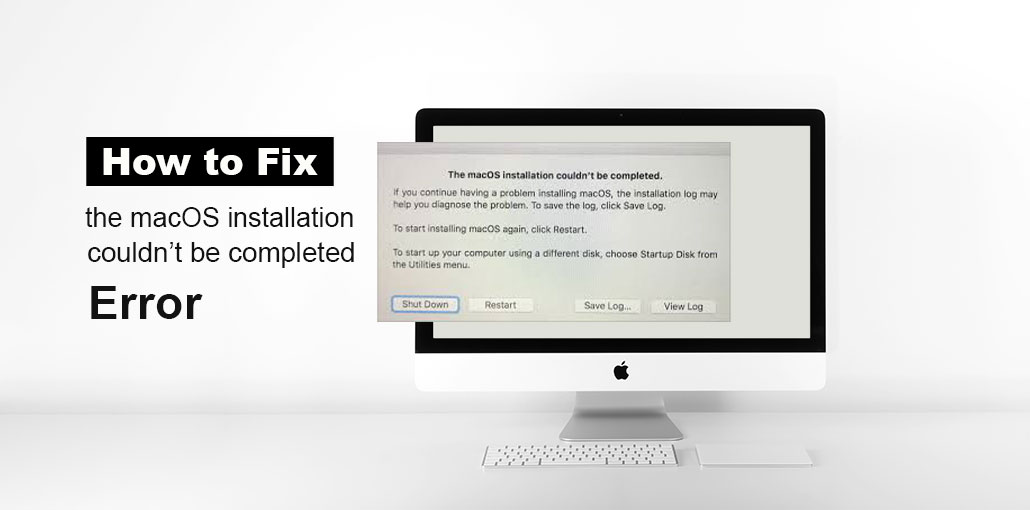
If you receive the error message “the macOS installation couldn’t be completed” while trying to upgrade macOS What should you do to resolve the problem? It’s simple to resolve it by following the steps below. Let’s take a look.
What Does “The macOS Installation Couldn’t Be Completed” Mean?
macOS is a trusted operating system from Apple, and keeping macOS current is essential, particularly if you wish to keep your Mac secure. But any operating system will encounter problems. According to users they have encountered, The macOS Installation Couldn’t Be Completed on their Mac while trying to upgrade the system.
On your computer screen, you’ll see a warning error, “the macOS installation couldn’t be completed”. Then you’re asked to start installing macOS again or choose an alternative disk to start up your Mac.
What is the Reason macOS could not be installed on Your Computer?
Several issues can prevent macOS from completing the installation. Most causes are related to disk storage, network connectivity, or a corrupted installer file.
- Corrupted macOS installer files
- Insufficient free storage space on the Mac
- Unstable or interrupted internet connection
- Disk errors within the APFS volume
- Incompatibility between macOS version and Mac model
- Interrupted or incomplete installation process
- Temporary issues with Apple software update servers
Also read: Your System Has Run Out of Application Memory on Mac? 11 Easy Fixes
Important: Back Up Your Data First
Before you take steps to fix the macOS installation failed issue, it’s best to back up your data to avoid incidents. If your Mac boots normally, you can use Time Machine to do this work.
If your Mac is stuck with a macOS installation error, then you can restore important data from the Mac using the most reliable Mac data recovery software.
After you have completed the data backup or recovery It is now time to solve the installation problem.
How to Fix the macOS Installation Couldn’t Be Completed Error
1. Restart Mac in Safe Mode
The first thing you can do is to follow the steps below:
- Restart your Mac.
- If the machine begins to restart, keep holding down the shift key.
- If you can see an Apple logo, release the button.
- Your Mac will be in safe mode. Open the App Store and install the update to check whether the issue is resolved.
2. Start up Your Mac Using Startup Manager
Another option to try is to boot your system with Startup Manager. This lets you select an initial disk to boot from, and the Mac will boot from that disk.
- To complete this task, restart your Mac.
- When it starts booting, press and hold the Alt key.
- In the Startup Manager interface, choose your primary disk, typically Macintosh HD.
- Select it, then press Enter.
- After that, you can update your macOS and check whether the issue is resolved.
3. Repair Your Disk
If the files that are associated with the Mac update are damaged, then you may encounter the message “the macOS installation couldn’t be completed” might occur. To resolve this issue, repair your disk by using Disk Utility. This utility can assist in fixing the damaged or missing system files needed to load the system.
- Restart the Mac Press and hold both the Command and R keys until the Apple logo appears.
- Open Disk Utility
- Select your startup disk
- Click First Aid and run the repair process
- Once completed, restart and try installation again
4. Install macOS Combo Update
If your macOS installation has failed, you can try this Mac combination update. Simply visit the Apple website, find the update you require, and click on download. Then, install the update, and verify that it’s finished.
5. Reinstall macOS Using Recovery Mode
If these options fail to solve the error, you can try reinstalling macOS with Recovery Mode.
- Start your Mac by pressing and holding the CMD + Option + R keys until you can see your Apple logo.
- If the macOS Utilities window appears, select Reinstall MacOS to proceed.
- Follow the on-screen instructions to complete the operation. After that, update macOS once more.
Also read: MacBook Won’t Turn On? 7 Powerful Methods to Start It Again
6. Reset PRAM/NVRAM
PRAM/NVRAM has various settings and preferences on your Mac, including the screen brightness, the sound volume, and display resolution. Any issue related to PRAM could also prevent the macOS installation couldn’t be completed.
You can reset your PRAM when you restart your Mac by pressing Option + Cmd +P + R. Press these buttons until you can see an Apple logo.
When to Contact Apple Support
If you still see the macOS installation couldn’t be completed error after all steps:
- Your drive may be failing
- Or there may be firmware-level issues
At this point, contacting professional support is best.
You can reach out to Apple Support or visit an authorized service provider.
How to Prevent This Issue in the Future
- Always keep at least 20–30 GB free space
- Download macOS only from official sources
- Avoid interrupting updates
- Keep a stable internet connection during installs
- Regularly run Disk Utility First Aid
Ending Notes
Are you annoyed by the error message “the macOS installation couldn’t be completed”? Do not worry now, as you can fix this issue by trying the suggestions above. Follow these steps!
FAQs: The macOS Installation Couldn’t Be Completed
Why does my Mac say “The macOS Installation Couldn’t Be Completed”?
This usually happens due to insufficient storage, a corrupted installer, disk errors, or an unstable internet connection during the update process.
Can I fix this error without losing my data?
Yes, in most cases you can fix the issue without data loss. However, it is always recommended to back up your data using Time Machine before trying any fixes.
What should I do if macOS installation gets stuck?
If the installation is stuck, try restarting your Mac, booting into Safe Mode, or using Recovery Mode to reinstall macOS.
How much free space do I need to install macOS?
You should have at least 25–30 GB of free storage to install or update macOS smoothly without errors.



Leave a comment