

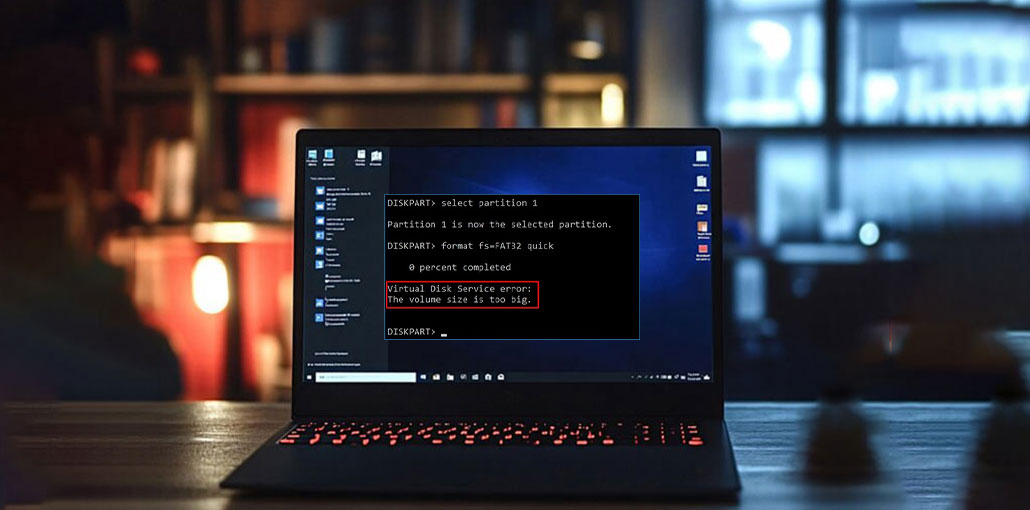
Windows users have experienced differnt type of virtual disk service errors that hinder their use of storage on the computer.
In this article, we’ll discuss what virtual disk services are and the reasons you may encounter errors. We will also discuss some solutions to solve the Virtual Disk Service error without hassle. Let’s begin with the fundamentals.
What is Virtual Disk Service?
Virtual Disk Service (VDS) is a Windows API for disk management systems and hard disk memory. It offers information about the virtual disk in the system and allows you to change its size and volume according to your needs
It was released on Windows OS in 2003. Its main goal was to replace the disk utility tools from various manufacturers and manage the storage with a native all-in-one program. However, it was subsequently discontinued when Windows 8 was released. Windows 8.
The API provides a variety of tools and solutions, which include DiskPart, DiskRAID, and Disk Management. With all of these features, you can manage partitions and alter them to suit your needs.
Why Are You Getting a Virtual Disk Service Error?
There are many reasons for a virtual disk service error, for example:
VDS is closed in the background. This means you use it even if it gives you an error. It should operate in the background to ease disk management.
Corrupted Security description for the VDS registry key. This could result from an app or program conflicting with.
VDS Dynamic Link Library is corrupted or deleted
Incompatible disk or hard drive
Also read: 10 Free Disk Cloning Software for PC & Laptop Users
How to Fix Common Virtual Disk Service Errors
Let’s take a look at the most frequent DiskPart virtual disk service error and what you can do to fix DiskPart errors.
1. The Volume Size is Too Big
If you attempt to format your drive FAT32 with DiskPart and you encounter this error. This is caused by FAT32’s limit, and if it is exceeded, you won’t be able to format the drive.
Solution:
The easiest way to resolve this problem is to choose the file systems you prefer, like EXT2, NTFS EXT2, EXT3, exFAT, and so on.
Step 1: Open Device Management.
Step 2: Right-click the disk that you want to format. There are a variety of choices. Click Format.
Step 3: Choose a file system other than FAT32 and select OK.
Another method to resolve the problem is to Shrink Volume. It reduces the volume, and you can format it using FAT32.
Step 1: Open Device Management.
Step 2: Right-click on the drive and click Shrink Volume.
2. Clean is Not Allowed on the System Disk
This is another disk management error that users face. It occurs when you attempt to clean your system disk with DiskPart. It is not permitted to clean a system disk because there won’t be an alternative method to boot the system once you clean it. Therefore, you’re not permitted to do this.
Solution:
The best solution to this issue is to develop a bootable drive. You can use a USB flash drive to create a bootable drive. After you boot the external drive, you can clear the system partition without encountering any issues.
Another method to install Windows on another drive and start the system from that drive. You can then cleanse the old drive system.
The trick is to create a bootable option initially before formatting the drive. Once you have a bootable drive, follow the steps we discussed earlier to create a format the drive.
3. Not Enough Usable Space for This Operation
This error is displayed when you attempt to create a partition, and you don’t have enough space for it. To do this, you have to have unallocated space to assign to this new partition.
Solution:
You can shrink a partition to make more space. You can reduce multiple partitions.
Step 1:Open Device Management.
Step 2. Right-click the partition that you wish to shrink.
Step 3: Click Shrink Volume.
4. The Service Failed to Initialize
If the Virtual Disk Service does launch without delay but fails to begin initializing it, you’ll get this error.
Solution:
Manually start the Virtual Disk Service.
Step 1: Type Windows Services in the search bar.
Step 2: Search Virtual Disk Service, then double-click it.
Step 3: Next, go to Start and then open Virtual Disk Service.
Also read: 10 Best Hard Drive Repair Software to Fix Errors and Recover Data
5. There is No Media in the Device
If you see this error when accessing media, its mean there is a problem with the drive, or the media request failed to load.
Solution:
If you’re trying to access media from an external drive, unplug the drive and then connect it again. Try another port this time, and you’ll not be able to connect to the virtual disk service error. If the media is working, then there may be an issue with the first port.
If you’re still seeing the error message, you may upgrade the driver to fix the issue.
Step 1: Go to Device Manager.
Step 2: Click Disk Drives.
Step 3: Right-click the drive responsible for causing this problem.
Step 4: Click Update Driver. Follow the instructions to get the most recent driver.
Preventing Virtual Disk Service Errors
To avoid future issues, follow these best practices:
- Always safely eject external drives
- Regularly scan disks for errors
- Keep your system and drivers updated
- Avoid interrupting disk operations
- Use reliable storage devices
Final Words
A Virtual Disk Service error can create hindrances in managing your storage. You aren’t creating new partitions, modifying volumes, or performing other tasks. We’ve discussed some of the most common Virtual Disk Service errors along with solutions. You can attempt to fix this issue by following the steps.
FAQs: Virtual Disk Service Error
What is a Virtual Disk Service error in Windows?
A Virtual Disk Service error occurs when Windows fails to manage disk operations like formatting, partitioning, or initializing a drive due to system or hardware issues.
How to fix “Clean is not allowed on the disk” error?
You need to boot your system from a USB drive or another disk because Windows does not allow cleaning the system or boot disk while it’s in use.
Can I fix Virtual Disk Service error without losing data?
Yes, most errors can be fixed without data loss by using safe methods like disk checking, driver updates, or enabling services.
How do I fix DiskPart Virtual Disk Service error?
You can fix it by running DiskPart as administrator, enabling Virtual Disk Service, removing write protection, or checking the disk for errors.





Leave a comment