

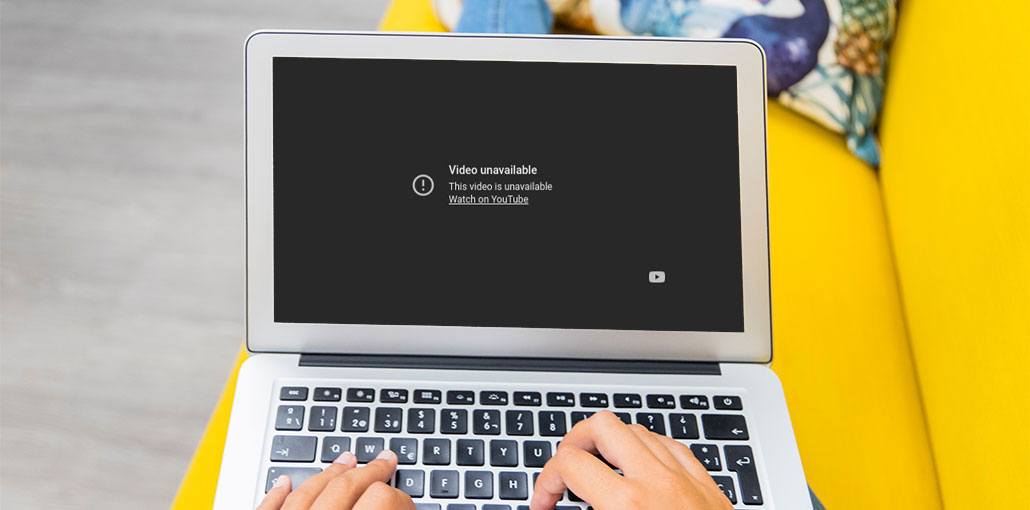
Have you ever attempted to play a YouTube video only to have the unwanted message “This video is unavailable “appear? If yes, you’re not alone. It’s a painful experience that numerous YouTube users have had to endure at some point. In this article, we’ll discuss the most common reasons for the YouTube video unavailable issue and the best solutions to fix it.
Common Causes of YouTube Video Unavailable Error
Here are the main reasons why you may see YouTube video unavailable error:
- The video has been removed due to copyright violations
- The video is restricted in your country (geo-blocking)
- There is a network issue on your device
- The video is set to private by the creator
- YouTube servers may be temporarily down
In the present, it isn’t important what caused the errors, because sometimes, the problem may also be related to account access or device activation. Before jumping into the other fixes, you can first fix the YouTube login activation issue.
In this article, we’ll show the nine best methods to get rid of your ” YouTube video unavailable” error. You can now stream your favourite videos with no interruption.
Also read: YouTube Not Loading? 8 Quick Fixes to Get Videos Working Again
How to Fix YouTube Video Unavailable Error
1. Refresh the Page or Restart Your Browser
If you see a message that says “YouTube video unavailable,” or “this video is unavailable in your country,” or “this video is unavailable on this device” on the screen, first try refreshing your webpage. This is because, due to a network issue or a poor internet connection, the message will be displayed many times. The issue persists. Try closing the browser, then opening it again. Try searching with the same keywords, and then see if the error message is the same video.
2. Use a VPN for Geo-Restricted Videos
Using a VPN is the best method to safeguard your online privacy. I’ll tell you that using a VPN can remove the blockage that is your Internet Protocol, which prevents you from viewing the video you’ve searched for but isn’t available at your address. It blocks an IP address on your device, and at the same time, gives you a different IP address, originating from a country that is not your own. It will appear as if you’re accessing a specific website from a location that is not yours.
To resolve the issue completely, it is recommended to install and download a VPN Client that fixes problems like the ” video is unavailable on this device” issue.
3. Disable Hardware Acceleration
According to the research, there’s a hardware acceleration feature on your device that’s responsible for showing messages such as “this video is unavailable on this device”. It allows the GPU to render videos on your device and reduces the CPU usage on your web browser. It is a useful feature, but it can cause a variety of issues. To prevent and solve the” YouTube video not available ” error message on YouTube or on the device, you should disable the feature.
- Open browser settings
- Go to Advanced settings
- Find System settings
- Turn off “Use hardware acceleration when available.”
Restart your browser and check if the issue is resolved.
4. Clear Cache and Cookies
If the cache you have installed was damaged, it could display” This video is unavailable” on this device. A corrupted cache on your device or browser can cause issues, as it stores temporary data. However, you can fix the problem by clearing the cache on your device or phone using the steps listed below.
- Open browser settings
- Go to Privacy & Security
- Click Clear browsing data
- Select cache and cookies
- Confirm and restart the browser.
5. Change Video Quality
In other instances, the “this video is not available on this device” message may be due to its quality. chosen. If the source of your Internet isn’t suitable for Full HD video, or if you have hardware issues, you won’t be able to play the video and see this message.
- Open the video
- Click the Settings (gear icon)
- Select Quality
- Choose a lower resolution (e.g., 360p or 480p)
6. Disable Browser Extensions
Installing a variety of extensions for your web browser can improve speed and performance. Certain web browser extensions can result in the error message: YouTube video unavailable.
You must fix this issue to do that. It is suggested Disable all extensions in your web browser and then check whether there is a problem. Take these easy steps:
- Go to browser extensions
- Disable all extensions
- Restart the browser
- Enable them one by one to find the problematic extension
Also read: YouTube Black Screen? How to Fix YouTube Not Playing Videos Quickly
7. Reset Browser Settings
The web browser or settings could affect the video’s visibility. It could pop up with a message that says the video is unavailable. Try resetting Google Chrome or your default web browser, since configuration problems could lead to issues videos not available on YouTube. It’s very easy, however, remember that setting your default settings in Chrome will erase all of the extensions you have previously installed, bookmarks, and history. You can enable the sync feature to prevent these settings from being lost or take backups.
Follow these easy steps to alter the default settings for your browser:
- Open Settings and Go to Advanced
- Find the reset button and click it.
8. Reinstall Your Browser
If you’re still getting a message this video is not available in your country, or this video is unavailable on this device, you can fix the video by resolving it as a not available error for YouTube or your device by reinstalling your browser. Sometimes, your browser could be causing the problem because the installation files become damaged. It can also create a variety of other errors. There are numerous ways to install an application, but the proper approach will give us the desired outcomes quickly. You can pick any you are familiar with, but with a good uninstaller program, you can reinstall any program flawlessly.
9. Try a Different Browser
If you are constantly getting the same error YouTube video unavailable, changing your browser could resolve it. Sometimes, a browser can interfere with the video stream we wish to stream, not only with changes to settings. You could try an unblocked browser like Opera or Tor to see whether the video is available.
If you’re experiencing the same issue, it could be a problem with the YouTube server or the PC’s settings. You can wait a few minutes, then check if the video is playing. Although it’s the most annoying issue when trying to watch a movie quickly, this is a solution to try for the YouTube video unavailable error.
Ending Notes
“YouTube video unavailable ” is a frequent YouTube error that thousands of users face each day. However, it’s not the most serious technical issue you can fix on your own. All you need to do is follow the solutions and then play the videos unavailable on your device.
FAQs: YouTube Video Unavailable
Why is YouTube video unavailable on my phone?
This issue can occur due to poor internet connection, outdated app version, corrupted cache, or device compatibility problems. Updating the app or clearing cache often fixes it.
Does using a VPN fix YouTube video unavailable?
Yes, a VPN can help if the video is blocked in your region. It allows you to access content by changing your virtual location.
What does “This video is unavailable on this device” mean?
It means your device may not support the video format or resolution, or there may be compatibility issues with your browser or app.
How do I fix YouTube video unavailable on smart TV?
Make sure your YouTube app is updated, check your internet connection, sign out and sign back in, or reinstall the app. Also, ensure your TV software is up to date.
Can I download an unavailable YouTube video?
No, if a video is unavailable, it cannot be downloaded. You’ll need to find an alternative source or similar content.





Leave a comment