

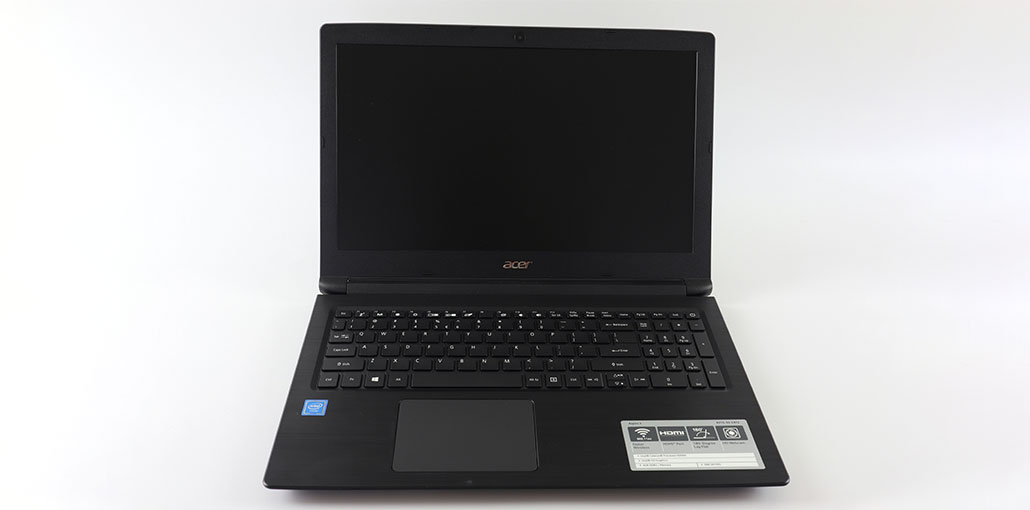
If your Acer Laptop Won’t turn on, what can you do? In this article, we discuss some possible causes and troubleshooting solutions.
My Acer Laptop Won’t Turn On (Windows 11/10)
Most people use Acer laptops for their elegant design, top-quality performance, reasonable prices, and the latest features.
Sometimes, however, your Acer laptop won’t turn on, and you are frustrated. To understand this issue more in depth, let’s look at the common symptoms:
- Acer laptop won’t turn on with a black screen
- Acer laptop won’t turn on, but blue light flashes
- Acer laptop won’t turn on with no lights
- Acer laptop won’t turn on unless plugged in
- Acer laptop won’t turn on, but orange light is on
- Acer laptop turns on and then shuts off immediately
- Windows 11/10 fails to boot
Common Reasons Why an Acer Laptop Won’t Turn On
The causes of this issue can be a variety of things, such as the failure of a battery/charger, damage to RAM, static charge buildup on capacitors, dry-up thermal paste in Sleep/Hibernate mode that is stuck, internal hardware malfunction, problems with overheating, incorrect BIOS settings, and some software problems.
What is the best option if your Acer is not turning on? From the next sections, you will learn how to retrieve data quickly and get some helpful ways to troubleshoot it. We’ll now explore the details.
Also read: Blurred Screen on Laptop? Easy Troubleshooting Guide for Windows 10
How to Fix an Acer Laptop Won’t Turn On
1. Check BIOS Settings
Your Acer Laptop Won’t Turn on Windows. This could be due to the Windows operating system or certain operations, such as incorrect BIOS settings. To resolve the issue, visit the BIOS menu and review.
- Restart your Acer laptop, and then press the F2 key when you see the initial logo appear to access the BIOS.
- Within the BIOS Menu, ensure that your PC is set to boot from your primary drive under the Boot tab.
Besides, disable Fast Boot under Main. You can also choose to restore BIOS to factory settings by pressing the F9 key and entering to load the configuration you want to use. Exit > Load Setup Defaults > Yes.
If none of these fixes the Acer laptop won’t turn on, you can try some solutions using Safe Mode.
2. Boot into Safe Mode
If you can access the BIOS but the Acer laptop won’t turn on, the problem could be in the software, specifically, the operating system. For instance, updates go awry, if they fail or system files are damaged, incompatible software can cause the computer to shut down or freeze. You can then use the Windows boot options in WinRE and boot the computer into safe mode for troubleshooting.
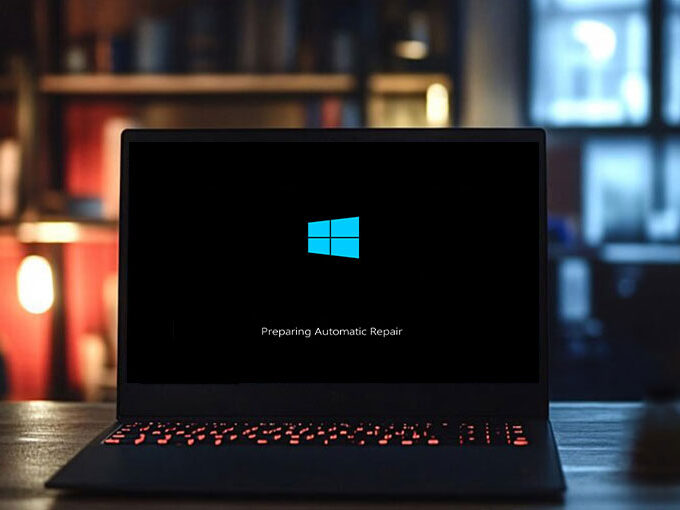
- Restart your Acer notebook several times until you notice the Acer Logo screen. After that, Windows 10/11 will enter the Automatic Repair mode. Select Advanced options on the Automatic Repair screen.
- Select an option> Troubleshoot > advanced choices.
You may click on the Startup Repair button to resolve issues that stop Windows from loading. - Go to Startup Settings > Restart and press F4 to enter Secure Mode and F5 to activate Secure Mode using Networking.
4. If your computer can be put into Safe Mode, make sure you undo any recent changes you made in the settings on your Acer laptop. You can also open Command Prompt and run the command sfc /scannow to repair damaged system files.
3. Perform a Power Reset
Sometimes, your laptop may enter sleep mode, and you’re not sure. Pressing the Power button will help exit this mode. If this does not start the device, try long-pressing Power to restart it.
If this method isn’t enough to resolve the issue, the problem persists. The Acer laptop won’t turn on. Follow these steps to reset power to the Acer laptop:
- Disconnect any external devices that are connected to your computer, including docking stations, USB hard disks, external drives, printers and scanners, a mouse or keyboard, or other peripherals.
- Use a screwdriver to remove all screws on the back panel of your laptop. Then, open the back casing and remove the battery. Also, unplug your AC adapter.
- Hold and press the Power button for 30 seconds to draw out any residual electricity, then release the button.
- Reassemble everything, reconnect the charger, then open the laptop and check if it turned on.
If none of these fixes work, the startup issue may be related to your PC hardware. Read on to learn how to solve the issue of Acer laptops that aren’t turning on with other solutions. If you’re not a computer user with many computer skills, get assistance at Acer’s customer service center. Acer support center.
4. Check the Battery and Charger
Sometimes, your charger or battery fails, resulting in Acer laptops not powering on. To determine if the charger is faulty, you can perform an energy drain as described above. After that, plug the battery in, but do not connect a power cable. Then, try opening your laptop. If the laptop is working, then your battery and laptop function exactly as you expect. This is also a sign that the power cable is damaged, and you must replace it with a brand new one.
To diagnose your battery’s issue, perform the power drain, then do not insert the battery; however, connect the device to a power supply. After that, you can restart the device. If your laptop can boot up, your battery may be malfunctioning.
5. Reinsert the CMOS Battery
On the laptop’s motherboard, there is a small circular CMO battery. It’s a good choice for power to the BIOS (basic input/output system) to manage the laptop’s fundamental functions. If your CMOS battery is not functioning properly, that could be the reason your Acer laptop won’t turn on.
Therefore, you can try reinstalling this battery by following these steps:
- Open the laptop’s back case, find the CMOS battery, and remove it from the motherboard.
- After a couple of seconds, connect the battery to your laptop. Make sure that it is seated in the correct position.
- Reassemble the back plate and turn on your Acer laptop to check whether it’s working.
6. Let Your Laptop Cool Down & Clean
There are instances when you may encounter the CPU overheating. Overheating issues in computing can be serious, as your PC may fail to function properly. If an Acer laptop overheats, it may shut down or not turn on.
If your Acer laptop won’t turn on, then wait a few minutes for it to cool down. After that, try turning it up to see if it can boot.
Also, ensure the cooling vents on your laptop aren’t blocked and clean the dust and dirt. Dust can build up and block airflow, leading to overheating in your laptop. Cleanse the laptop using compressed air.
Also read: MacBook Won’t Turn On? 7 Powerful Methods to Start It Again
7. Change Thermal Paste
There is dry-up heat paste on your CPU. In this scenario, there is no way to transmit heat away from the CPU to the heatsink. This causes the Acer laptop to become overheated. This causes the computer to shut down itself and not turn on for several hours.
To fix the Acer laptop not turning on issue, replace the thermal paste
- Unlock the case that is on the back of your laptop.
- Unplug the power cord and then remove the battery.
- Disconnect any cables connecting the motherboard to the fan, and then remove the heatsink to access the CPU.
- Cleanse the thermal paste previously applied to the CPU chip and the heatsink.
- Apply the new thermal paste.
- Reassemble all the parts you’ve removed, and turn on your PC to test if it boots up.
8. Check Your Monitor
There are times when you’ll encounter situations like an Acer laptop that isn’t turning on, even though it has a power indicator. In this instance, your computer may be working, but the monitor or screen fails to work. If that happens, connect your laptop to an external display to verify. You can also adjust the volume and check whether you hear the beginning sound of your laptop on an unlit screen. If yes, then the screen is not working properly.
9. Check Your RAM Stick
It is important to note that defective RAM sticks may block the motherboard from communicating with the Windows system. In this situation, the PC cannot perform the fundamental task of turning on. The computer may be powered on for a few minutes before shutting down, without passing the POST (Power-On Self-Test).
Check RAM sticks if your Acer laptop will not turn on: remove the laptop’s back case, remove the RAM sticks, then test one at a time. If a defective RAM stick is present, your laptop can turn on, but cannot complete POST. If your laptop has only 1 RAM module, install a RAM module of a different model to verify.
Wrap up
Acer laptop not turning on is a frustrating problem. If your Acer laptop won’t turn on, ensure you back up your files to a secure location to protect your data, and then try to find a solution fix it. If you’re lacking computer skills, you could directly ask a professional for assistance.
FAQs: Acer Laptop Won’t Turn On
Why won’t my Acer laptop turn on?
Your Acer laptop may not turn on due to a dead battery, faulty charger, hardware issues, overheating, RAM failure, BIOS misconfiguration, or software/system errors.
How long should I wait if my Acer laptop won’t turn on due to overheating?
Wait 15–30 minutes until the laptop cools down. Ensure vents are clear of dust and that fans are functioning properly before trying again.
How do I fix an Acer laptop that won’t turn on?
You can try simple fixes such as checking the power supply, performing a power reset, booting into Safe Mode, checking BIOS settings, testing the battery and charger, reseating RAM, or cooling down the laptop.
Can I fix an Acer laptop that won’t turn on at home or do I need professional help?
Many issues like power reset, battery check, BIOS settings, or Safe Mode fixes can be done at home. Hardware failures like motherboard or CPU damage require professional repair.





Leave a comment