

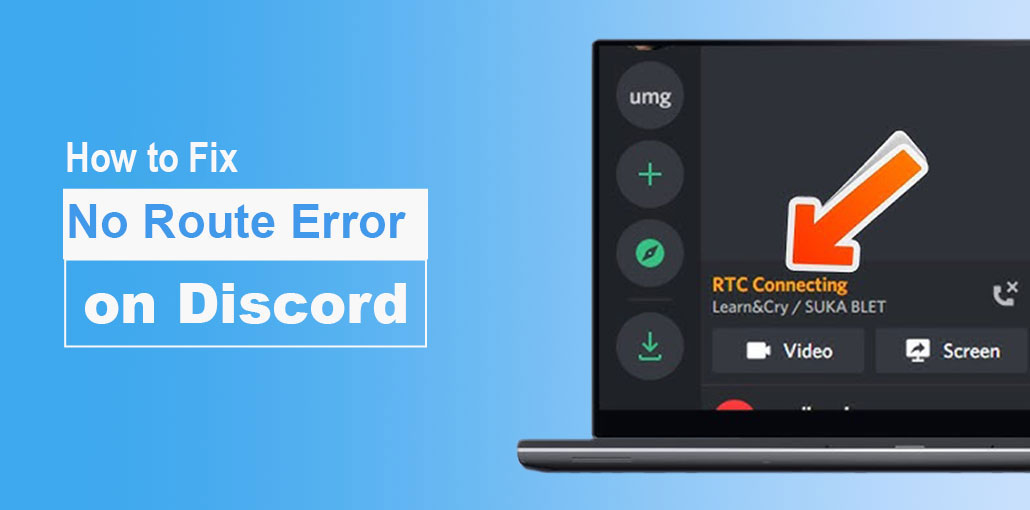
Many users have reported the Discord No Route or Real-Time Chat (RTC) Connecting error when trying to connect to an audio channel. These errors can occur when you’re using the Discord desktop application.
We tried different solutions and have listed some steps to resolve the Discord No Route problem. The main cause of this issue is a network restriction preventing the client’s Discord services from connecting to servers.
If you’re using the VPN or connecting to the network through restrictions enforced by the network administrator, these methods will assist you in finding the right solution to fix your issue
What Causes the Discord No Route & RTC Connecting Error?
The Discord No Route error is almost always related to network configuration issues. Below are the most common root causes:
1. Dynamic IP Address Issues
Most routers use dynamic IPs that change periodically. Discord may fail to sync with the updated IP, causing connection errors. Restarting your system and router usually fixes this.
2. Firewall or Antivirus Blocking Discord
Third-party antivirus software or Windows Defender Firewall may block Discord’s network traffic if it’s not whitelisted.
3. VPN Without UDP Support
Discord requires UDP (User Datagram Protocol) for voice communication. VPNs that don’t support UDP will trigger the No Route error.
4. Network Restrictions by Admin
School, office, or public Wi-Fi networks often block Discord due to bandwidth or policy restrictions.
5. Incorrect Voice Server Region
If the voice server is hosted far from your location, latency issues may prevent proper connection.
6. QoS Not Supported by Your Network
Discord’s Quality of Service (QoS) feature may conflict with some networks, causing routing failures.
Also read: How to Stream Netflix on Discord: Easy Setup Guide
How to Fix No Route Discord Error?
Once you have a clear understanding of the main causes, I’ll walk you through various methods to resolve your Discord No Route Error.
However, before you do so, ensure you’re using a private network and not on a Public network. If you’re on an open network, we’ve listed the best solution to fix the issue.
Let’s now take a look at the solutions one by one.
1. Restart Your Machine and Modem/ Router
As a first step, you can close Discord and then shut down the system. If Discord’s No Route Error kept showing up because of uninitialized backend services, it will be fixed during initialization.
When your system is shut down, you can turn off your router or modem by unplugging it or switching off the power button. Then, turn it back on. This will replicate the power interruption scenario and will reboot your WiFi/LAN.
Then, restart your system, open Discord, and verify whether the issue has been resolved.
2. Allow Discord Through Windows Firewall
The Windows Defender Firewall looks out for malware programs trying to steal information or corrupt your system. In some cases, your firewall may disable certain Discord services, which can lead to the Discord No Route problem.
At the top left, you will see the option to allow an app or Feature to access Windows Defender Firewall. Click the link.
A window will pop up asking you to select an app that you would like to let via Windows Firewall. To do so, click on Change Settings. You may need to sign in to your admin account using your administrator credentials.
There is an Apps list with two checkboxes to select Public and private networks.
Browse through and search for Discord within the app list, and then mark both the Public and private checkboxes. So, regardless of the kind of network you’re on, Discord will work as is expected.
If you’re using an antivirus software such as Avast, it is a good idea to whitelist this application from your Firewall too. Start Avast and then click on the Protection tab and choose Firewall.
You will find several applications. To join Discord, simply click the Application Settings link, and then select Discordfrom the list of applications installed.
Give your system a restart and then open Discord.
3. Disable VPN or Use VPN With UDP
Discord doesn’t communicate with VPNs that don’t utilize UDP (User Datagram Protocol). You can check with your provider about the use of UDP.
In this case, while using Discord, you must keep the VPN’s Anonymity Service disabled.
You can also visit Network Connection, click on the VPN provider, and disable it. This will eliminate any obstructions to Discord’s services and fix the Discord No Route error.
You can also switch to a different VPN service using UDP to protect your privacy.
4. Bypass Restrictions by Network Admin
If you connect to the school network and other establishments, Discord may be blocked by the network admin due to their policy. They could also decide to ban it because of Discord’s characteristic of stealing bandwidth.
In such a situation, there’s an option to get around the limitations.
- Connect to Network Sharing and click on the Internet Connection hyperlink.
- Your current network status will be visible on the screen. Click on the PropertiesbuttonThe TheThe
- Properties window should be opened. You will be able to see the list of items that are used in connection with it. Look across the page, type in Internet Protocol Version 4 (TCP/Ipv4) and click the next checkbox.
- Click on the Propertybutton.
- In the TCP/Ipv4 pop-up, check the “Use the following DNS server address” radio button.
- Under the Preferred DNS server, enter “8 8 8 8.”
- Under the Alternate DNS server, enter “8 8 4 4.”
- Deletingthe “Validate settings upon exit” checkbox. Click OK.
- Restart your computer for the configuration to start. Then start Discord.
Also read: Discord File Size Limit: How to Send Large Videos Easily
5. Choose a Nearby Server Region
If the Region of your Voice Server is quite distant and from a different continent, you may be experiencing lag, which could cause Discord No Route. Discord No Route problem. The solution is to change the Server Region that is near your location.
If you’re the Administrator for this Voice Channel, you can start immediately. You must ask the administrator to make the necessary changes.
To change the Voice Region, open the settings menu for the channel with Discord No Route. Discord No Route problem. Choose Overview. On the right, you’ll be able to see the list of Server Regions, which you can select from.
Select Change and choose the nearest server region. Once you’ve done that, request that all your members quit and rejoin the channel to ensure that everyone can check whether the changes are affecting their connection.
6. Disabling QoS
Quality of Service (QoS) is an application that lets data packets be prioritized across the network. Discord makes use of this service. Some computers may limit or not support the service.
In this situation, you can disable QoS on Discord.
Start Discord and go to the Voice Channel that is throwing the error. Click on the Settings icon.
In the App Settings, select the Voice and Video tab. On the right side, you’ll find the Quality of Service toggle button. Disableit.
Connect to Discord after restarting it and reconnect. This should resolve the Discord No Route error.
7. Flush the DNS Settings
A few people have claimed that changing their IP configuration solved their Discord No Route problem. For certain users, this was a single-time fix, whereas others have said that they needed reset their IP address each time they encountered the error.
To change the IP and flush DNS, open Command Prompt as an Admin. At the command prompt, use one of the commands below.
- “ipconfig /release” and then press Enter.
- “ipconfig /flushdns” and then press Enter.
This procedure will flush the DNS.
- “ipconfig /renew” and then press Enter.
This command resets your IP configuration. Restart your system, and the Discord error will be resolved.
Also read: DNS Server Not Responding: 11 Simple Solutions Anyone Can Try
8. Use Discord Web Version
Users experience a Discord No Route error in their Discord desktop application. You can use the methods above to resolve the issue. If you’re in a position to come up with an answer, or you want an immediate alternative to Discord, we suggest opening Discord using a web browser.
This way, you can avoid this No Route error and still be able to continue to chat on your preferred channels and join your most popular live streams.
Final Thoughts
After reading this article, you should know how to solve the RTC Connecting No Route Discord error. If Discord says No Route, You can follow the steps provided in this post to fix the issue.
Which method is most effective for you? Have you come up with better options? We would be delighted to have you share them with us.
Discord No Route Error – FAQs
What is the Discord No Route error?
The Discord No Route error means the app cannot connect to Discord’s voice servers due to network issues, firewall blocks, VPN restrictions, or incorrect routing.
Why does Discord say “No Route” when joining a voice channel?
Discord shows the No Route error when your network blocks UDP traffic, your VPN is incompatible, or your firewall prevents Discord from communicating with voice servers.
Can firewall or antivirus software block Discord voice chat?
Yes. Windows Firewall or third-party antivirus software may block Discord’s network traffic unless Discord is whitelisted.
Does Discord No Route error happen on Windows 11?
Yes. The Discord No Route error affects Windows 10, Windows 11, and macOS, usually due to network configuration problems.
Is the Discord No Route error a server-side issue?
Usually no. In most cases, it’s caused by local network settings, VPNs, firewalls, or ISP restrictions.






Leave a comment