

With sufficient storage space on your iPhone, you can run multiple apps at the same time or store any data you’d like. Therefore, when purchasing an iPhone, you will choose the largest storage capacity. Over time, it will fill up one day, and you need to free up space on iPhone.
While nobody wants to receive a message informing them that the iPhone storage is full, there are times when things never go as imagined. For instance, if you awake in the morning and pull out your iPhone, you’ll see the note that reminds you to clear space on your iPhone. The most irritating situations occur when you’re capturing video and photos on your iPhone. The note appears, and you need to stop recording to free up space on iPhone. It’s a nightmare!
Are you concerned about how I can free up space on your iPhone? There’s no need to fret about it. The process of clearing space on an iPhone is much easier than you imagined. In this post, we provide you with six effective ways to free up space on iPhone. Let’s look at them!
Check Storage on iPhone
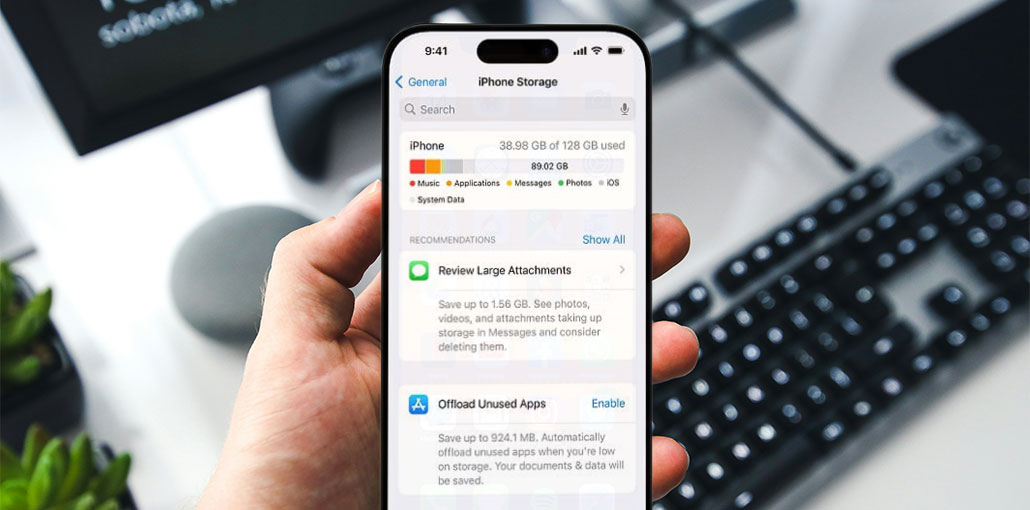
Before you begin cleaning your iPhone, you know how much storage space these apps or stored data take up and what amount of storage is left in your iPhone. Follow these steps to determine the iPhone storage capacity :
- Go to Settings > General
- Tap iPhone Storage
After completing these two steps, you can see a colorful bar graph on the right side of the screen. It will show the details of the iPhone storage capacity and allow you to plan and determine how much space is needed to free up on iPhone.
Also read: How to Remove Virus from iPhone: 7 Easy and Effective Tips
6 Ways to Free Up Space on iPhone
Once you have figured out how much storage space is used, you can try the following methods to free up space on iPhone.
Tips: Before cleaning iPhone storage, it is highly advised to back up your iPhone to minimize data loss due to accidental deletions and also ensure rapid recovery.
1. Follow Up Apple’s Recommendations
Following Apple’s Recommendations will save you time to free up space on iPhone. When you’re on the iPhone Storage tab, you’ll see Recommendations to free up space on your iPhone. If you tap the Show All button at the top right, you will see more suggestions displayed.
2. Use iCloud to Store Photos and Videos
Videos and photos take up a lot of space on the iPhone, particularly for those who want to capture videos or photos. To make space on your iPhone, you need to turn on iCloud storage and save images and videos. Go to Settings > iCloud > Photos and then turn on iCloud Photos. But Apple only provides 5GB of iCloud storage for free. When you find that your iCloud Storage is full, you must be able to purchase an upgrade to an iCloud+ plan.
3. Delete Never or Seldom Used Apps
Apps grow larger over time as they receive updates, taking up valuable storage. Therefore, storing never or rarely-used apps isn’t good for your iPhone because these apps do not take up your iPhone’s storage, and they also cause your iPhone slow down. So you can free up space on iPhone to run smoothly, go to Settings and then General> iPhone Storage, and scroll down. Select the apps that you rarely or never use, and then click delete the app.
4. Offload Unused Apps
Eliminating apps is the most effective and simplest method to clear iPhone storage space. But it’s only for apps you don’t utilize or use very rarely. What happens to those apps that you often used in the past, and with valuable data stored within the application? If so, opting to upload the app to free up space is more beneficial than simply deleting it.
By offloading an app, you’ll be able to keep the information used by the app, but it will not be stored on your iPhone. This lets you free up space on iPhone without losing any data. You can use these methods to free up space by deleting unused apps. The first is to go into Settings> General> iPhone Storage, scroll down, select apps you never or rarely use, then tap the offload app. The second option is go to Settings and then the App Store >> Offload Unused Apps, turn it on. You see that your iPhone can free up space by deleting unused apps automatically.
5. Clean Up Large Attachments in Messages
If you chat with your friends or family via Messenger and Facebook, you can be sure that you will receive large attachments in various formats, like videos, photos, GIFs, stickers, and more.
To free up space on iPhone, go to Settings> iPhone Storage> Messages. You can clear large attachments by pressing to enable auto-delete old Conversations or by deleting unnecessary documents yourself.
Also read: How to Clone an iPhone: Easy Methods to Transfer Data Safely
6. Clear Browser Cache
When you are looking for answers or information for specific questions, you must browse through Safari and the Chrome browser. While you can get the information you need from the internet, a large amount of data that you don’t require is stored on your iPhone simultaneously.
To free up space by cleaning the browser cache is simple. To remove Safari caches, users will need to go to Settings> Safari> Website Data. Removing all website data.
If you often use Google Chrome to browse, then you must start Google Chrome > Options> Settings, scroll down, and select Privacy > Clear browsing data.
Wrap Up
Clearing iPhone storage is actually quite simple! Take these steps in your mind so that you don’t get puzzled about the best way to free up space on iPhone. If you’ve solved your issue, share the article to help others learn how to free up space on iPhone.
FAQs: Free Up Space on iPhone
Why is my iPhone storage full even after deleting files?
Your iPhone storage may still be full due to cached data, large app files, system data, or hidden attachments in Messages. Clearing cache, offloading apps, and restarting your iPhone can help free up space.
How often should I clean iPhone storage?
It’s recommended to review and clean iPhone storage every 1–2 months, especially if you take many photos, download apps, or use streaming services.
Will freeing up storage make my iPhone faster?
Yes. Freeing up space on iPhone can improve performance, reduce lag, and help apps run more smoothly.
Are iPhone storage cleaner apps safe to use?
Yes, most App Store–approved iPhone cleaner apps are safe when downloaded from trusted developers. Always review permissions and avoid apps that request unnecessary access.






Leave a comment