

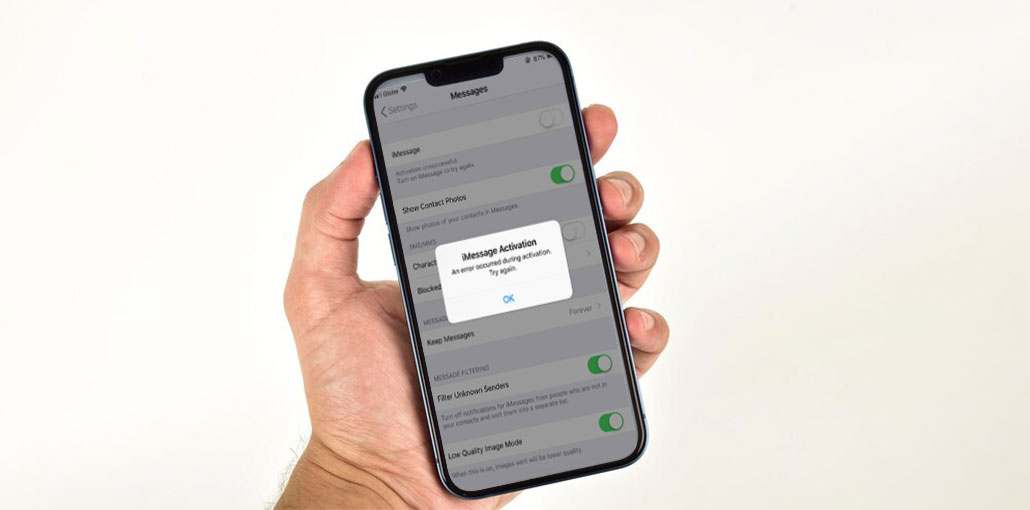
iMessage is an fundamental components that make up Apple’s ecosystem. For those who don’t know, iMessages are sent text, videos, and photos. Although iMessage is enjoyable to use, it comes with an important limitation. Many users had difficulties when using iMessage and are often confronted with iMessage activation errors that fail. If you’re experiencing the same issue, or you’re waiting for activation. We have compiled an easy-to-follow tutorial. We’ve provided the most effective methods to resolve iMessage activation errors.
Common Reasons for iMessage Activation Error
There are many possible causes for the “iMessage activation error” issue.
Understanding the cause helps fix it faster:
- No internet connection (Wi-Fi or mobile data)
- Incorrect date & time settings
- Carrier not supporting iMessage
- Apple ID issues
- SMS not working
- Apple server outage
- iOS software bugs
How to Fix iMessage Activation Error
1. Check Internet Connection
One possible fix is to resolve the iMessage waiting for activation issue by checking your internet connectivity. Unlike conventional messaging, iMessage depends on an online connection. It is therefore crucial to ensure that the iPhone connects to a functioning mobile data connection or a WiFi network when you get an iMessage activation unsuccessful error.
Try loading a site using Safari or one of the popular web browsers on Mac to determine if it is connected to the Internet or not.
Also read: How to Fix the Cannot Verify Server Identity Error on Your iPhone
2. Disable and Enable iMessage
If the previous solution hasn’t worked to remove the iMessage activation unsuccessfully error, you need to investigate the iPhone’s settings to fix the iMessage not working. Apple itself recommends turning on iMessage when you see iMessage activation failed within your Settings app.
Steps:
- Go to Settings → Messages
- Turn iMessage OFF
- Wait for about 30–60 seconds
- Turn iMessage ON again
3. Check Date & Time on iPhone
Time and date play a significant role when sending messages from your iPhone. If your time and date settings aren’t set on your iPhone, they can cause iMessage activation errors. To check dates and times and adjust them to set automatically from the phone’s settings.
Steps:
- Go to Settings, tap on General, select the Date & Time option
- Enable Set Automatically
4. Use Apple Account Instead of Phone Number
Are you aware that you can send iMessages using an Apple ID? instead of your phone number? If, for any reason, you’re unable to solve the iMessage activation error, then you have an alternative method to send iMessages using your Apple ID.
- If activation fails with your phone number:
- Open the Settings and go to the Messages app then tap Send & Receive
- Select your Apple ID email
- Deselect the phone number if necessary
5. Check Apple System Status
If you’ve tried the troubleshooting steps mentioned above, but are still receiving an iMessage activation unsuccessful error, there may be an issue on Apple’s servers since iMessage is an Apple service. Check the status page of Apple’s system and check if iMessage is experiencing an outage. A green dot on iMessage will indicate that iMessage is working flawlessly, and the problem is at your end.
Also read: Call Failed iPhone: 9 Quick Ways to Fix It
6. Reset Network Settings
Resetting your network settings isn’t the only last option to consider if iMessage Waiting for Activation is showing up despite your efforts to resolve the issue. Here’s how to reset your network settings if iMessage won’t activate in your iPhone.
Steps:
- Open the Settings app, tap on General, and Transfer or Reset iPhone
- Tap Reset
- Select Reset Network Settings
Ending Notes
This concludes our guide on what you need to do to fix the iMessage activation error. We hope our guide helped you activate the iMessage feature for your iPhone. The great thing is that you know precisely what to do next when you face an iMessage activation error on your iPhone.
FAQs: iMessage Activation Error
Why does iMessage show “Activation Unsuccessful”?
The error can occur if SMS services are not working, your Apple ID is not signed in properly, or your carrier does not support iMessage activation.
Will resetting network settings delete my data?
No. Resetting network settings will only remove Wi-Fi passwords, mobile data settings, and VPN configurations—not your personal data.
Can dual SIM cause iMessage activation problems?
Yes. On dual-SIM iPhones, iMessage may fail if the wrong line is selected for messaging or SMS verification.
Why does iMessage work on email but not my phone number?
This usually means SMS verification failed. Your carrier may be blocking international SMS or the number isn’t properly registered.
Can VPN or private DNS block iMessage activation?
Yes. VPNs, firewalls, or private DNS settings can interfere with Apple’s activation servers.




Leave a comment