

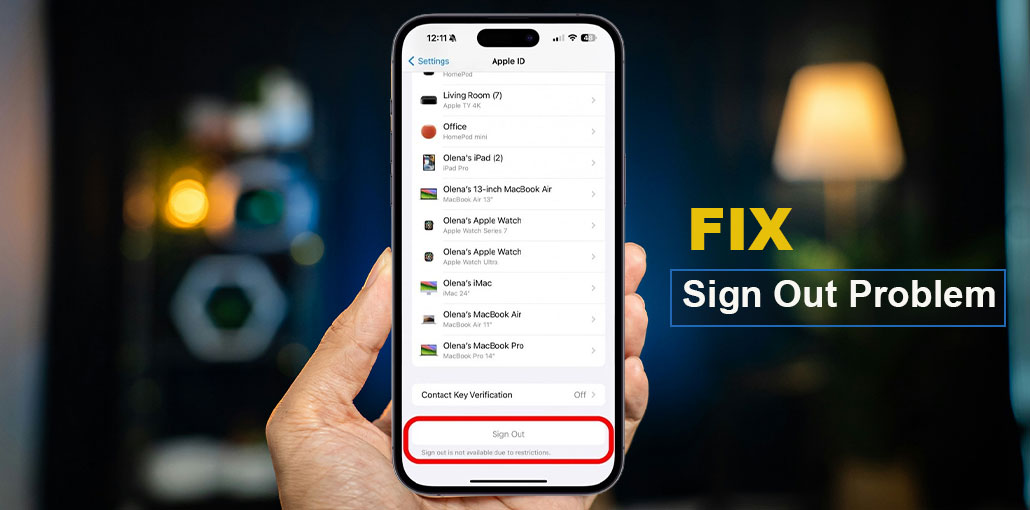
Make plans to switch to a new device and eliminate Apple ID from your old iPhone or iPad, but you only see that sign out is greyed out on iPhone, which shows an ” Sign out is not available due to restrictions” message.
Don’t be concerned about it! We’ve outlined solutions that will solve this problem swiftly and effortlessly. Following these steps, you can fix Sign out is not available due to restrictions.
Why Sign Out is Not Available Due to Restrictions Happening
Before you get into the solutions, it’s important to understand why your iPhone sign out is not available due to restrictions.
In reality, it’s a deliberate security feature that is activated by certain settings. One of the primary causes of the Apple ID sign out button greyed out in Screen Time Settings.
Although Screen Time is designed by Apple to make it easier for you to manage your iPhone or iPad, it has specific configurations and guidelines that you can enable to prevent changes to the device’s main account. One of them can make it challenging to log out of the iCloud accounts. This could leave you in a state where signing out is like a nightmare.
In certain cases, the issue could be with MDM or software bugs on the device. To solve the Sign out is not available due to restrictions issue, try these eight solutions below.
Also read: How to Fix the Cannot Verify Server Identity Error on Your iPhone
How to Fix Sign Out is Not Available Due to Restrictions
In this article, I’ll give you easy fixes to solve sign out is not available due to restrictions issue on your iOS device. These methods work great for me on my own device. Try each one by one until you find the solution.
1. Enable Account Changes in Screen Time Settings
One reason you’re getting this Apple ID sign out is not available due to restrictions, which could be a misconfigured Content & Privacy Restrictions option in Screen Time settings. Making a few adjustments could help:
- Open the Settings app on your iPhone and then tap Screen Time.
- Select Content & Privacy Restrictions, toggle it off, and then on. Enter your 4-digit Screen Time passcode if prompted.
- Then, scroll down to the Allow Changes section, and set ” Account Changes” to Allow.
- Return to the Screen Time screen and toggle on Share across Devices.
- If the Sign Out is grayed out on iPhone, however, you may then reboot your iPhone to refresh. Following that, you can sign out of the Apple ID.
2. Turn Off Screen Time Passcode and Settings
If the above strategies don’t work, you’ll have to disable your Screen Time passcode and settings in the first place. This is a simple procedure to resolve Sign out is not available due to restrictions issue, if you keep the Screen Time passcode or Apple ID password.
- Open Settings on your iPhone or iPad
- Tap Screen Time
- Scroll down and tap Change Screen Time Passcode
- Select Turn Off Screen Time Passcode
- Enter your current Screen Time passcode
Once disabled, go back to your Apple ID settings and check if the Sign Out option is now available.
3. Remove MDM from your iPhone/iPad
When your iPhone or iPad was provided by the company or school. The device could be managed through the MDM (Mobile Device Management) profile. This might stop you from signing out of your Apple ID due to enforced guidelines.
To determine an MDM profile, visit Settings > General VPN & Device Management. If you see a profile as an option, that means your computer is currently under MDM control.
What to do:
- Contact the IT administrator to request the removal of your profile.
- If you have the required credentials, you can delete the MDM profile yourself by going to settings.
- If you don’t know the password and cannot reach the IT, use the MDM elimination tools to eliminate MDM without a password.
4. Turn Off Focus Settings
When iPhone Focus modes are used to manage your notifications and apps may interrupt your work, certain settings are interlinked to Screen Time settings. If none of the above worked, then ensure that you have turned off the Focus Status option in iPhone Settings.
- Tap Settings > Then, focus on your iPad or iPhone.
- Scroll down to tap the Focus Status option.
- Toggle off the Share Focus Status option.
Also read: Guided Access Not Working on iPhone or iPad? 8 Easy Fixes
5. Restart iPhone/iPad
A simple solution to fix sign out is not available due to restrictions on iPhone and iPad; the only option is to reboot the device. Sometimes, you may encounter this issue even after entering the Screen Time passcode. In this case, simply restarting your device can solve the issue.
6. Update iOS Versions
It is also possible to update your iOS system to fix sign out is not available due to restrictions issue and help with software issues on older iOS versions.
But your valuable data might be lost in the update. Make sure to back up your iPhone with iTunes or iCloud before you start the update. Check that you are connected to a Wi-Fi network. If you’re using an iPhone or iPad, go to Settings> General> Software Update> Upgrade Now.
7. Reset All Settings
If the three options above do not solve the Apple ID sign out not available issue, you can reset all the device settings to default using these steps:
- Go to Settings > General > Transfer or Reset iPhone.
- Tap Reset All Settings and then enter your passcode to continue.
- Confirm again to proceed. This will reset your system’s settings, including Wi-Fi passwords and wallpapers, and more; however, it will not erase any files or apps.
Also read: Error Connecting to Apple ID Server? 9 Easy Fixes That Work
8. Remove Apple ID from the Computer
If that doesn’t work, you can erase and then restore the device via a computer, which will remove your Apple ID and any limitations. Be aware that this process deletes all data on your device. Ensure that you have backed up or transferred your contacts and data before doing this.
- Ensure you connect your iPhone and iPad to a Mac or PC with iTunes installed.
- Open Finder (on Mac) or iTunes (on PC). Place your iPhone into Reset Mode.
- Select the iPhone icon, and then select to Restore iPhone/iPad option. This will download the newest software and then restore your phone to a new one.
Key Takeaway
An error message such as “Apple ID sign out is not available due to restrictions” usually occurs when Screen Time or MDM is activate on your device, since this feature puts certain limitations on Apple Account changes.
FAQs: Sign Out is Not Available Due to Restrictions
Why is my Apple ID sign out button greyed out?
The sign-out button is greyed out because account changes are restricted. This is commonly caused by Screen Time settings or an MDM profile installed on your device.
What is MDM and how does it block sign out?
MDM (Mobile Device Management) is used by schools and companies to control devices. It can prevent Apple ID sign-out to enforce security policies.
Why can’t I sign out of my Apple ID on my iPhone?
This usually happens because restrictions are enabled on your device. Screen Time settings, MDM profiles, or Family Sharing controls can prevent you from signing out.
How do I remove “sign out is not available due to restrictions” without losing data?
You can fix this without losing data by disabling Screen Time restrictions or allowing account changes. Avoid resetting your device unless necessary.






Leave a comment