

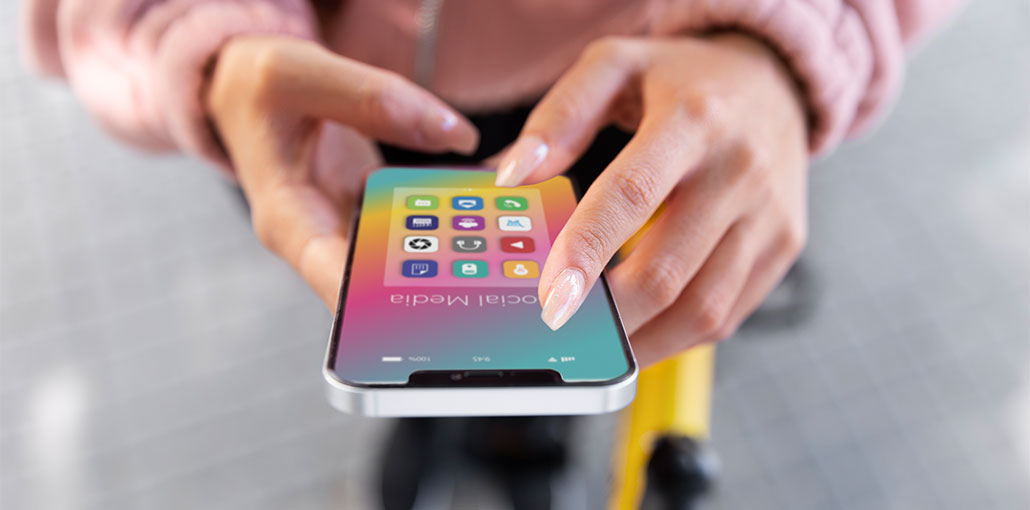
With the rapid growth of technology, smartphones allow users to protect their apps and keep them private. Between Android and iOS, the latest devices have powerful privacy features that permit users to hide apps from being viewed by others. On iPhone, if you choose to hide an application, it will disappear from your phone’s display and search results, often placed in hidden folders in the app library.
However, the majority of people are confused about finding and unhiding apps on iPhone. If you’re one of the people who cannot find hidden apps, then this blog is perfect for you. Today, we will provide some insight into the method to unhide apps on iPhone. The iPhone has a range of clever methods to unhide apps, including hidden folders, screen time restrictions, a Spotlight search feature, and more. Because the methods for unhiding may differ based on the iPhone design and iOS version, if you are unable to find apps using one method, you can try different ways.
Understanding Hidden Apps vs Deleted Apps
A disappearance from an application does not mean that it has been deleted; it may be hidden from view. Before diving into how to unhide apps on iPhone, it is crucial to know the difference between hidden apps and deleted apps.
Hidden apps are installed but are not visible on the main screen or the application library folder. They are running in the background and use storage space, but their notifications are turned off. To access these features, you must navigate to the hidden folder at the bottom of the App Library. The deleted apps will be completely deleted from your device. You’ll need to install them using your Apple Store.
If you’re unsure if the application is hiding in the first place, then a clear indicator is that it’s not being displayed on the home screen, but it’s still visible in your storage.
Also read: iPhone Contacts Disappeared? How to Get Your Contacts List Back
How to Unhide Apps on iPhone: 5 Ways to Restore Hidden Apps
1. Find Apps in the App Library
The iOS 14 version introduces the App Library feature, which simplifies the access and organization of apps. This feature is the most effective way to find hidden apps and unhide apps on iPhone, as it lists all apps installed in the system. No matter if you’ve deliberately hidden an app or accidentally removed its home screen, you can discover all apps in one location.
Steps to follow:
- Go to the home screen by swiping left until you get to the App Library
- The app’s name is entered on search bar at the top of the interface.
- Hold and press the icon of the app for a moment, then click “Add to Home Screen” from the pop-up menu
So, hidden apps appear instantly on your home screen
2. Disable Screen Time Restriction
Different smart devices have screen time restrictions, mostly created for content filtering, parental control, and creating kid-friendly environments. Instead of manually obscuring, this limitation automatically hides apps that consume screen time on your device. When you disable this option, you can restore and use the apps that disappear due to screen time limitations.
Steps to follow:
- Open your Settings app.
- Select the Screen Time to navigate to the parental menu
- Select the Content & Security Restriction option and then enter the screen time passcode
- Click the Allowed Applications to allow access to all installed apps on your device.
- Turn off all applications you would like to remove
- Additionally, go to content restriction > Apps to ensure that the apps have age restrictions.
3. Find Hidden Apps Through Spotlight Search
If conventional methods fail to find apps on iPhone, Spotlight Search has become the search engine that can be used to unhide apps on iPhone. It’s useful if the apps are not hidden but have been moved to an additional folder, or the home screen is a page you seldom visit. If the app isn’t visible but you remember the app name, this restoration technique helps you unhide apps on iPhone.
Steps to follow:
- Scroll downwards in the center of the home screen.
- There will be a Spotlight Search bar, and you enter a hidden application name.
- If the app shows up in the results, then tap it to open and then add it to the home screen
In this case, it is unlikely that the app will show up in the search results. It could mean that the app may be deleted or restricted from appearing because of certain settings
4. Check Hidden Purchase in the App Store
Did you accidentally hide an application from the App Store in history? Some apps will disappear when you hide their purchase history from the App Store, which means that they’re deleted from your previously installed app list. The apps are not only deleted from your desktop, but they are also hidden from your download history for the store. By using this restore technique, you can find hidden applications that are downloadable but are no longer available or re-downloadable because they are hidden from your Apple Store account.
Steps unhide apps on iPhone Purchase Store
- Navigate the App Store on iPhone
- Find your profile picture by clicking on the upper right corner
- From the profile menu, select the option Purchased.
- Go to My Purchases and see the downloaded apps.
- Click on the Hidden Purchases option and select it.
- Cloud download icons are located next to every application.
- Select the hidden option, after which it will re-download and show up on the phone screen
Also read: How to Block Websites on iPhone in 2025 (No Apps Needed)
5. Reset Home Screen Layout (Optional)
Unsure of how to unhide apps on iPhone, even after trying every method mentioned previously? Another option is to change the home screen layout, which could help you locate the missing app. Most of the time, applications move into unwanted locations due to home screen application restructuring and iOS updates. This procedure can restore the home screen layout, allowing users to unhide hidden apps.
Steps to organize your home screen layout:
- Open the Settings application on your iPhone
- Go to General > Click Reset or Transfer
- Scroll to the bottom and press Resetoption
- Select to reset the Home screen layoutand confirm it
- The phone will reboot, and hidden apps restore their default position.
Wrap Up: Unhide Apps on iPhone
Every person should know how to unhide apps on iPhone. Apps disappear for various reasons, but they can be returned. If you follow the steps in this guide, users can unhide apps on iPhone.
The best practices ensure that apps are not hidden again. By knowing these tips, you can keep your iPhone running smoothly and make it easier for users to open every app, even when the iPhone application isn’t showing or disappearing.
FAQs: Unhide Apps on iPhone
Why are my apps not showing on my iPhone?
Apps may not appear because they were removed from the Home Screen, hidden in the App Library, restricted by Screen Time, placed on a hidden page, or accidentally deleted.
How do I unhide apps on iPhone?
To unhide apps on iPhone, swipe left to open the App Library, search for the app, press and hold its icon, and tap Add to Home Screen. You can also use Spotlight Search to find and open hidden apps quickly.
Can apps be hidden on iPhone without deleting them?
Yes, iPhone allows you to remove apps from the Home Screen or place them in the Hidden folder without uninstalling them. The apps remain installed and can be accessed anytime.
What should I do if I can't find a hidden app?
If the app doesn’t appear in Spotlight Search or App Library, it may be deleted. Open the App Store, search for the app, and reinstall it.





Leave a comment