

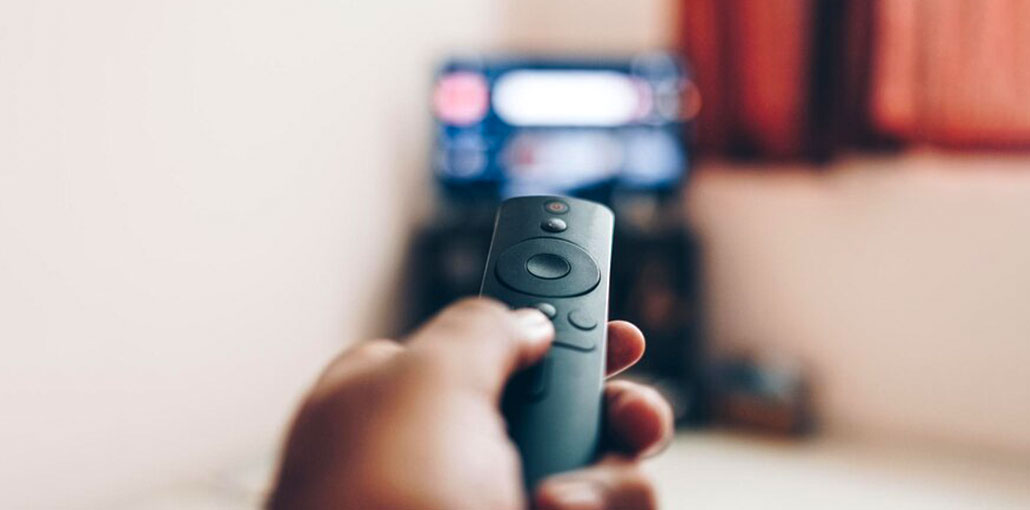
While the number of Smart TV users is increasing, streaming and media devices like Amazon Fire Stick are very popular. This article provides options to solve your ” Amazon FireStick not working” problem.
With the constant enhancement of smart TV capabilities, the number of people who use smart TVs is growing as well. However, streaming devices like Roku and FireStick are still in high demand because certain smart TVs lack certain functions.
It is the Amazon FireStick is one of the most popular streaming brand names. It’s a compact and portable device that is connected to a television’s HDMI port. Users can play a variety of TV shows, films, pictures, music, sports and games.
However, some Amazon FireStick users also have a problem, the “Amazon FireStick not working” problem. A variety of errors can trigger an Amazon FireStick malfunction. This “Amazon FireStick not working” problem can be seen by the following circumstances:
- A blank screen
- Applications keep crashing.
- The device switches off and back on by itself.
- It will get stuck at the load screen.
- No network connection.
So, how do you fix this problem? I’ll provide some helpful solutions to assist you in resolving this issue.
Also read: FireStick Remote Not Working? Simple Fixes You Can Try Today
How to Fix Amazon FireStick Not Working
Make Sure the TV Is Turned On
If you are confronted with a “FireStick is not working” issue, the very first thing to do is ensure that you’ve turned off the TV.
Certain TV models will shut off when they haven’t received any signals for a couple of minutes. Therefore, your TV could shut off on its own, and you’ll see an empty screen.
Wait for 10 Minutes
Sometimes, the FireStick needs a period of time to download or install the latest updates. If you start an Amazon FireStick and get stuck on the loading screen, you need wait for 10 minutes to see if the issue is resolved.
Restart the Amazon Fire TV Stick
Restarting can be a great way to fix several issues with your laptop, computer, or any other device. Therefore, you should consider restarting your Amazon Fire Stick to solve the “Amazon Fire Stick not working” problem. Here’s how:
Restart the Fire Stick by disconnecting it. Stick:
- Disconnect your Fire Stick from the TV or the wall outlet.
- Take a moment to wait. After that, plug the Fire Stick back in.
Restart the device using the remote:
- Press the middle and play buttons on the device for 10 seconds.
- Then, after the reboot, your Fire Stick will start to instantly reboot, without any confirmation prompt on the display.
Restart using the Settings menu:
- Ensure your Fire Stick is connected to your TV and is turned on.
- Pressing the Home button on your remote allows you to go to the home screen.
- With the remote, go through the Settings.
- Scroll down to find the ” My Fire TV” option.
- Open it.
- After that, scroll down until you choose Restart.
- Then you have finished, your Amazon FireStick will restart.
Update Amazon Fire Stick Software
Software updates can resolve many FireStick problems and errors. You can therefore upgrade the firmware on your FireStick to solve the “Amazon FireStick not working” problem. By default, your Firestick will check for updates daily. However, you can also upgrade it by hand. Here’s how:
- Open the Fire TV Stick to navigate on your homescreen.
- Click on the gear icon to open the settingsmenu.
- Choose My Fire TV.
- Then, you’ll see three choices: ABOUT, Network, and then Check for Updates.
- Select Check for Updates. If the installation update option is displayed, this indicates that there’s an update for you. If you aren’t seeing any Installation update option, then the Fire TV is up to up-to-date.
Clear Amazon Fire Stick Cache
The Fire Stick’s cache may get bloated and make your device slow down or fail. Therefore, FireStick cache is also one of the main reasons behind “Amazon FireStick not working”. The following steps can be taken to clear your cache and solve the problem:
- Go to Settings.
- Choose Applications.
- Scroll down, and then choose Manage Installed Programs.
- Select the app with the cache you want to clean.
- In the following window, select Clean cache.
- Then, you can clear the cache from the application successfully.
Also read: How to Jailbreak a Firestick in 2025: A Step-by-Step Guide + Best Apps to Install
Factory Reset the Fire TV Stick (Last Resort)
If the above solutions don’t work to solve your “Amazon FireStick not working” issue, you can follow the steps to factory reset your Fire TV Stick to solve this issue.
- Press the home button on your remote.
- Go into Settings. Setting menu.
- Select My Fire TV.
- Then select Reset to Factory.
- Click Reset on the confirmation screen.
- Your Fire Stick will then begin to reset factory settings. Do not remove your FireStick from the power source and your TV till the process is complete. Otherwise, the Fire Stick could be destroyed.
When to Replace Your FireStick
Consider upgrading if:
- Device is over 5 years old
- Frequent crashes even after reset
- Overheating continues
- No longer receiving updates
- Newer models offer faster performance, better Wi-Fi, and 4K support.
Final Thoughts
The Amazon FireStick not working issue is common, but in most cases, it can be fixed easily without professional help. Simple steps like restarting the device, clearing cache, updating software, or checking power and HDMI connections can solve the FireStick not working problem in minutes.
FAQs – Amazon FireStick Not Working
Why is my Amazon Fire Stick not working?
Your Amazon Fire Stick may not work due to power issues, outdated software, HDMI connection problems, app cache errors, or Wi-Fi connectivity issues. Restarting the device usually fixes most problems.
Why is my FireStick showing a black or blank screen?
A black screen usually occurs due to incorrect HDMI input, resolution mismatch, or insufficient power supply. Try switching HDMI ports and restarting the device.
How do I fix Fire Stick apps not working or crashing?
Clear the app cache, update the app, restart the Fire Stick, or uninstall and reinstall the app to resolve crashing issues.
Will a factory reset delete everything on Fire Stick?
Yes, a factory reset removes all installed apps, settings, and user data. Your Amazon account will need to be signed in again after the reset.
Why is my Fire Stick stuck on the Amazon logo?
This problem usually occurs due to software corruption or power issues. Restart the device, ensure proper power supply, and update the Fire Stick software if possible.



Leave a comment