

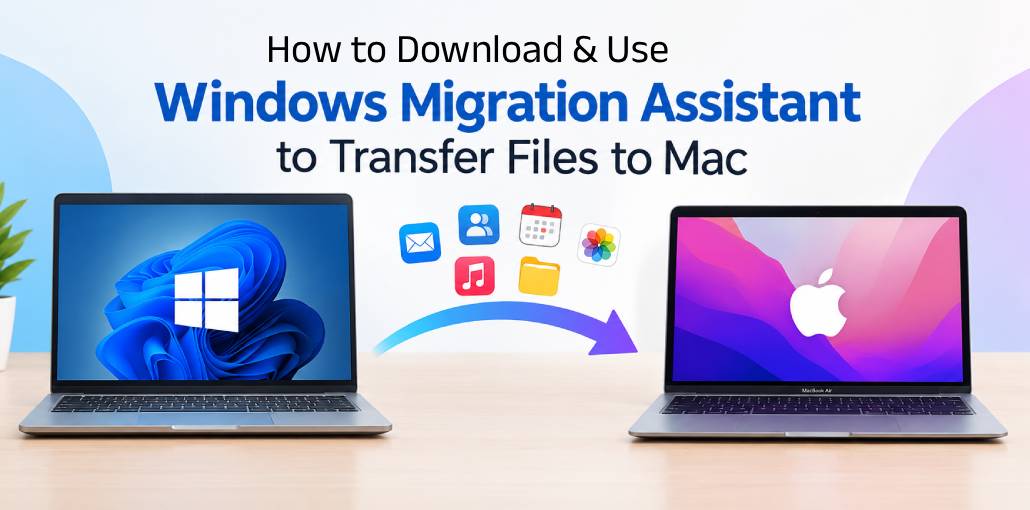
Windows Migration Assistant is a free tool developed by Apple that helps users transfer files, settings, and other supported data from a Windows PC to a Mac. In this article, we’ll explain how to download Windows Migration Assistant and use it to migrate your files and data to your Mac.
What Is Windows Migration Assistant?
As mentioned earlier, Windows Migration Assistant is a tool developed by Apple to help transfer data from Windows to Mac. While it is available for use on your Mac, you’ll also need to download and install the appropriate version on your Windows PC to migrate your files.
Also read: Windows XP Emulator Guide: Run Old Software on a Modern PC
What Can Windows Migration Assistant Transfer?
Windows Migration Assistant can transfer several types of data from your Windows PC to your Mac, including:
- Emails and contacts: Transfer supported emails, contacts, and email settings from Outlook and Windows Mail to the Mail app on your Mac.
- Calendars and reminders: Move supported appointments and reminders to the Calendar and Reminders apps. Compatibility depends on your Windows and macOS versions.
- Media files: Transfer music, podcasts, audiobooks, movies, and TV shows to their respective apps on your Mac.
- Browser data: Import supported bookmarks and homepages from your Windows browsers into Safari.
- System settings: Transfer supported desktop wallpaper, language preferences, and location settings. Depending on your macOS version, saved Wi-Fi networks may also be transferred.
- Documents and personal files: Move documents and other files stored in your Windows user folder.
- Files from other drives: Copy supported non-system files from other drives to the Shared folder in your Mac’s home folder.
Note: Windows Migration Assistant transfers supported files and settings, but it does not migrate entire Windows applications to macOS. You’ll need to install Mac-compatible versions of your applications separately.
How to Download Windows Migration Assistant
Follow these steps to download Windows Migration Assistant on your Windows PC.
- Open your preferred web browser on your Windows computer.
- Visit Apple’s official Windows Migration Assistant download page.
- Find the version compatible with your Windows operating system and the macOS version installed on your Mac.
- Click the appropriate download link to download the Windows Migration Assistant installer.
- Once the download is complete, double-click the downloaded executable file.
- Click Next and follow the on-screen instructions to install the application.
- After the installation finishes, click Finish.
Windows Migration Assistant is now installed on your PC and ready for the data migration.
Also read: How to Clone an iPhone: Easy Methods to Transfer Data Safely
How to Use Windows Migration Assistant to Transfer Files to Mac
Once you’ve set up Windows Migration Assistant on your PC, follow these steps to transfer your files and other supported data to your Mac.
- Open Windows Migration Assistant on your PC. If prompted to close other applications, do so and click Continue.
- The tool will check your PC for potential issues that could interrupt the transfer. Follow any on-screen instructions to resolve problems, such as firewall restrictions or other system requirements.
- If asked to share app usage data with Apple, choose whether to allow it. This step is optional.
- Wait for Windows Migration Assistant to search for your Mac.
- On your Mac, open Migration Assistant from the Utilities folder in the Applications folder.
- Follow the on-screen instructions and select From a Windows PC when asked how you want to transfer your data. Click Continue.
- Return to your PC, select your Mac from the list of available devices, and click Continue. Verify that the passcodes displayed on both computers match, then follow the prompts to confirm the connection.
- Once your PC has been scanned, select the files and data you want to transfer to your Mac. Click Continue to start the migration.
- Wait for the transfer to finish. Depending on the amount of data and your connection speed, the process may take anywhere from a few minutes to several hours.
Tip: Keep both computers powered on and connected to a compatible network throughout the transfer. Follow Apple’s instructions for your specific devices if a direct cable connection is supported.
Final Thoughts
Transferring files from Windows to Mac doesn’t have to be complicated. With Windows Migration Assistant, you can move your important files, emails, contacts, and settings in just a few steps. Download the right version, follow this guide, and make switching to your new Mac simple and hassle-free.
FAQs: Windows Migration Assistant
Is Windows Migration Assistant free to download?
Yes, Windows Migration Assistant is free to download from Apple’s official support website.
What files can Windows Migration Assistant transfer?
It can transfer supported documents, photos, videos, music, bookmarks, contacts, email settings, and other compatible data. The available items depend on your Windows and macOS versions.
Does Windows Migration Assistant transfer installed applications?
No. It does not transfer Windows applications for direct use on a Mac. You need to download or install Mac-compatible versions separately.
Is Windows Migration Assistant compatible with every Windows PC and Mac?
No. Compatibility depends on the Windows version, macOS version, and Migration Assistant release. Check Apple’s official documentation before downloading.





Leave a comment