

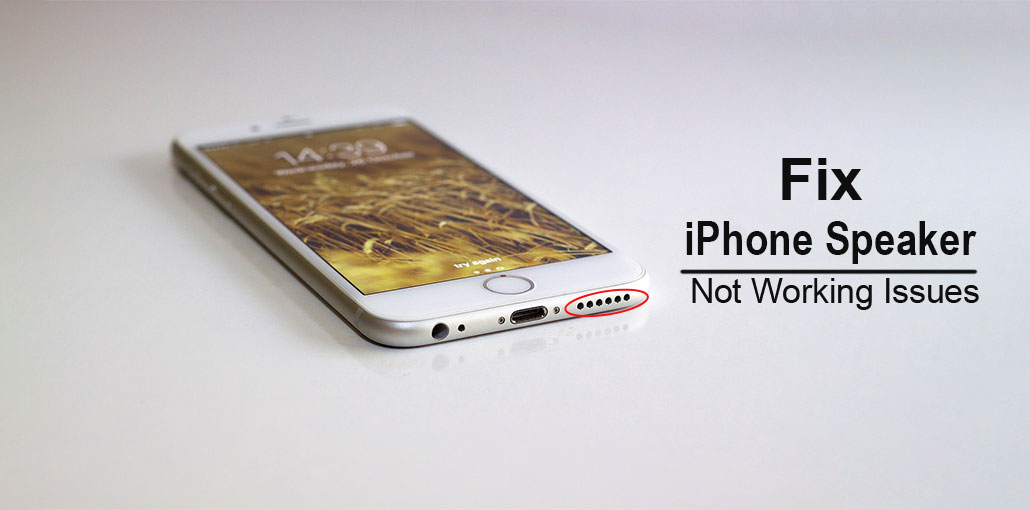
The smartphone acts as a bridge to interacting with friends and family members. But a good phone needs to function properly for efficient communications to take place. Talking and listening are the normal behaviors of people who use phones. What happens if you face issues like an iPhone speaker not working for calls?.
Don’t rush to assess the quality of your iPhone speaker! The issue may arise from many causes, including a temporary software crash, a software issue, or an issue with the phone’s earpiece. If you are experiencing an iPhone speaker not working, these 11 tips are here to help you.
Why is my iPhone Speaker not working?
iPhone speakers are especially susceptible to damage, since they’re among the most delicate parts of your phone. You may have problems with your iPhone speaker if you’re having difficulty hearing the phone clearly, no sound on iPhone, or having sound quality issues.
iPhone speaker problems may be caused by many reasons that can be the cause, but here are some of the most frequent iPhone speaker not working issues:
- Dirty or blocked speaker port
- AirPlay is connected
- Bluetooth issues
- Headphone glitch
- Software malfunction
- Physical or liquid damage
Also read: iPhone Touch Screen Not Working? Causes + 9 Quick Fixes
How to Fix iPhone Ear Speaker Not Working?
1. Turn Up iPhone Call Volume
Turning the volume on your iPhone could prevent you from hearing anything. Verify the volume of the sound using these steps:
- If your iPhone is unlocked, hold the volume up button (on the right edge) to the left for a couple of seconds to increase the volume.
- A different method is to use Siri to say, “Hey Siri, turn up the volume.”
2. Restart Your iPhone
The most efficient solution to fix the iPhone’s speaker not working problem is to reboot your iPhone. You’ll have to use multiple methods to restart your phone, depending on its version. But all iPhones use a specific way. Press the Power off/on button and Home button to hold it for a few minutes. The phone will then reboot and resolve the iPhone speaker not working issue.
3. Check Switch Button
It’s a great idea to learn the basic aspects of your iPhone. You might have enabled the silent mode on your phone. It is best to test first before diving into different solutions to fix the iPhone speaker not working. To check the device condition, you can check that the switch button is situated above the volume button. It will be evident if it’s displaying red. The red marks indicate that it’s silent turned on. Switch it off to enjoy the freedom to speak freely.
4. Check Your Sound Settings
Check the settings on your iPhone for specific types of sound that do not play correctly to ensure that they’re not disabled or set to a low level for hearing. The Sounds and Haptics option is located within the Settings app. Slide down the slider until you are in the Ringer and Alerts section. If you do hear audio, it was there. If not, call Apple customer support.
5. Make a Call Using the iPhone Speaker
Another great method to check if your iPhone speaker isn’t functioning when making calls. Make a call using the speakerphone on your iPhone and take a slight note of the call. If the call doesn’t go through, you know your speaker is damaged. Additionally, you can conduct small tests by tapping on the speaker while you watch and observe the sound.
6. Check if Your iPhone Is Stuck in Headphone Mode
This is a frequent occurrence that needs to be fixed. It is, however, a simple solution. You don’t have to think about it too much. There are several reasons for the iPhone to be stuck in headphone mode. It could be dust or grime getting into the ports. If this is the case, shake your device to let the dust break down. Also, you can brush your device to clean it from the inside.
7. Select iPhone as Audio Output Option
You can choose to control where your iPhone’s audio will be played. Ensure your iPhone is set to an output device. If you don’t, then move to the Control Center from the upper right-hand corner, and then hold your audio card. After that, press and hold the AirPlay icon, and carefully choose the desired iPhone to play the sound output.
Also read: Why Is My iPhone Camera Not Working and How Do I Fix It?
8. Disable Bluetooth & AirPlay
This solution is applicable if you have several iPhones and don’t know which one is receiving the transmission. If your iPhone speaker not working, you’ve likely connected it to Bluetooth speakers or AirPlay on various iOS devices. In this scenario, it will automatically connect whenever you’re within range. Also, ensure your iPhone is not connected to other devices at this time.
9. Update iOS
An outdated system could be prone to problems, such as the iPhone speaker not working. By updating, you can put your device in working condition. Furthermore, it makes your device compatible with newer versions of iOS devices, such as the iPhone 13.
To do this, go to ‘ Settings’, then select” General”, and then click the” Update and Download option to upgrade the system.
10. Reset iPhone Settings
Although it doesn’t have any weight, setting your iPhone to brand new is a great way to fix the loudspeaker on your iPhone that isn’t working. Simply reset and set up the settings on your iPhone with the new settings. If you decide to perform the factory reset, ensure you back up your data to avoid losing it in the process.
11. Get Help with Apple Customer Care
This doesn’t appear to be the final option; contacting Apple Care seems like the only option. If the above solutions haven’t made you free and you’re still not free, the Apple team might know better. You can check their site and seek all the relevant information while you open your questions as well.
Wrap up
It’s a bad experience for users to determine if their iPhone speaker not working. It doesn’t just disrupt communications, but it could also affect various iOS features. It’s the reason it’s essential to fix the problem before it gets out of control. The solutions mentioned above have been tried and tested to address the underlying issue that causes the iPhone speaker issue.
FAQs: iPhone Speaker Not Working
Why is my iPhone speaker not working during calls?
Your iPhone speaker may not work during calls due to low volume, silent mode, Bluetooth connections, headphone mode, or a software glitch. Restarting the phone often fixes the issue.
How do I clean my iPhone ear speaker safely?
Use a soft, dry toothbrush or microfiber cloth to gently clean the ear speaker grille. Avoid water, compressed air, or sharp objects.
How do I check if Bluetooth is causing iPhone speaker issues?
Go to Settings > Bluetooth and turn Bluetooth off. If sound returns, your iPhone was connected to another audio device.
How much does iPhone speaker repair cost?
Speaker repair costs vary by model but usually range from ₹2,000–₹6,000 ($30–$80) at authorized service centers.
Why does my iPhone speaker stop working after an update?
This usually happens due to temporary software bugs. Restarting or updating again often resolves the issue.









Leave a comment