

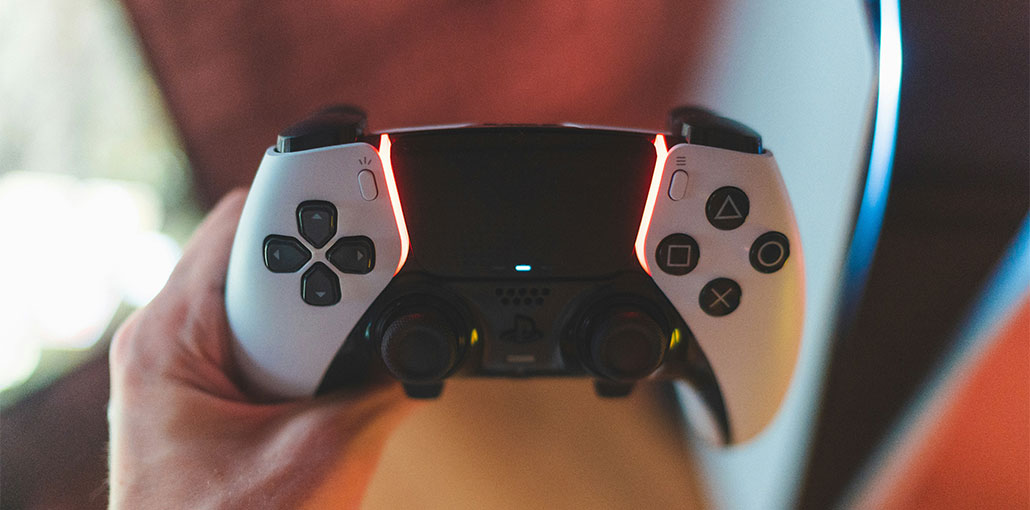
Sony develops DualShock for the PlayStation series, and has risen to the top of the line in a short time. It offers feedback while playing games. It’s generally regarded as the best controller on the market among consoles.
Even though it is specifically designed for the PS4 console, the DualShock also faces some situations where the PS4 controller not connecting to console. This problem can arise in multiple scenarios. You may not connect it to your PS4 after using it with another console, or the PS4 controller may not connect the first time. Whatever the reason, we’ve compiled several solutions to fix the PS4 controller won’t connect to PC. Check it out.
Why Is Your PS4 Controller Not Connecting?
Before jumping into fixes, here are the most common causes:
- Dead or low controller battery
- Faulty or incompatible USB cable
- Bluetooth pairing issues
- Controller paired with another device (PC, phone, PS5)
- PS4 system software bugs
- Damaged controller hardware
Quick Checks Before Troubleshooting
- Charge the controller for at least 30 minutes
- Use an original or data-capable USB cable
- Restart your PS4 console
- Disconnect nearby Bluetooth devices
If it still doesn’t connect, try the solutions below.
Also read: How to Stop PS5 Overheating: Easy Fixes and Solutions
How to Fix PS4 Controller Not Connecting
1. Power Cycle PS4 & Connect Using USB
Before you do anything, play with your controller. It is recommended to turn off your console completely. Then connect your PS4 controller using a USB cable. If you turn off your PS4, it shuts down, and it loses the current saved settings or data stored in the memory storage location for temporary use. This can resolve the PS4 controller not connecting.
NOTE: This solution is especially used in situations where your controllers blink white and are not responding.
- Switch off your PlayStation 4 device by removing it from the console’s front and then putting it into sleep mode.
- When all the lights on the console go out, unplug the power cable from the outlet.
- Then, press the Power button on your PS4 for 30 seconds to ensure that the power is completely drained.
- Now connect the controller to the PS4 via the Micro USB cable. Start the console and hit any button. The controller may be recognized and function exactly as you expect it to.
2. Charging Your PS4 Controller
The controller is not charged, which is a reason the PS4 controller not connecting. Bluetooth/wireless connectivity between the console and controller requires a complete charge. In the absence of this, the power may not be sufficient to establish the connection, or the connection could be lost at times.
The controller to full maximum capacity before plugging it or connecting it wirelessly. You can also try connecting the controller to a different PS4 and then connecting it to your own. In this way, you can identify the issue and ensure that isn’t related to the controller, and that it’s functioning as you expect it to. In many instances, it is possible to blend Solutions 1 and 2 to achieve the best results.
3. Checking Connections and Your PS4 Controller
Another thing to check your controller is actually working properly and that there aren’t any issues with the hardware. You can check if your controller is working by plugging it into or connecting it to a different PS4 device.
If the connection doesn’t work, check to see if all connector cables are properly connected and that there aren’t any loose ends. Additionally, you could access the back of the PS4 controller to check if it’s connecting to another PS4 as well, and determine whether it’s the internal cable connecting to the USB outlet is correctly connected. The joints are extremely delicate and could break if the controller is regularly used or falls.
4. Configuring Settings for Connection with PC (Steam)
If you’re trying connect the controller to Steam but the PS4 controller not working, test the connection and then change the Steam settings. While the controllers can be used by computers, utilizing them on a single computer is quite a different issue.
- Connected the controllers to the computer correctly using Bluetooth.
- When it’s connected, Press Windows + R, then select ” joy. cpl” and enter. Check that the controllers connected are in the state ” OK”. This indicates they are connected and functioning properly.
- Start Steam. Click Steam, then select Settings. Select the Controller from the left navigation menu, and then click General Settings for your controller.
- Do not check all the options except for generic Gamepad Support for configuration.
- Ensure to exit Steam properly after closing it from Task Manager. Re-launch it and verify if this has resulted in any change.
Also read: PS5 Controller Drift? Try 7 Easy Fixes Before Replacing It
5. Reset the PS4 Controller
You can use all the above methods, but PS4 Controller not connecting. Resetting the PS4 controller will force the controller to reset itself into its factory settings and erase all connected consoles. Note that any other settings made by the controller will disappear.
- Take a tiny pin or pin-like object, then use the button in the middle of the controller, just beside the screw.
- Continue pressing this button for a few seconds. Then connect the controller to the console and check whether the PS4 controller not syncing issue has been resolved.
6. Re-Pair the Controller Manually (Optional Step to fix PS4 controller not pairing)
- Go to settings first, and then Bluetooth device(if you’ve connected via Bluetooth).
- Then, hold the PS button and then press the sharing button on the controller. The controller will then blink and enter the pairing mode.
- Connect the PS4 controller using a USB cable. Select the new device that pops up and sign in device.
When to Replace Your PS4 Controller
You may need a new controller if:
- It won’t charge at all
- The light bar never turns on
- Buttons or analog sticks don’t respond
Conclusion
You can resolve the “PS4 controller not connecting” problem with a different USB cable, repairing the device and controller, or by resetting the PS4 controller. If these methods don’t work, then contact an expert to solve the PS4 controller not connecting issue.
FAQs: PS4 Controller Not Connecting
Why won’t my PS4 recognize any controller?
This can happen due to corrupted system software, faulty USB ports, or PS4 Bluetooth hardware issues.
Why does my PS4 controller keep disconnecting during gameplay?
This often happens due to low battery, Bluetooth interference, or a failing internal battery.
How do I force my PS4 controller to connect?
Turn off the PS4, connect the controller using a USB cable, then press and hold the PS button. If it fails, reset the controller using the rear pinhole and try again.
Is Bluetooth interference affecting my PS4 controller?
Yes, nearby wireless devices like routers, speakers, or smart TVs can interfere with the controller’s Bluetooth signal.
Can overheating cause PS4 controller connection issues?
Yes, excessive heat can temporarily affect Bluetooth performance and cause disconnections.


Leave a comment