

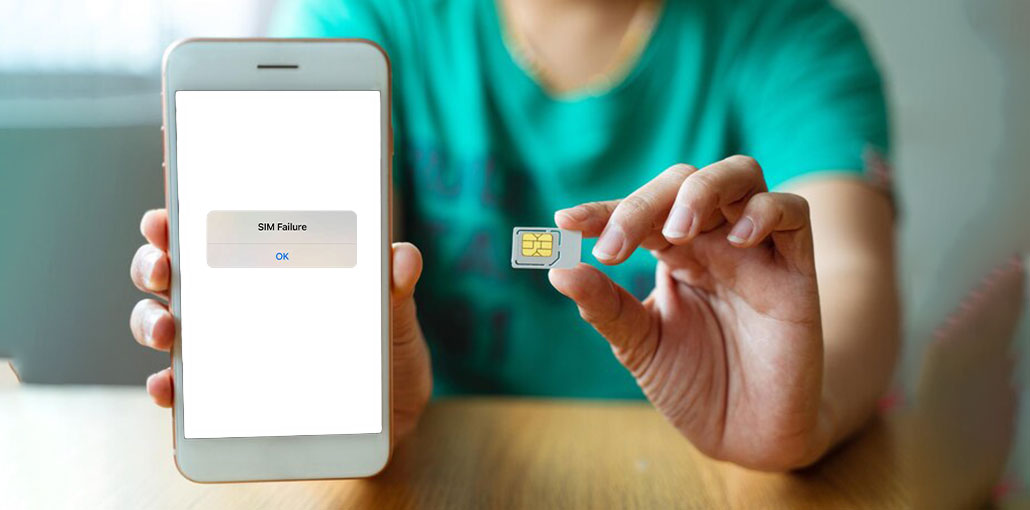
Sim Failure is a problem where your iPhone is unable to recognize the SIM card. This could be due to several reasons, such as dirt on the SIM tray, a damaged card, or a software issue. Whatever the cause, there are some solutions.
This step-by-step guide will help you fix iPhone SIM failure and bring back the full functionality of your iPhone.You’ll learn to manage SIM failure at the end.
What is a SIM Failure?
SIM failure occurs when the device does not recognize or use your SIM card. This is a constant issue. It doesn’t matter what version of iPhone you have, whether it’s an older or the newer iPhone 13, you’re in trouble. If your device doesn’t possess a SIM or is unable to connect to your network. You are unable to make calls, send text messages, or use mobile data.
A SIM card is an identification card that connects your mobile phone to the network. The ID card you have isn’t functioning properly if you have a SIM failure. A SIM card issue on the iPhone may be a source of frustration, but don’t fret. Many problems that arise when you have a failed SIM on an iPhone can be resolved easily. The first step is to understand what’s going on at the beginning.
Common Symptoms of iPhone SIM Failure
The most obvious indicator of iPhone SIM failure is the message that pops up on your screen. You can see “No SIM,” ” Invalid SIM,” or ” SIM Failure” appear on your screen. This is the iPhone’s way to inform you that it does not use a SIM card. Another sign of this is that you see “No Service” in the top left corner of the screen, meaning that it is unable to connect to the mobile network you have chosen.
You need assistance in calling or sending a text. Each time you attempt to call or send a text, the error messages will appear. In this case, the use of mobile data is also a complete failure. The phone will behave as if it’s connected to no network. These are only a few clear indications of the SIM card problem in an iPhone. If you observe any of these signs, particularly in the newly released iPhone, then SIM failure could be one of the causes.
Common Reasons for SIM Failure on iPhone
Below are a few most common causes that can lead to the iPhone SIM failure:
- This SIM card or tray is filthy or dusty
- The SIM card has not been fitted properly or is loose.
- It appears that the SIM card has been damaged or is outdated.
- iOS is outdated, or there is a software glitch
Also read: iPhone Not Receiving Texts? 12 Fixes to Get Messages Back
How to Fix iPhone SIM Failure Issue
Quick Fixes to Try First
If your iPhone says a SIM failure, try a few simple solutions first.
- Make sure to restart your device. It could resolve many issues you are experiencing on your phone.
- Switch Airplane Mode on for a few seconds, and then switch it off. It might restart connections to networks.
- Check your SIM card to see if your iPhone still has a SIM failure. Remove it and then put it back in.
- Check that it is snugly within the tray. This is a simple fix that can be used to repair it frequently.
Check and Clean Your SIM Card
A damaged or dirty SIM card may be the reason for the SIM malfunction that results from an iPhone, Verizon, or any other carrier. Carefully take your SIM card from the iPhone. Check it. Is it damaged or dirty? If it’s filthy, you should clean it thoroughly. Use a soft and dry cloth to clean the gold contacts. Be delicate to avoid scratching the card.
After the SIM card is cleaned, place it inside the iPhone. However, this time, be sure it’s inserted properly. The cut edges should match the design of the tray. If your iPhone displays ‘SIM failure’ at this point, the SIM card may be damaged. You’ll need to be replaced by a new one from the carrier you use.
Updating iOS and Carrier Settings
Outdated software is a reason behind SIM failures on iPhones. Check first if there’s an update available for iOS. Click on Settings, then General, and click Software Update. Install it if a new version is available. This could fix issues that could cause SIM problems.
The carrier settings are no less important, however. They allow your iPhone feel comfortable connected to your network. To upgrade, go to Settings, then General, then About. If an update is available, you’ll get an update notification. Click Update when you see it. This can solve many problems related to iPhone SIM failure, Verizon, and other carriers’ problems.
Reset Network Settings
If your iPhone continues to display SIM failure, you can try resetting your network settings. This could resolve many connectivity issues and could lead to SIM failure on the iPhone 11 or 13 Pro. Go to Settings, then General, and then Reset. Tap Reset Network Settings. If you are asked for your passcode, type it. The iPhone will then restart. Then, you have to join Wi-Fi networks and then re-pair Bluetooth devices. However, it could solve the iPhone SIM failure issue.
Hardware Troubleshooting
Check SIM Tray
Check your SIM tray, particularly when you experience iPhone SIM card failure. Remove the SIM tray using an Ejector tool. Check for any damage or other debris that may be lying over it. Clean it with a dry and soft cloth. The tray shouldn’t be bent. A damaged tray may be the cause of Verizon iPhone SIM failure or any other carrier functioning incorrectly. If your tray has been damaged, you’ll likely have a replacement.
Test With a Different SIM Card
You can add a second SIM to your iPhone, and it will determine the issue with the SIM or the phone. If it works using a different SIM, the original SIM may be faulty. Every model can be subjected to this test regardless of whether you’ve got a SIM issue on the iPhone 13 Pro or an older model. If the SIM is working, this could indicate the issue you are experiencing with your iPhone.
Check for Physical or Water Damage
In some cases, iPhone SIM failure or failures with other models could be caused by issues with the device. Find signs of physical or liquid damage. Check the SIM tray for obvious damage. If your phone was recently damaged or dropped, it could be the reason. If this is the case or if nothing else works, it is recommended to visit near Apple Store or an authorized repair shop to get expert assistance.
Also read: How to Fix the Cannot Verify Server Identity Error on Your iPhone
When to Contact Apple Support or Your Carrier
When your efforts do not solve the iPhone SIM failure issue, it’s time to seek expert assistance. If you’ve tried the most basic solutions to iPhone SIM card failure with Verizon or any other carrier, but the issue persists, you can reach out to the service provider. They can check the network issue or provide a new SIM card.
If you find that the iPhone SIM failure or Verizon issue not resolved or there is another hardware issue, you can contact Apple Support. Apple Support is equipped with advanced tools to handle issues of iPhone SIM failure. Professional help can prevent accidental damage to your device as you try to fix the iPhone SIM failure yourself.
Final Thoughts
Are you struggling with an iPhone SIM failure? This guide provides solutions to resolve SIM not being detected, no service, or connection problems. From simple troubleshooting techniques to the most advanced options, you’ll discover everything you need to restore an uninterrupted SIM connectivity on the iPhone.
FAQs: iPhone SIM Failure
Why does my iPhone keep saying SIM Failure?
This usually happens due to a loose or damaged SIM card, dirty SIM tray, outdated iOS, or temporary carrier network issues.
Will resetting network settings fix SIM failure?
Yes, resetting network settings often fixes SIM failure by clearing corrupted network configurations without deleting personal data.
Can SIM tray damage cause SIM failure?
Yes, a bent or damaged SIM tray can prevent proper SIM contact and cause repeated SIM failure errors.
Can network outages cause SIM failure?
Yes, temporary carrier network outages may trigger SIM failure or show “No Service” on iPhone.









Leave a comment