

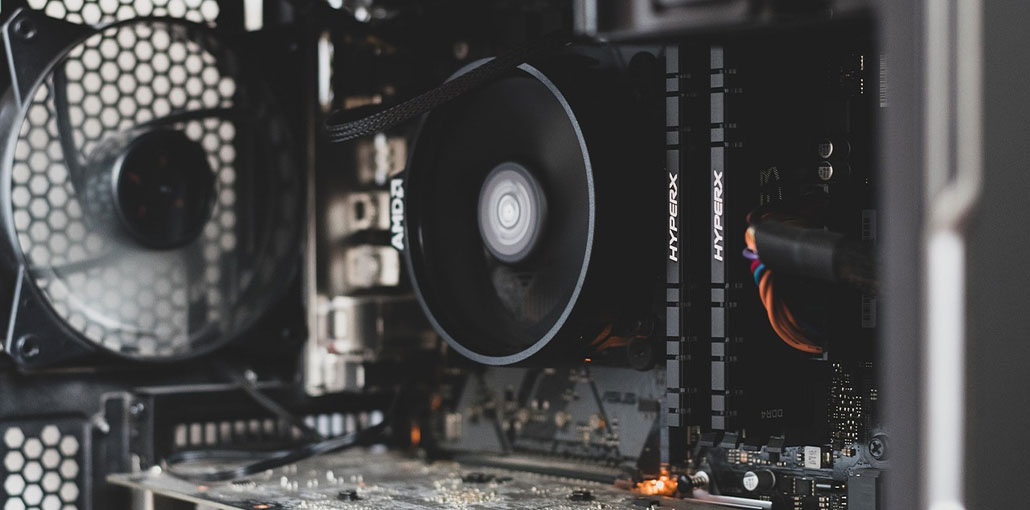
The CPU fan error warning feature is an option that is built into many motherboards to prevent damage from excessive heat. This feature not only shields the CPU, but it also protects the socket as well. A CPU heat spike isn’t just damaging to the CPU, but also the socket it’s within. It is perhaps the most essential security feature your computer has, but why are you getting a CPU fan speed detection error?
CPU Fan Error on Boot: What’s Actually Wrong?
This error message is intended to happen when the PC is unable to recognize any fan or device attached to the CPU fan’s header. The fan header is distinct from all others because it has this failsafe connected specifically to it. It serves only one goal: it is designed to protect your CPU from overheating.
If the motherboard is unable to detect any device connected to the fan header, or the motherboard finds anomalies in the device connected to the fan header, the motherboard will show this error immediately after the post.
The reason that your motherboard may refuse to boot into the operating system is due to the issue it is the case that Windows and other operating systems that use GUIs require some CPU power to function. Any load placed on a CPU that is not cooled or controlled will result in rapid temperature increases and eventually an “emergency shutdown. This rapid increase and the high temperature indicate that the CPU fan error is seeking to prevent.
Also read: Top 10 Fan Control Software to Cool Your PC Faster
Why Am I Seeing a CPU Fan Error?
With the knowledge we have about the CPU fan error, we can make some deductions regarding the cause of the error in your PC. There are several possible causes that we can look into, and some of them are easy to identify, while others aren’t. Let’s examine some of the more common issues first.
CPU fan error diagnosis.
We’ll take a look at the world of diagnostics and try to figure out what might be the CPU fan speed error.
CPU Fan Header Connection Issue
First, let’s cover the basics. Ensure that your cooling device is properly connected to the CPU fan header. ensure it’s fully connected without offsets by some pins, and is pushed all up to the top on the connector.
We don’t know how many times we’ve constructed a brand-new gaming machine and forgotten to plug in a crucial component, such as the CPU fan header. It happens to the very best of us, and it’s not something to be embarrassed about.
Cooling Device Malfunction
The CPU fan error message can be demoralizing, particularly when everything appears to be functioning correctly. You’ll be relieved (or sad) to realize that it’s never your fault.
The fact is that all devices fail eventually. It may not happen the next day, or even in five years. But they will fail. If this happens to a cooling system, it can cause the CPU fan header to be activated. There are three major kinds of cooling (Air, AIO, and Loop). This article will provide a simple observation to note when a device fault occurs.
Air: Check to see whether the fan connected to the CPU fan header is spinning correctly and isn’t in a hurry or generating any resistance.
AIO: A bit more difficult to use, but you’ll be able to hear the AIO pump start to work, and be accompanied by a distinct water sloshing sound within the first few seconds of your computer being turned on.
Loops: This applies to full loops and CPU loops, but only. Verify that the water within your loop is moving. It is helpful if you have a flow meter to monitor the flow easily, but an easy visual check will suffice.
Pump Tip: Your pump will inform you if it’s about to go out or has suffered damage. The pumps (whether located in AIOs and loops) are known to whine when they’re not feeling well. You’ll be able to hear a high-pitched whine. It’s irritating and difficult to ignore. But it is often misinterpreted as a whine from a coil that comes from the PSU. But that’s completely different.
If you notice any of these systems not working properly, then it’s likely that the device you’re using is faulty. The only way an item can trigger the CPU fan error is when it is connected directly to the motherboard’s CPU fan header. There is no need to look for any additional devices.
Motherboard or CPU Fan Header Failure
After examining all the possibilities, the motherboard or the CPU fan header may be damaged. If you’re convinced that there’s nothing to be concerned about, it could be the motherboard.
The best option is to RMA your motherboard if it’s still in the warranty period before trying any repair. There’s a solution to avoid this if you’re not interested in having your computer off for a couple of weeks. We’ll look at that later.
Also read: How to Fix Windows Modules Installer Worker High CPU Usage (2026 Guide)
Disable the CPU Fan Error Warning
Disabling the CPU fan warning is a possible solution, but we recommend it with extreme caution. If you are wrong about your cooling system operating properly, you could end up damaging your CPU or socket.
Once all of the alerts are gone, disabling the CPU fan error is an easy task, but it is a little different based on the brand of your motherboard.
Within your motherboard BIOS in the advanced settings, there is a monitor tab. There, you can find an option similar to CPU fan speed or “CPU fan error”. Switch to either ‘ignore’ or disable then you’re ready to start. This tutorial was designed based on the latest ASUS BIOS; it won’t be too different on other motherboards.
After the speed warning is removed, the computer will not check for a CPU fan error.
Monitor CPU Temperatures
If you decide to disable the CPU fan control, we recommend heading into the BIOS to check temperatures. If everything appears to be normal, only then should we boot our OS of choice and check the CPU temperatures. If you notice unusual fluctuations of any kind, stop the power. This is now basically a human CPU fan checker.
How to Prevent CPU Fan Error in the Future
- Clean your PC every 3–6 months
- Always connect fans to the correct headers
- Use quality CPU coolers
- Keep BIOS updated
- Monitor temperatures regularly
Wrap Up
The CPU fan error is a crucial element of the POST procedure that your computer performs when it starts. Without it, millions of CPUs could expose them to unsafe operating temperatures.
PC diagnosis can be difficult, particularly when the issues that occur aren’t necessarily physical. The CPU fan error isn’t different. However, now you have the necessary information to fix CPU fan error securely.
FAQs: CPU Fan Error
Why does CPU fan error appear even when the fan is working?
This happens when the fan speed is below BIOS limits, connected to the wrong header, or misread after a BIOS update.
Does dust cause CPU fan error?
Yes, heavy dust buildup can slow the fan, causing incorrect speed detection and triggering a CPU fan error.
Why does my PC say “CPU Fan Error – Press F1”?
This message appears when the motherboard detects a cooling issue and pauses booting to prevent CPU overheating.
Does CPU fan error mean the fan is dead?
Not always. The fan may still spin but fail to report speed correctly due to wiring or sensor issues.








Leave a comment