

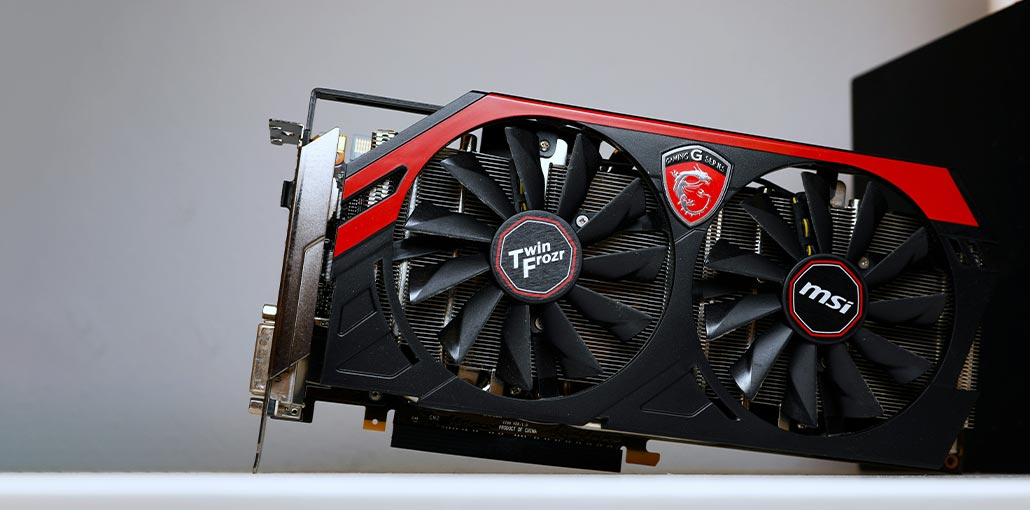
When you turn on your new computer, you notice a lack of movement from your GPU fans. In some instances, we can only tell that the fans stopped functioning after the GPU starts to stumble and slow down in games that it was previously capable of handling.
Sometimes, the GPU fans not spinning could be due to a problem, and not only the video card’s fans sitting idle, which could be very annoying. After you’ve invested money in the most powerful GPU, you may be a little worried when you notice that the new model isn’t working as smoothly.
Common Reasons Why GPU Fans Not Spinning
There are several reasons your GPU fans are not spinning, including:
- GPU Load
- Temperature Thresholds
- Unplugged Power Cables
- Dust Accumulation
- Obstructing Wires
- GPU Fan Curve
- Graphics Driver Issues
There are several solutions to this issue, and the best part is that it’s usually small and can be fixed easily to avoid the expense of a repair or replacement.
Also read: Why Am I Getting a CPU Fan Error? Causes and Easy Fixes
How To Fix GPU Fans Not Spinning
1. Check If GPU Fans Spin Under Load
You might have seen a term referred to as idle while searching for solutions to your GPU fans not spinning. This is due to the common feature of modern GPUs to sit idly. It means that the fans will begin to spin when the GPU temperature reaches the point at which there’s a reason for it, thereby saving energy and reducing noise.
To determine whether your fans are idle and not in need of repair, begin playing a game, and soon enough, once your graphics card comes under pressure, the fans should start up. Start playing the game that is most graphically demanding to speed up the process. Or try benchmarking software that will push your GPU like Furmark/3dMark/Unigine.
2. Use Software to Control Fan Speed
It is worthwhile installing software such as MSI Afterburner to allow you to control the fan speed of your GPU, which could be the trigger to get the fan to go. MSI Afterburner is often used to overclock the GPU, but you can use it for monitoring as well.
3. Restart and Reseat Your GPU
At this point, it is a good idea to try. A restart is an ideal solution to a variety of typical issues, and you’ll be amazed at how often it can work. Also, reseating your graphics card.
4. Loose or Unplugged Cables
When you install a new version, cables can be sloppy since we didn’t connect them completely (it happens to all of us) or were not completely “seated”. The cable can get stuck and stop your graphics card fan from spinning.
Unplug your PC and then remove the side panel to check. Remember, some lower-power GPUs don’t use PCIe power cables because they can run off the power coming through the main lane.
While you’re on your computer tinkering with cable connections, it is important to ensure that the cables are connected correctly. Also, check whether any cables are stuck in your card fans.
Also read: 5 Best GPU Coolers for Your Graphics Card
5. Swapping PCIe Power Cables
If the PCIe cable has been connected and the GPU is identified as connected, but the GPU fans not spinning, you can try swapping the PCIe cable using a spare cable from the power supply box, and test again. At this point, if your GPU fans not spinning, it’s going to be a separate problem.
6. Update or Reinstall GPU Drivers
If you’ve checked your connections to your cable and all is working exactly as it should be, however, you aren’t getting fans spinning under load. There are other issues we could investigate the next time.
It’s usually worthwhile to update your drivers when you experience a hardware issue, and you can resolve the problem with little effort, like a system reboot. Even if you’ve recently upgraded your drivers, it may be worth deleting them before reinstalling them, in case something is corrupted or buggy.
7. Rule Out Motherboard Issues
To help with troubleshooting, we can rule out the possibility of an issue with the motherboard. motherboard issue by first taking your GPU from the build. After that, you can run the PC using your monitor connected to your motherboard (if the CPU is equipped with an audio output).
If your PC starts up without any issues, it’s not an issue with your motherboard that the GPU fans not spinning. If not, try reinserting the card into a different PCIe slot.
8. Clean Dust and Debris
Remove the graphics card and give it a thorough dusting to ensure there’s no physical obstruction preventing the GPU fans from spinning (dust and fluff). An old dust cloth and breath could suffice to remove the dust, but a bottle of compressed air was suggested for cleaning PC components. After the GPU is clean, you can install the card, re-cable it again, and then reboot your system. Load a graphically intense game, and then wait for the fans to start working.
9. Lubricate GPU Fan Bearings
If your older graphics cards are not in good condition, the bearings of the fan can wear and leave them a bit stiffer than they were freshly out of the factory. Bearings are losing their lubricant, and they’ll have too much friction to function. Oil will help a mechanical bearing out, but ensure that it’s an oil that is lightweight, which is also referred to as lubricating oil.
To add the oil, we must remove the fans. To accomplish this, you’ll require a tiny screwdriver that can fit between blades. Check online for the best way to remove the fans on your specific graphics card you have. However, typically, you will find 6-8 screws in the middle of the fan that keep it in place.
When the fans have gone off, it is possible remove a sticker to access the bearings inside. Apply a small amount of oil to the bearings in the center and only then use it sparingly, since you can increase the amount.
Also read: How to Stop PS5 Overheating: Easy Fixes and Solutions
10. Test the GPU Fans
If you still find your graphics card fans not spinning, then test it. If your video card uses standard connectors for its fans, then you can disconnect them to connect the motherboard. You can then check them out again and manage the fans using software such as Afterburner.
11. Repair or Replace Faulty Fans
If you are still having issues with the GPU fans not spinning. If you have a warranty policy for your graphics card, take advantage of it to have it repaired. If you don’t, you can change the fan yourself. If you’ve got the size and dimensions, they can be replaced the same way as you took the existing fans off.
Final Thoughts
If neither of the above suggestions has worked and your GPU fans not spinning, but your graphics card is still covered by warranty, it’s recommended to contact the vendor directly to arrange an exchange or repair, as it is evident that you have a defective product. If the product is old and has a long way to go before it is covered by warranty, it could be the last attempt to maximize the graphics card performance.
FAQs: GPU Fans Not Spinning
Is it normal for GPU fans not to spin on startup?
Yes. Many modern GPUs have a zero-RPM or idle mode, where fans remain off at low temperatures to reduce noise and save energy. Fans usually start spinning under load.
At what temperature should GPU fans start spinning?
Most GPUs start spinning around 50–60°C, but this varies by manufacturer and model. Check your GPU’s specifications or fan curve settings.
Can power supply issues cause GPU fan failures?
Yes. Insufficient PSU power or loose PCIe power connectors can result in the GPU fans not receiving enough power to spin
Do NVIDIA and AMD GPUs handle fan control differently?
Both NVIDIA and AMD cards use temperature‑based fan control and zero‑RPM modes. If fans don’t spin under load, it’s usually due to settings, drivers, or hardware issues — not the brand







Leave a comment