

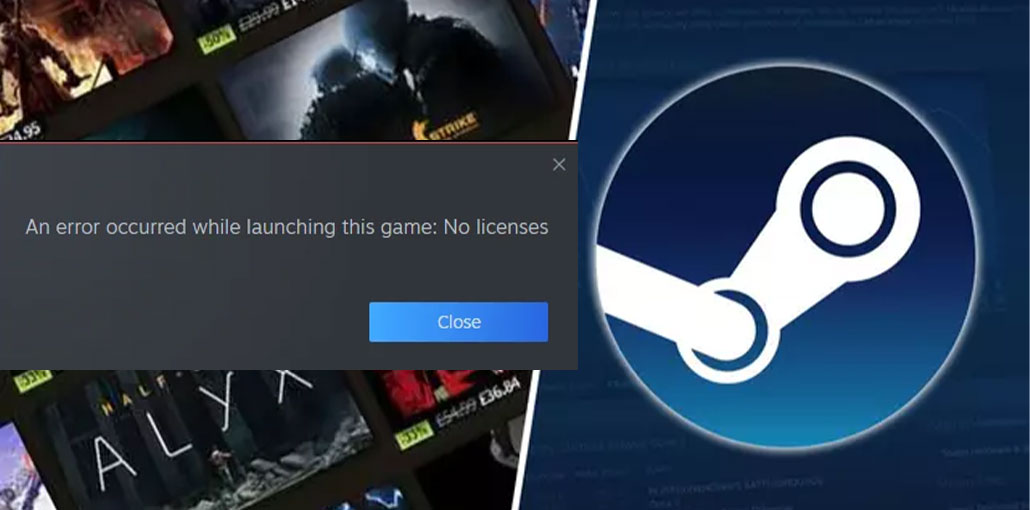
How to fix an error that happened while launching a game with no license? Are you confused? Check out this how-to guide for fixing the Steam No License error.
What Causes the Steam No License Error?
The reason for the Steam no license error is that you downloaded games from torrent websites or other suspicious websites. In this way, you do not have the game, nor do you have a license for the game. You must have a Steam account to access the game. Here are some of the most common reasons we have found.
- Issues with the Steam account or game license
- Issues with Steam’s cache file
- Problems with antivirus software
- Network connectivity issues
- Steam client or server problems
Check out the next paragraphs to discover a Steam No License error solution that will work for your particular situation.
Also read: How to Fix Steam Disk Write Error in 2025
How to Fix Steam No License Error
Fix 1. Verify the Game License
In some cases, games gifted by other players or using a different account can result in the Steam no license error. Therefore, ensure that the game you’re planning to release is registered to your Steam account.
To verify your game license, follow the steps listed below.
Step 1. Log in to your Steam account using your personal account.
Step 2. Go to the Library and verify whether the game is on the list. If the game was gifted, make sure it was received properly.
Fix 2. Verify the Integrity of Game Files
To confirm the authenticity of the game’s data files, here’s how you can verify the integrity of game files.
Step 1. Start Steam and click the Library.
Step 2. Right-click the game you are having trouble with and select properties.
Step 3. Choose the installed files. Click to check the integrity of the Game files. This will verify and correct any issues found.
Note: Always use official Steam purchases to avoid license issues.
Also read: Best VPN for Steam in 2025: Fast, Secure, and Lag-Free Gaming
Fix 3. Clear Steam Cache
The game’s ‘No License Found’ error may be due to a corrupted or accumulated cache. Cleaning out your Steam cache is a good idea to resolve the Steam no license error. To do so.
Step 1. Terminate Steam completely.
Step 2. Win and R together to open in the run box. Copy and paste %localappdata%\Steam into the address bar and press Enter.
Step 3. Click on the Steam folder and choose delete. Relaunch Steam and test if the game is working normally.
Fix 4. Turn on Beta Mode on Steam
Step 1. Open Steam and then click to open the Steamoption at the top right-hand edge of your interface.
Step 2. Choose the Settings and locate the Interface on the left of the panel.
Step 3. Find the Client Beta Participation and click on the dropdown menu to choose Steam Families beta.
Relaunch the Steam application to determine whether the issue with no license has been resolved.
Fix 5. Temporarily Disable Antivirus and Firewall
Antivirus and Firewall may sometimes hinder the Steam application. Temporarily disabling these to follow the steps.
Step 1. Find your antivirus program and then turn it off for a short time.
Step 2. Add Steam to the Exclusion list of the antivirus.
Step 3. Temporarily disable the firewall, and then try launching the game again.
Also read: Steam Deck Not Turning On? 8 Quick Solutions to Fix It Today
Fix 6. Check Internet Connection
Follow the steps below to determine if your internet connection is reliable.
Step 1. Restart your router or try to switch to a different network.
Step 2. If you have conditions to use wired connections instead of Wi-Fi.
Fix 7. Change DNS Settings
Step 1. Enter Control Panel into Windows Search and then open it.
Step 2. Find the Network and Sharing Center, then click Modify adapter configurations.
Step 3. Right-click on the network connection and choose Properties.
Step 4. Select Internet Protocol Version 4 (TCP/IPv4) and click the Properties button.
Step 5. Replace the preferred DNS Server and the Alternate DNS Server with 8.8.8.8 and 8.8.4.4, respectively. When you are done with the process, select “OK” to save the modifications.
Tips to Avoid Steam No License Errors
- Always keep Steam updated.
- Avoid moving game files manually outside the Steam library.
- Regularly back up your game files.
- Use the official Steam client only.
Wrap Up– Steam Error fix
To summarize, using the list of solutions, you can successfully fix the Steam No License Error and get back into your gaming experience. Thank you for reading this blog. If you find this blog helpful, comment below.
FAQs – Steam No License Error
What is the Steam No License Error?
The Steam No License Error appears when Steam cannot verify ownership of a game linked to your account, preventing the game from launching.
Can using a different Steam account cause a No License error?
Yes. If the game was purchased or gifted on another account, Steam may show the No License error when launched from a different account.
Will reinstalling Steam fix the No License Error?
In some cases, reinstalling Steam can fix corrupted client files causing license problems.
Can Steam server downtime cause a No License error?
Yes. When Steam servers are down or under maintenance, license verification may temporarily fail.









Leave a comment