

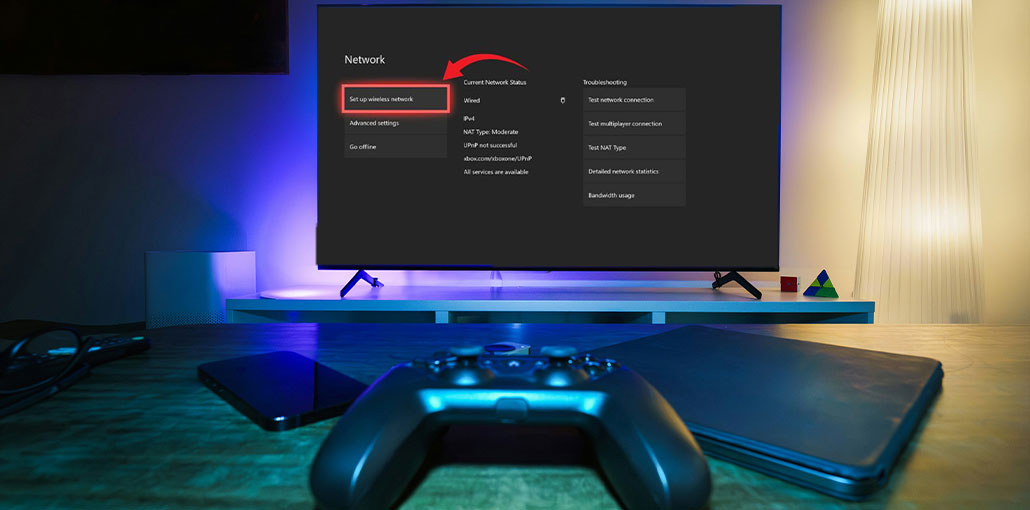
After having to deal with some problems while using multiplayer gaming on Xbox consoles, a few users have reported that they receive an ‘ UPnP Not Successful error when they go into the Network settings tab to examine the problem. The issue is confirmed to be present in each Xbox One and Xbox Series.
NOTE: Universal Plug and Play (UPnP) is the protocol the Xbox console defaults to when it is time to configure your router to support online gaming or chat.
Possible Causes of the “Xbox UPnP Not Successful” Error
After analyzing the issue and attempting to reproduce it on our system, it turns out that several possible causes may be responsible for the appearance of the UPnP Not Successful error code. Here is a brief list of potential causes you may be interested in investigating:
- UPnP is disabled in the Router Settings: The majority of the time, not, your device will display UPnP Not Successful error, as Universal Plug and Play is actually disabled in your router’s settings. If this is the case, then you’ll be able fix the issue by accessing the router settings and then enabling UPnP through the Advanced Settings menu.
- TCP and IP Network Inconsistency: If you’ve verified that the UPnP protocol is in your router’s settings, but you’re still experiencing this problem, the next step is to troubleshoot for a possible network issue. Resetting or restarting your router can resolve many of the TCP and IP issues that cause this issue.
- Persistent storage is corrupted: If you’re experiencing this issue when playing games on physical media, then the issue is caused by the persistent Blu-Ray cache that is present across the Xbox One and Xbox Series S and X. Many players who have experienced this issue report that they were able to fix the issue was resolved after clearing their persistent cache in within the Settings menu.
- “Shadow-banned” MAC address: According to many users who are facing the UPnP Not Successful issue with the Xbox Series X, several MAC address ranges are prone to being blocked by Microsoft. If you’re experiencing this specific situation, what you must do is clear the alternative Address and restart your console.
Once you’re familiar with all scenarios that could cause your console to display an ‘ UPnP not successful’ error, proceed to the next section to find a set of troubleshooting tips that other users have successfully utilized to fix the Xbox UPnP Not Successful Error:
Also read: Xbox Controller Blinking or Flashing? 7 Simple Fixes That Work
How to Fix UPnP Not Successful on Xbox
Enable UPnP on Your Router
Before you start the UPnP Not Successful Xbox fixes guide, ensure your UPnP (Universal Plug and Play) is enabled on your router.
Most of the time, the issue occurs because the Network Address Translation (NAT) isn’t open to the specific network the console connects to. Xbox One and Xbox Series X players who face this issue have reported that they were able to resolve the issue and play normally after visiting the Settings page of their router and then manually enabling UPnP using the Advanced menu.
After this, and restarting their router, you can see the problem solved, and the message ‘ UPnP Not Successful will not appear anymore when you go to the Network menu on your Xbox console.
Follow the steps below to turn on UPnP on your router.
- Make sure your Xbox console is connected to the same router.
- Open a web browser and type 192.168.0.1 or 192.168.1.1, then press Enter.
- Log in using your router credentials (not Wi-Fi credentials).
- The default username/password is often admin/admin or admin / 1234 (varies by router).
- Open the Advanced Settings menu.
- Navigate to NAT Forwarding or WAN Settings.
- Locate UPnP and enable it.
- Save changes and restart your router.
If you’re still getting the same ‘UPnP not successful’ network error message when you access the Settings menu on the Xbox console, go to the next solution listed below.
Restart Your Router
If you want to begin with something that isn’t at risk of impacting your access to the Internet. A router reboot is the best method to begin. This process will delete the currently stored Internet Protocol data and Transmission Control Protocol data.
To reset any network device, begin by identifying the power/switch switch (typically found at the rear of your device) and press it one time to turn off the power source. When you’ve done this, proceed to disconnect the power cord and the electrical outlet. Wait for 1 minute or longer.
If restarting the network didn’t resolve the issue, proceed to resetting your network settings.
Reset Your Router
If a simple reset is not enough for you, you should perform a hard reset to confirm that no settings or cached network data are causing the UPnP Not Successful issue.
Important: Before resetting your router, it is crucial to understand what do with your network setup. It will reset your router back to its factory settings, which means that any forwarded ports, blocked items, and other custom settings will be reset. Additionally, if your ISP is using PPPoE, a router reset will mean that the currently saved credentials will be ‘forgotten’. After completing the reset process, it is necessary to restore the PPPoE connection.
Once you have a better understanding of the implications of this procedure, you can initiate an operation to reset your router by finding the reset switch (typically found on the back of the router). When you see it, press and hold it until you notice all the front LEDs blinking simultaneously.
Once the router is reset, you can re-establish your internet connection by re-inserting the PPPoE credentials provided by your ISP (if needed) and test whether the Xbox console is capable of playing multiplayer games without showing the same ‘UPnP failed message.
If the issue is not solved even after you restarted or reset your router, then go to the next solution.
Clear the Persistent Storage Cache
If you’re facing a UPnP Not Successful error while playing a game on a game disc (physical media), you may be dealing with an inconsistency that affects the Blu-ray cache, which Xbox One, Xbox Series X, and S maintain.
A few affected users experiencing the same issue have confirmed they were able to resolve the ‘UPnP was unsuccessful ‘ error by restarting the Blu-Ray application and then deleting the persistent Blu-Ray cache before repeating the procedure that eventually causes the error message.
After you have done this, your console will prompt you to download the Xbox store (since Blu-Ray’s infrastructure isn’t ). If this occurs, the only thing you need to do is click Install to follow the on-screen instructions.
Please follow the directions below:
- Steps to Clear Persistent Storage
- Press the Xbox button to open the guide.
- Go to My Games & Apps.
- Locate the Blu-ray app.
- Press the Menu (Start) button and select Manage apps.
- Choose Uninstall all and confirm.
- Return to the dashboard.
- Open Settings > Devices & Connections > Disc & Blu-ray.
- Select Persistent Storage.
- Choose Clear Persistent Storage.
- Restart your console.
After your console has booted up, go to Settings > Network and check whether the UPnP issue is fixed.
Also read: Roblox Error Code 277: Causes, Fixes, and Troubleshooting Guide
Clear the Alternate MAC Address
If you’re getting the Unknown Network Error on your Xbox One console after you’ve manually set up a MAC address previously (or brought a pre-owned console), the MAC address may be hindering your console’s ability to connect to the Internet.
If this scenario appears as it could apply, you can resolve the issue by accessing the Settings menu on your Xbox One console and clearing the Alternate MAC address currently stored.
If you think an incorrect alternative MAC address is the cause of problems, follow the steps below to delete the address from your computer:
- Press the Xbox button and open Settings.
- Go to Network > Network Settings.
- Open Advanced Settings.
- Select Alternate MAC Address.
- Choose an Alternate Wired MAC or an Alternate Wireless MAC.
- Click Clear.
- Restart your Xbox console.
After restarting, return to Settings > Network and confirm whether the UPnP Not Successful error is resolved.
Here comes the end of the article. Now, you can try these five solutions to fix the UPnP Not Successful Xbox Error.
FAQs: UPnP Not Successful on Xbox
What does “UPnP Not Successful” mean on Xbox?
It means your Xbox cannot automatically open the required network ports on your router. This usually results in a Moderate or Strict NAT type and can affect online gaming and party chat.
Why does my Xbox say UPnP Not Successful?
This happens when UPnP is disabled on the router, there is a double NAT setup, network cache issues, or your ISP blocks required ports.
Does resetting my router fix the UPnP issue?
Yes. Restarting or resetting the router can clear network conflicts that prevent UPnP from working properly.
Which ports should be open for Xbox Live?
Xbox Live requires ports like UDP 88, 3074, 500, 3544, 4500 and TCP 80, 3074 for stable online gaming.
Does router firmware affect UPnP on Xbox?
Yes. Outdated firmware may contain UPnP bugs. Updating the router firmware often fixes the issue.









Leave a comment