

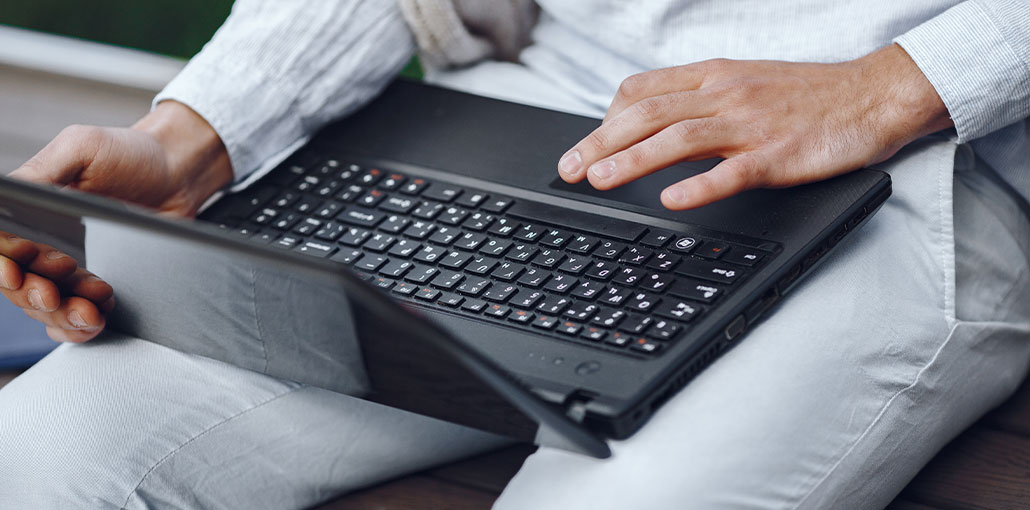
Your laptop is your work partner in the field. If you figure out the issue that your laptop touchpad not working, then it can hinder your mobility. It is possible to use an external wireless or wired mouse to get things working.
But what is the reason my Laptop touchpad not working? Well, don’t worry. If the laptop touchpad stopped working or isn’t responding. Here are some possible reasons and solutions to fix the laptop touchpad not working.
Let’s get started.
Reasons Your Laptop Touchpad Not Working
It doesn’t matter if you’re using a Windows or Mac laptop and tablet. The device’s touchpad or trackpad could malfunction due to various reasons. Are you seeing your mouse cursor reacting erratically and inconsistently? If not, the cursor will not move even a bit.
You may see that the laptop touchpad not working due to reasons like:
- Touchpads are dirty or dusty.
- Operating system errors, glitches, or system malfunctions
- Touchpad disabled in system settings
- Old or corrupt drivers.
- Incorrect or missing files or programs.
- Hardware problems.
Also read: Why Is My Laptop Keyboard Not Working? 9 Fixes to Try Today
How to fix a Laptop Touchpad Not Working?
A touchpad not responding properly can affect your laptop’s performance. It could also make using your laptop a hassle. Most of the time, you can repair the touchpad by yourself. It’s not necessary to call for the same-day laptop repair or expert assistance.
Here are some helpful tips to fix the laptop touchpad not working properly.
1. Restart Your Laptop
If your computer freezes or ceases to respond, then turn it off and then turn it back on. You may not be able use the keyboard or any other device when the operating system has glitches.
If that’s the scenario, you should press the power button on your laptop until it shuts off. It will take a couple of minutes before turning it on. Turn on your laptop and check whether the touchpad begins responding after a few minutes.
2. Watch Out for Dirt
Do you enjoy having lunch at work? Working while eating can leave the touchpad of your laptop oily and dirty from your hands. Additionally, over time, dust and dirt may accumulate on the laptop’s touchpad.
Your laptop’s touchpad will not sense the swipes and touches of your fingers. The laptop touchpad not working. is likely to become a regular occurrence. To be on the safe side, habit to clean the computer’s screen, keyboard, and touchpad regularly.
Use a microfiber cloth to remove grime and dust. After that, you can add a few drops of isopropyl alcohol. In the end, you’ll need a canister filled with compressed air complete the task. Cleaning your laptop helps you avoid problems, such as a Laptop trackpad not working.
3. Try it with an external mouse
Do you think the built-in mouse is not responding? Test your laptop’s capabilities using an external wireless or wired mouse. This will allow you to determine whether the issue is related to software or hardware.
Also, connect a USB or wireless mouse to your laptop. If the mouse you connect externally is working perfectly, then the built-in mouse may be to blame. Use an external mouse until you resolve the laptop touchpad not working issue.
4. Remove Bluetooth Devices
This solution is for the Bluetooth wireless mouse. It does not apply to the trackpad or touchpad that is built into the mouse. If your Bluetooth mouse is having trouble on your laptop, this is how to repair it.
Other Bluetooth devices connected to the laptop could hinder the mouse functionality. Disconnect all Bluetooth devices. It includes your Bluetooth mouse, gamepad, and other peripherals.
After that, restart your laptop, and reconnect your Bluetooth device to it. Examine if the mouse will not function on laptops, or if it starts working again.
5. Turn On the Touchpad in Windows
This solution is specifically for Windows devices. You might have accidentally turned off the Touchpad option on your Windows laptop. Don’t worry, you can turn it on by following the steps below.
- Click on the Start menu.
- Navigate to Settings and select Bluetooth & devices.’
- Then, select Touchpad and then open Windows Touchpad configurations.
- Ensure that the touchpad functions are on.
6. Adjust Mac Settings
If you’re having trouble with your laptop touchpad not working, try this specific solution. A laptop repair expert advised that adjusting the system settings on your MacBook can resolve the issue of the built-in touchpad not working.
Step to follow
- Go through System Settings on your MacBook.
- Then, navigate to Accessibility and search for Pointer Control. Choose the option.
- Uncheck the box that reads”Ignore built-in trackpads when the wireless trackpad or mouse is available.’
- Check if the change above will help with your laptop’s touchpad not working.
7. Update Your System Drivers (for Windows Devices)
Laptop repair experts say that old or damaged drivers can cause the laptop touchpad not working issue. If your Windows laptop comes with a built-in mouse and it isn’t working, try this procedure.
How to update the system drivers on the laptop’s touchpad that is integrated:
- Press the Windows keys on your keyboard.
- Then, type ‘Device Manager” and press the enter key.
- The Device Manager window must have opened. In the window, look for “Mice and other devices that point Click on it.
- Then, right-click on the built-in mouse or touchpad on your laptop.
- Then, click Update Driver. Then, start the search automatically.
After updating the touchpad software, you can restart your Windows laptop. Once your laptop is powered up and off, ensure that the touchpad is functioning. If you own a MacBook and you have updated drivers, then this is not an alternative. Instead, you need to move to the next process.
8. Update the Operating System
Often. An outdated operating system could affect your experience. Before deciding on an instant laptop repair, try updating to the latest operating system. Additionally, follow these guidelines if you own a Windows PC, and the mouse does not work on laptop.
- Go to Windows Update or Mac Software Update
- Install the latest updates
- Restart your device
Also read: How to Stop Laptop From Overheating
9. Enable Touchpad in BIOS Settings
If your touchpad is not enabled in the BIOS settings of your computer. To resolve this issue, you have to enable touchpads in the BIOS.
To do that, you need to access the BIOS settings on your system. Reboot your system, and as it reboots, you need to press the F2, F8, or Del buttons. Depending on the laptop manufacturer’s settings, the BIOS settings could differ.
In your BIOS settings, go to the advanced section. You will discover Touchpad, also known as the Internal Pointing Device. similar settings in which you can check whether the touchpad is active in the BIOS settings or not. If it’s not, it is necessary to switch it to enabled mode, save the BIOS settings
Ending Notes
If you encounter issues with the laptop touchpad not working after trying the solutions mentioned above, you should contact a professional repairer to fix it.
FAQ: Laptop Touchpad Not Working
Why is my laptop touchpad not working suddenly?
Your touchpad may stop working due to disabled settings, outdated or corrupted drivers, Windows updates, or a temporary system glitch.
Why is my touchpad not showing in Device Manager?
This may happen if the driver is missing, corrupted, or the touchpad is disabled in BIOS settings.
How do I reinstall my laptop touchpad driver?
Go to Device Manager → Mice and other pointing devices → Right-click Touchpad → Uninstall → Restart your laptop. Windows will reinstall the driver automatically.
Can connecting multiple external mice interfere with the touchpad?
Yes. Multiple mouse drivers can cause conflicts. Remove unnecessary mouse drivers via Device Manager and restart.









Leave a comment