

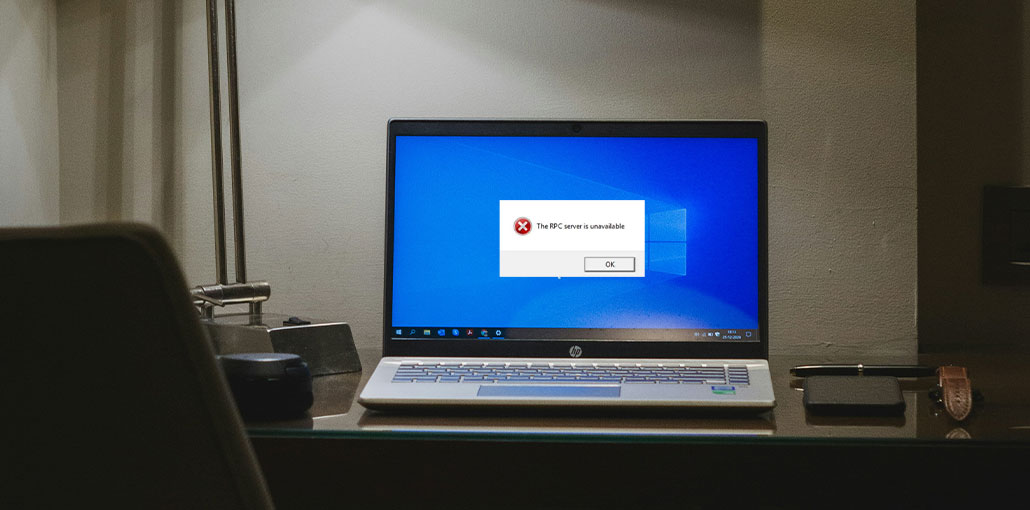
If you’re a Windows user, you’re familiar with the frequent problem message “RPC Server is Unavailable,” which blocks users from accessing specific files. For those who are new to the field and have no networking knowledge or experience, the RPC server is unavailable error causes a lot of panic. It’s good to know that the error message itself is not dangerous, nor will it cause the user to lose their data.
Fortunately, fixing it is extremely simple, and that’s what we will cover in this tutorial.
Before we get the specifics, I will inform you that RPC isn’t a specific Windows process; it’s an approach. This is why you will see it on every type of computer system currently in use.
What is RPC?
Remote Procedure Call, also called RPC for many years, was used to communicate between computers. But, with the modern PC being created that can run several programs simultaneously, RPC is now being utilized by a few applications to interact with other programs that are running on the same computer.
In simple terms, RPC allows different processes to communicate with one another to accomplish an action. It functions a bit like networking.
Why Does the “RPC Server Is Unavailable” Error Occur?
This error usually happens when your system fails to communicate with another service or device.
Common causes include:
- Disabled RPC-related services
- Network connectivity issues
- Firewall or antivirus blocking communication
- Incorrect DNS settings
- Corrupted system files
- Faulty drivers (especially printers or network devices)
- Interference from third-party software
Also read: 6 Easy Ways to Fix BIOS ID Check Error During a BIOS Update
How to Fix RPC Server is Unavailable in Windows 10/11
1. Restart the RPC Server
The simplest way to get rid of the RPC server unavailable message is to restart the service. This will enable you to restore all connections and also recall the entire process. To accomplish this, take these steps:
- Press Windows + R > to open the Run window.
- Type services.msc > enter.
- Look for DCOM Server Process Launcher> Double-click it.
- Check if the “Startup type” is set to Automatic and the “Service status” is Running.
- If “Startup type” isn’t set to Automatic and the Service Status is not stopped. Change this to Automatic and then start the service.
- After completing, reboot the computer and check if the issue is resolved or not. If the issue continues, move to step.
2. Perform a Clean Boot
In some cases, incorrect third-party programs can be responsible for”RPC Server is unavailable. ”
To determine if the issue is due to what you are experiencing, go through these steps to perform a clean boot
- Type sysconfig in the Search window, then press Enter.
- Go to the Services tab, then check the Hide All Microsoft service buttons.
- Next, check the remaining services and select Disable all.
- Next, press Ctrl + Shift + Enter to open Task Manager.
- Click the Startup tab, then select a specific service, right-click, and then disable.
- Exit Task Manager> Reboot the system.
Then try using the computer to see whether you get any RPC Server error. If the issue is solved, it means it was caused by third-party software. To solve the issue, you need to uninstall the specific software. To determine the exact application, you’ll need to go through each application, restart your system, and determine which one is causing the error. If you can identify the source, remove it from your system, and that’s all there is to it.
3. Check the Firewall
If your firewall is blocking RPC traffic, you end up having an RPC server is unavailable problem. To resolve the issue, check the firewall settings to determine whether it blocks RPC connections to the network. We recommend contacting the support department if you’re using a different firewall than Windows.
However, if you’re using Windows Firewall, follow these steps to verify the configuration and resolve the problem:
- Press Windows + R to open the Run window.
- Type control and press the Enter key.
- Look for Windows Firewall > Allow an application to pass through Windows Firewall below Windows Firewall.
- Scroll down and find Remote Assistance. Check that the communication option is enabled. (Make sure that all the boxes are selected.)
4. Check Your Network Connection Settings
Another reason behind the error could be an incorrectly configured internet connection. To verify the network connection, check these steps:
- Press Windows + R and then open the Run window.
- Type ncpa.cpl > hit Enter key.
- Right-click the network connection you’re using > Properties.
- Check the box next to File and Printer Sharing to enable Microsoft Networks and Internet Protocol Version (TCP/IPv6).
- Furthermore, we also suggest resetting the printer and files. To do this, you’ll have to update your driver.
5. Fix Registry Settings
Before making any modifications to the registry, make an entire backup of the registry. To do this, click Windows + R, then enter regedit.exe. Click File > Export. This will save every registry key. Once you have the backup, you can follow the steps to correct the incorrect registry entries, which cause the RPC inaccessible error.
To accomplish this, comply with these instructions:
- Press Windows Key + R to launch the Run dialog box.
- Type regedit to open the Registry Editor.
- Navigate to:
Computer\HKEY_LOCAL_MACHINE\SYSTEM\CurrentControlSet\Services\RpcSs
- Double-click on the Start entry, and then adjust “Value data” to 2.
- Repeat the steps and alter the Start value of the 2 Registry keys, and alter the value data to 2.
Computer\HKEY_LOCAL_MACHINE\SYSTEM\CurrentControlSet\Services\DcomLaunch
Computer\HKEY_LOCAL_MACHINE\SYSTEM\CurrentControlSet\Services\RpcEptMapper
- After modifying all three keys, exit the Registry Editor and restart the system. It will display the “RPC Server Is Unavailable” error message.
If the registry entries aren’t available, restart Windows or utilize System Restore to restore your computer.
Also read: Fix Preparing Automatic Repair Error in Windows: 10 Quick Solutions
6. Use System Restore to Restore Your Computer
If the above strategies have been attempted, but an RPC is unavailable error occurs, and if you have System Protection enabled, you can restore your system.
To utilize System Restore, follow these steps:
- Type control panel in the Windows search bar
- Search for Recovery and then click on the Recovery option
- System Restore in the Recovery window.
- Click on Next and select one of the restore points from the drop-down menu.
- Click on Finish.
Windows will automatically restart with a previous configuration.
7. Clear your DNS cache
Problems with your DNS configuration may result in an RPC server is unavailable error. Use these tips to clean your DNS cache.
- Enter CMD in the Windows Start menu, then hit Enter.
- Enter the command ipconfig/flushdns and press Enter. This will clear the DNS resolver cache, removing outdated, old or corrupted address records.
Ending Notes
Following the fixes mentioned above, you can solve the RPC server is unavailable error in Windows 11 or 10 and other versions of the Windows operating system. These fixes will assist in solving the issue and allow the system to run immediately.
FAQs: RPC Server Is Unavailable
What does “RPC Server Is Unavailable” mean?
This error means your system cannot communicate with another service or device through the Remote Procedure Call (RPC) protocol. It usually happens due to service, network, or configuration issues.
Is the RPC Server Is Unavailable error dangerous?
No, this error is not harmful. It does not delete your data or damage your system. It simply indicates a communication problem that needs to be fixed.
Does RPC error occur in Windows 11 as well?
Yes, the RPC Server Is Unavailable error can occur in both Windows 10 and Windows 11 due to similar system or network issues.
Can third-party software cause RPC errors?
Yes, some third-party programs or antivirus tools may interfere with RPC services. Performing a clean boot can help identify the issue.
Can I fix RPC Server Is Unavailable without technical knowledge?
Yes, most fixes are simple and beginner-friendly, such as restarting services or checking network settings.









Leave a comment