

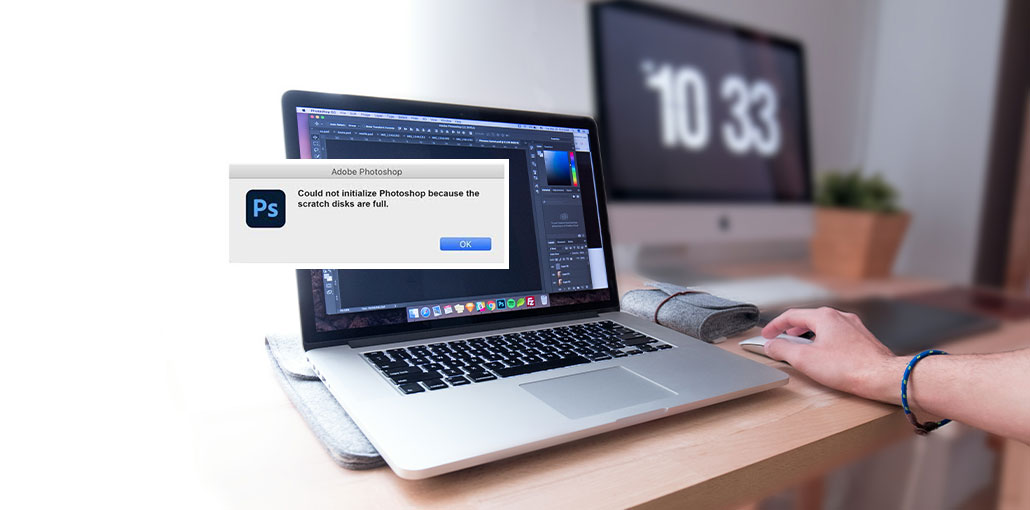
In essence, the scratch disk is basically a Photoshop function that temporarily functions as the Photoshop hard disk. It serves to act as a “swap” space of sorts. Additionally, Photoshop uses the scratch disk feature as virtual memory, which the system runs out of the RAM required to run a specific operation.
As you can see, if you get a Photoshop scratch disk full error, it means Photoshop cannot operate efficiently. There are several methods to solve this issue, and you ought to explore them all until it is fixed. The issue won’t disappear and can slow down your Photoshop operation.
Why Photoshop Scratch Disk Full Error Happen
If you get the scratch disks are full error in Photoshop, it means you’re running out of the storage space you need to carry out the task. As previously mentioned, scratch disks are used as temporary memory when your computer’s RAM is insufficient for tasks that require a lot of memory. If the memory and scratch disks are depleted and the error is detected, it will occur.
If your startup drive is almost full, Photoshop can not create temporary images to handle heavy work. In this situation, you could see the error “scratch disc are full in Photoshop. Furthermore, if you edit large, high-resolution, and multi-layered PSD files, Photoshop consumes massive temporary storage, which can cause the Photoshop scratch disk full error.
Imagine other software is running in the background and consumes RAM. They could make Photoshop complete resources and cause the error. Sometimes, the issue is caused by outdated software or hard disk drive issues, accumulated temporary files, and so on.
Also read: Top 10 Photoshop Plugins for Better Editing
How to Fix Photoshop Scratch Disk Full Error
1. Clear Disk Space
The easiest way to proceed if you encounter a Photoshop scratch disk full error is to free up some space on your disk. Make sure you select the appropriate partition as your scratch disk and begin deleting unwanted files. Begin with the largest ones, like television shows, movies, and video games. This will free up storage space on the disk and repair the issue.
2. Delete Photoshop Temporary Files
It’s not fun to have applications crash. If you’re not regularly hitting Control + Shift, the possibility of a crash could ruin hours of work and maybe more. But when it comes to Photoshop, it’s slightly more severe. When a Photoshop session fails during editing or shuts down incorrectly, the scratch disk becomes more overloaded.
During the shutdown process, each Photoshop session will clear temporary files on its own. If the shutdown process is interrupted or is not completed successfully, the temporary files are likely to remain on the disk, unnecessarily consuming space. This could cause a Photoshop scratch disk full error to appear. You can, however, delete the temporary files yourself on Windows and on Mac
Go to the temp file location (scratch disc) and search for files titled PST ####.tmp or Tempo ####, on Windows and Mac. There #### is a number in this case. Don’t worry. Temporary files are safe to remove manually, and give the scratch drive some space.
3. Set Up or Change Scratch Disks
If you have only one partition on your PC, then the scratch disk will be installed on that drive (naturally). If you have multiple partitions, Photoshop will use the drive on which your operating system is installed (by default).
You can modify your scratch disk location and set up additional locations to help things go more smoothly. This can be done using Photoshop Preferences. Go to the Edit tab in Photoshop, choose Preferences, and select the Scratch Disks. If you’re using Mac computers, go to the Photoshop CC menu and then select the Preferences tab and the Scratch Disks.
4. Use a Dedicated Scratch Disk Partition
If you’re determined to avoid the Photoshop scratch disk full error and use Photoshop regularly on a professional level, you may be interested in creating a dedicated hard drive partition for your Photoshop scratch drive. You can then configure the chosen scratch drive partition as the most efficient drive on your PC.
If possible, don’t designate as much of your Windows drive as a scratch drive. Instead, think about that you do not use the disk on which you keep your edits, and avoid using network drives as scratch disks.
5. Defragment the Hard Disk
If you have a lot of space available in the partition for scratch disks, but you’re still receiving a Photoshop scratch disk full error, it could be that your hard disk is too brittle to function as a scratch disk. Remember, one of the benefits of the scratch disk is that it can serve as virtual memory, replacing RAM as needed. This isn’t feasible with fragmented disks.
In this scenario, the disk defragmentation procedure could be appropriate. Remember that disk defragmentation erases all files on the disk or partition, so be sure you’ve got everything that is important backed up. This is why it’s suggested to have a separate HDD to store your Photoshop requirements.
Also read: 10 Best Free Photoshop Alternatives for Designers and Creators (2025)
6. Switch Scratch Disks
You can choose the category that your disk is in using your Photoshop preference menu. In the list of computer drives, you can choose the one you’d like to use as your scratch disk. The shortcuts to use on pc Command + Option or Ctrl + Alt.
7. Fix Cropping Errors
Sometimes, when trying to crop an image, you might encounter the ” Photoshop scratch disk full error. It is likely the result of a human error. This happens when you enter the resolution and size in the option bar for the cropping tool, or when you use incorrect units.
If, for instance, you are using inches instead of pixels to create 1680×1050, it is likely to trigger Photoshop to produce a massive file, resulting in a Photoshop scratch disk full error. The solution is to press Clear in the options after selecting to crop. This should be done before selecting the crop, however.
Best Practices to Prevent Scratch Disk Full Error
Avoid facing the Photoshop scratch disk error again with these tips:
- Always keep sufficient free disk space
- Use SSD instead of HDD for scratch disks
- Upgrade RAM if you work on heavy projects
- Regularly delete temp files
- Close unnecessary background apps
- Avoid working on extremely large files without optimization
Pro Tips for Better Photoshop Performance
- Use external SSDs as scratch disks
- Avoid working directly on extremely large files
- Close unnecessary background applications
- Save work frequently to avoid data loss
Final Thoughts
Several options could help resolve the scratch disc full Photoshop error. Check if you’ve selected the right location for your scratch disk needs, and that your drive isn’t fragmented. Be careful when you crop.
FAQs: Photoshop Scratch Disk Full Error
What does “Photoshop scratch disk full” mean?
It means Photoshop has run out of temporary storage space (scratch disk) used when your system RAM is insufficient to perform tasks.
How much free space does Photoshop need for scratch disk?
It is recommended to keep at least 20–50 GB of free space for smooth performance.
How do I fix Photoshop scratch disk full on Mac?
Clear storage on your Mac, delete temp files from /tmp, and change scratch disk via Photoshop > Preferences > Scratch Disks.
How do I find and delete Photoshop temp files on Windows?
Go to Run > %temp%, find files like Photoshop Temp#### or PST####.tmp, and delete them.









Leave a comment