

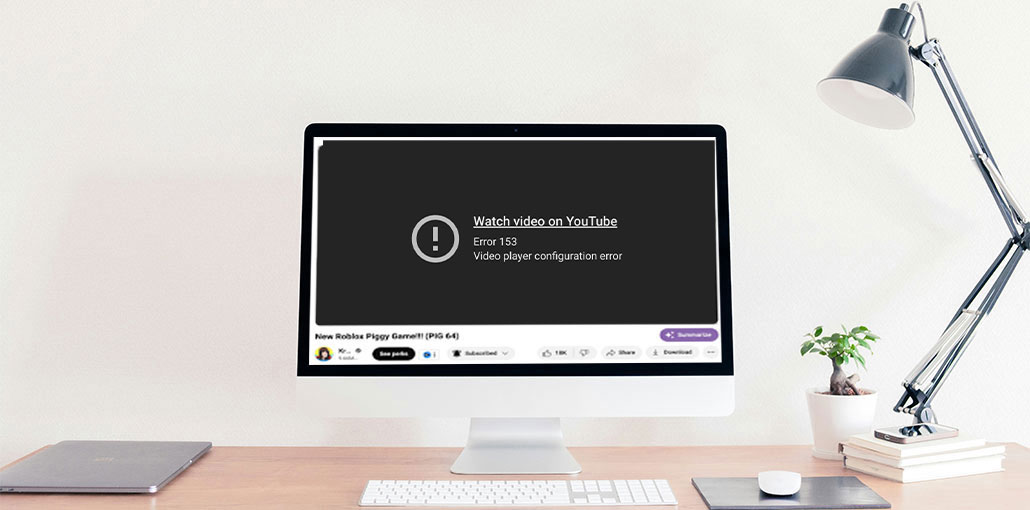
So, you’re lying back, you’re looking forward to watching your favorite YouTube videos or an interesting tutorial or maybe even a trailer for your movie, and then boom! You are astonished by an unsettling error message that appears on YouTube: “Error 153 Video Player Configuration Error.” What exactly does that mean? Don’t worry. We’ll break this down step by step and fix it. It’s much easier than making cakes (and it’s actually pretty easy).
Error 153 Video Player Configuration Error usually means there’s a glitch in your browser or with the video player’s configuration. It could be due to your browser settings, an outdated program, or an espionage extension that’s causing trouble. Try clearing the cache, updating your browser, or switching to a new browser. Here are some easy steps to help you resolve the issue quickly and get back to watching!
What Is Error 153 Video Player Configuration Error?
Error 153 is a video playback error that occurs when a player is unable to access or read the file. This means that the player can access the video file, but it cannot play it with the current settings.
It is typically seen on platforms like YouTube, embedded web players, and Desktop media players, and can be seen in any of these messages.
Why Does This Happen?
Great question! Here are the most likely suspects in Error 153:
- Older browser. It’s time to upgrade!
- Cache overflow. There’s too much old data lying around.
- Cookie issues. There are times when they’re not sweet.
- Problematic Browser extension. Certain plugins won’t work with YouTube.
- Corrupted video player settings. The truth is that even YouTube isn’t perfect.
Also read: How to Fix YouTube Error Code 4: Easy Troubleshooting Guide
How to Fix Error 153 Video Player Configuration Error on YouTube
1. Refresh the Page First
This may sound silly, however, sometimes a simple refresh (press the F5 or click the Reload Arrow) does wonders. If you find that something didn’t load properly, this might help it get back into form.
2. Clear Your Browser’s Cache and Cookies
Clearing old browsing data can instantly fix many YouTube playback issues.
- Click on the three dots in the upper-right corner.
- Go to More Tools > Clear Browsing Data
- Select cached files, images, and other data from the site.
- Click Clear data.
- Done! Now, reload YouTube.
3. Update Your Browser
Using an outdated browser is like trying to play HD video using dial-up. It’s not amusing.
Make sure you’re running the most recent version of Chrome, Firefox, Edge, or Safari. Simply search “update [your browser name]” and follow the instructions.
4. Disable Browser Extensions
Certain browser extensions can be compared to party crashing. Sometimes they are great, but awful at other times.
Turn them off to determine whether one is the source of the issue:
- Visit your browser’s extension settings (in Google: Menu > Extensions).
- Switch them off one by one.
- You should refresh your YouTube channel each time to check which could be the culprit.
5. Try a Different Browser
Are you still seeing the YouTube Error 153 Video Player Configuration Error? Try switching your browser. If using Chrome, try using Firefox and Edge.
If the issue goes away, then the initial browser is causing it. It’s time to show who’s the best!
6. Check for JavaScript Errors
JavaScript is like the backstage crew from YouTube. If it’s broken, everything is running as it should.
To enable JavaScript:
- Enter the settings of your browser.
- Search for JavaScript.
- Check that it’s ON for YouTube.
7. Reset Video Player Settings (Advanced)
Sometimes, the settings of your YouTube player within your YouTube profile or your cookies could be messed up. This is a trick to avoid:
- You can try opening YouTube using Incognito Mode.
- If the video is working there, the browser settings or cookies could be the cause.
- Try disconnecting your YouTube or Google account and then playing videos.
8. Update Your Graphics Drivers
If your PC’s outdated drivers are causing a fuss, the video won’t play properly.
How to upgrade:
- On Windows start, you can open the Device Manager.
- Choose the dropdown menu for display adapters.
- Right-click on your graphics card and choose Update Driver.
Then, restart your browser and try again
Also read: 10 Best AdBlock VPNs for Fast, Secure, and Ad-Free Browsing
9. Try YouTube on Another Device
Take your tablet or phone. Launch the YouTube app and test if the video plays.
If it’s the case, congratulations, and it’s a browser problem. If not, it could be a short-term problem for YouTube itself. Even giants indeed get a go on a trip now and then.
10. Contact YouTube Support
If you’ve tried it all and the Error 153 Video Player Configuration Error is still crashing your video party, you might need to reach out to YouTube support or leave feedback at support.google.com/youtube.
Sometimes, insects slip through, and you’re the only one who is suffering.
Extra Pro Tips to Prevent Error 153 Video Player Configuration Error
- Try using a VPN. Sometimes the issue with video players is local.
- Flush the DNS cache. It sounds like a techie; however, just Google “flush DNS [your OS]”. It’s quick!
- Avoid using Beta browser versions. These versions aren’t always stable.
Final Thoughts
You’ve got it! YouTube Error 153 Video Player Configuration Error might seem like a complete mood breaker; however, it’s actually quite simple to fix with just a little TLC.
Start with the basics first, such as refreshing and clearing caches, then make changes. In nine out of ten cases, just one of these works.
FAQs About Error 153 Video Player Configuration Error
Why does Error 153 happen only on specific videos?
This may happen if the video itself has corrupted playback settings or if regional restrictions affect the content.
Why does Error 153 Video Player Configuration Error appear on YouTube?
Error 153 usually appears when YouTube cannot properly load video playback settings. Common causes include outdated browsers, corrupted cache, browser extensions, disabled JavaScript, or internet connection problems.
Can YouTube app updates fix Error 153 on mobile?
Yes. Updating the YouTube app can resolve bugs and improve video playback performance.
Does clearing cache fix Error 153?
Yes. Clearing browser cache and cookies often fixes Error 153 Video Player Configuration Error because corrupted temporary files can interfere with video playback settings.









Leave a comment