

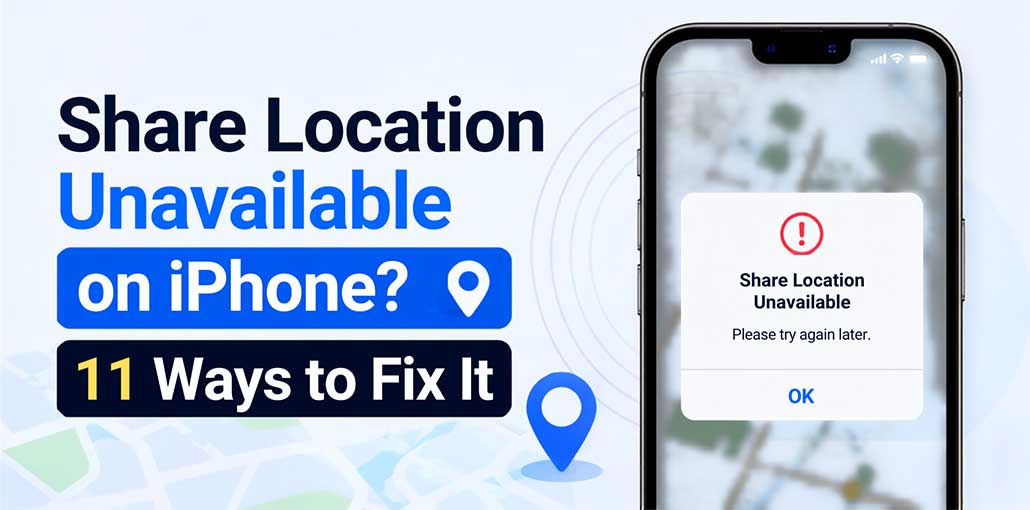
As an iPhone user for more than five years, I’m a big fan of the built-in location sharing feature. It helps me find my family and friends easily. However, when I attempted to share my location using text this week, a message came up displaying ” Share Location Unavailable. Please try again later.” I was confused at the time, but I’ve now fixed the issue.
Why Does My iPhone Say “Share Location Unavailable”?
“Share Location Unavailable” typically appears when you share your current location in the Messages app on your iPhone. This means that the device is currently unable to share its location with others.
Depending on your situation, the problem can be caused by:
- Location Services are turned off.
- Share My Location is disabled.
- Find My isn’t set up correctly.
- Your Wi-Fi or cellular connection is weak.
- iCloud is still syncing, especially after setting up a new iPhone.
- A VPN or network issue is interfering.
- Screen Time or privacy restrictions are blocking location access.
- Your iPhone has a temporary software glitch.
- Your iOS version is outdated.
The best approach is to work through the fixes below in order.
Also read: No Location Found on iPhone? 8 Easy Fixes That Actually Work
Quick Fix: Try These 5 Things First
If you need to share your location immediately, try these steps before moving into advanced troubleshooting:
- Turn on Location Services.
- Turn on Share My Location.
- Check your Wi-Fi or cellular connection.
- Restart your iPhone.
- Check whether iCloud is still syncing.
If location sharing still doesn’t work, continue with the detailed fixes.
How to Fix Share Location Unavailable on iPhone
Now let’s go through the solutions one by one.
1. Turn On Location Services
Location Services must be enabled for your iPhone to determine and share your location. If this setting is disabled, you may see “Share Location Unavailable” when using Find My or Messages.
Steps:
- Open Settings.
- Tap Privacy & Security.
- Select Location Services.
- Turn on Location Services.
- Try sharing your location again.
2. Enable Share My Location
If Share My Location is disabled, your iPhone cannot share your current location with contacts. Turning it back on is one of the quickest ways to fix Share Location Unavailable on iPhone.
Steps:
- Open Settings on your iPhone.
- Tap your name at the top.
- Select Find My.
- Turn on Share My Location.
- Open the Find My app and try sharing your location again.
3. Check Find My Settings
Incorrect Find My settings can prevent location sharing from working properly. Check Find My iPhone, Find My Network, and your current location device to make sure everything is configured correctly.
Steps:
- Open Settings.
- Tap your name at the top.
- Select Find My.
- Tap Find My iPhone.
- Turn on Find My iPhone.
- Also enable Find My Network if available.
Also read: How to Fix GPS Not Working on iPhone: 8 Quick Fixes for GPS Issues
4. Check Your Internet Connection
A weak Wi-Fi or cellular connection can cause iPhone location sharing not working problems. Your iPhone needs a reliable connection to send location updates through Find My or other services.
Steps:
- Check your Wi-Fi connection.
- If Wi-Fi is weak, turn it off.
- Enable Cellular Data.
- Try opening a website.
- Try sharing your location again.
5. Resume iCloud Sync
If Share Location Unavailable started after getting a new iPhone, restoring your device, or changing your Apple Account, incomplete iCloud syncing may be involved. Allow iCloud to finish syncing before testing location sharing again.
Steps:
- Open Settings.
- Check for an iCloud syncing message.
- Resume syncing if prompted.
- Connect to reliable Wi-Fi.
- Keep your iPhone connected to power if needed.
- Try sharing your location after syncing finishes.
6. Turn Off VPN Temporarily
A VPN can sometimes interfere with network-dependent services. If Share My Location is not working, temporarily disconnect your VPN to determine whether it is causing the connection problem.
Steps:
- Open your VPN app or Settings.
- Disconnect the VPN.
- Close Find My or Messages.
- Reopen the app.
- Try sharing your location.
If it works, check your VPN configuration before reconnecting.
7. Check Screen Time Restrictions
Screen Time or privacy restrictions may prevent location settings from being changed. This can cause Share Location Unavailable on iPhone, particularly on devices with parental or organizational restrictions.
Steps:
- Open Settings.
- Tap Screen Time.
- Select Content & Privacy Restrictions.
- Review location and privacy restrictions.
- Make sure necessary location settings aren’t blocked.
- Test location sharing again.
8. Set Date and Time Automatically
Incorrect date or time settings can sometimes interfere with network and account services. Setting your iPhone to automatically determine the time is a simple troubleshooting step when iPhone location sharing is not working.
Steps:
- Open Settings.
- Tap General.
- Select Date & Time.
- Turn on Set Automatically.
- Restart your iPhone.
- Try sharing your location again.
9. Restart Your iPhone
A temporary iOS glitch can cause Share Location Unavailable even when your settings appear correct. Restarting your iPhone refreshes system processes and can restore location-sharing functionality without changing your personal data.
Steps:
- Turn off your iPhone.
- Wait a few seconds.
- Turn it back on.
- Unlock your device.
- Open Find My or Messages.
- Try sharing your location again.
10. Reset Location & Privacy Settings
If incorrect permissions are causing Share My Location not working, resetting Location & Privacy can help. This restores location and privacy permissions, so apps may ask for permission again afterward.
Steps:
- Open Settings.
- Tap General.
- Select Transfer or Reset iPhone.
- Tap Reset.
- Choose Reset Location & Privacy.
- Confirm the reset.
- Re-enable location permissions when requested.
11. Update iOS
An outdated iOS version may contain bugs that affect Find My location sharing. Installing an available software update can resolve system-level problems and improve compatibility with Apple’s services.
Steps:
- Open Settings.
- Tap General.
- Select Software Update.
- Check for an available update.
- Tap Update Now if one is available.
- After updating, test Share My Location again.
Also read: iPhone Stuck on Verifying Update? 8 Quick Fixes Try First
12. Check Your Apple Account
If you’re signed into the wrong Apple Account or recently changed accounts, Share Location Unavailable may occur because Find My is connected to a different account than expected.
Steps:
- Open Settings.
- Check the Apple Account shown at the top.
- Confirm you’re using the correct account.
- Open Find My.
- Check your location-sharing settings.
- Try sharing your location again.
Alternative Ways to Share Your Location on iPhone
Aside from this issue, I’ve also experienced a variety of issues with location sharing on the iPhone. So I will search for other options to share my real-time location. Here are easy alternative ways to share your location if iPhone location sharing isn’t working:
Google Maps
In Google Maps, users can share their location with selected people for a specified duration or indefinitely. Since it’s accessible on two platforms, Android and iPhone and iPad, it allows location sharing across different systems. Here’s how to share your location with Google Maps on iPhone:
Note: Before beginning, ensure that “Location Services” are enabled on your iPhone.
- Launch Google Maps and tap the account icon to the right of your map.
- Tap “Share location.”
- Choose how long you wish to share your address for.
- Select people from your contacts and then tap “Share” to send your real-time location.
Conclusion
So far, we’ve explained the root of the “Share Location Unavailable” issue on iPhone and suggested solutions for fixing it. If you follow our instructions step by step, the issue should be fixed in a few minutes. However, if you’ve tried all the troubleshooting methods and the issue still isn’t resolved, you should consider alternative location-sharing methods.
FAQs: Share Location Unavailable
Why can't I share my location in Messages?
Check Location Services and Share My Location first. If they are enabled, restart your iPhone and make sure iOS is up to date.
Does 'Share Location Unavailable' mean I am blocked?
No. This message does not necessarily mean you are blocked. Network problems, privacy settings, iCloud syncing, or disabled location services can also cause the error.
Can a VPN cause Share Location Unavailable?
A VPN can sometimes interfere with network-dependent services. Temporarily disconnect the VPN and try sharing your location again.
How do I prevent Share Location Unavailable from happening again?
Keep Location Services and Share My Location enabled, maintain a reliable internet connection, update iOS regularly, and check Find My settings after changing or setting up an iPhone.






Leave a comment