

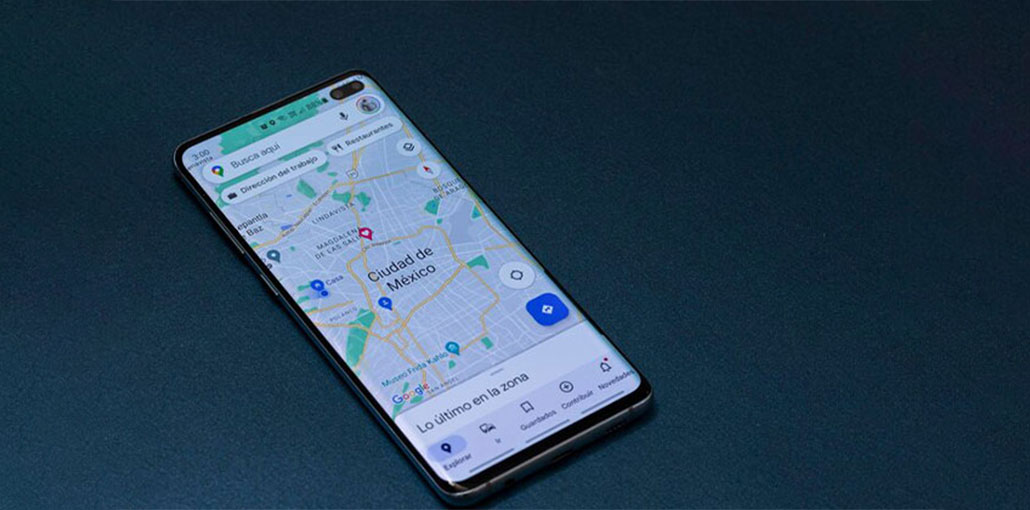
With its amazing features and options, Google Maps is easily the most reliable navigation app. I personally rely on it heavily for my commute to work. This is to understand how difficult it can be when Google Maps not working as expected, or worse, even stops functioning abruptly during your travels. If this is a problem you’re familiar with, don’t worry, you’re in the right spot. We’ve listed all solutions to fix Google Maps not working in this article.
Common Issues with Google Maps
Before jumping into solutions, let’s identify what “not working” might mean:
- App not opening or crashing
- Maps not loading properly
- GPS location inaccurate or stuck
- Directions not updating
- Offline maps not working
Why Is Google Maps Not Working?
It is usually due to the internet connection or the GPS, which causes Google Maps not to work on your Android phone. If there’s an unknown bug in the phone, this may create this issue as well.
In this instance, you can use the following steps to fix and resolve your Google Maps not working issue.
Also read: No Location Found on iPhone? 8 Easy Fixes That Actually Work
6 Ways to Fix Google Maps Not Working on Android
1. Check the Google Maps Server Status
Sometimes Google Maps servers can experience interruptions. In these instances, Google Maps does not respond as it should. To determine if Google Maps servers are functioning correctly, Google offers a dedicated Google Maps Status Dashboard. You can visit it to verify that the servers are running and working.
2. Clear the cache and Data on Google Maps
Sometimes, the issue is caused by too many caches and data that have not been removed for a long period of time. This could be the reason why your Google Maps is running abnormally. Thus, clearing the cache and data in Google Maps can solve this issue. Follow the steps below to fix the issue.
Click Settings on your Android handset > Apps > scroll down to Google Maps > Tap Storage and then click Clear Cache.
3. Check the Network and GPS Settings
Verifying network connection or GPS location services is an easy method to determine the probable reasons for the Google Maps not loading issue. Because you can use and fully utilize Google Maps if you are connected to a reliable network (whether it’s Wi-Fi or mobile networks) and GPS location services.
Refer to these steps to restore your internet connection, and also to verify your GPS settings:
Go to Settings > Connection > Scroll down, then click on Location. Select Locating Method > Switch to High Accuracy.
Configuration > Connection > WiFi (or the cellular network). Then you can disable and close the wi-fi connection, or switch to a stable Wi-Fi connection.
4. Uninstall and Reinstall Google Maps
If you’ve checked your network connectivity, GPS connection, and cleared the app cache, but you are unable to access Google Maps. We recommend uninstalling and then reinstalling this app on your device.
Go to Google Play Store > My apps and games > click on the UNINSTALL button.
After the process is completed, you can install your app onto your Android device. Reboot your phone.
Also read: Best iOS Location Changer Apps 2026: Top 10 Reviewed
5. Restart Your Android Phone
Sometimes, due to an unknown bug in the Android phones, certain functions or apps could be unavailable. This isn’t an urgent issue, and resetting your phone is usually the best way to fix this issue. If you’re experiencing issues where Google Maps not working on Android device, you can restart your phone to fix it.
6. Fix Crashed System
If you’re looking for a solution to a crashed Android system where Google Maps does not work, the Android Repair tool can fix your Google Maps issue. This software can help you fix a range of Android OS issues, such as Google Maps not working, a slow phone, Apps keep crashing, a phone not charging, a black screen, and so on.
Bottom Line
The above information will help you fix your “Google Maps not working on Android” error. If you find any assistance from this article, please forward this article to your family and friends.
FAQs: Google Maps Not Working
Why does Google Maps keep crashing on Android?
Google Maps may crash due to an outdated app, low storage, corrupted cache, or Android bugs, and updating the app or clearing cache usually fixes it.
Why is Google Maps not showing my current location?
This usually happens due to disabled location services, weak GPS signal, or incorrect location settings on your device.
Can I use Google Maps without internet?
Yes, you can use offline maps by downloading maps in advance. However, features like live traffic and real-time navigation won’t work without internet.
How do I fix Google Maps voice navigation not working?
Check if voice navigation is enabled, your phone volume is up, and text-to-speech settings are properly configured.
Why is Google Maps not working on mobile data but works on Wi-Fi?
This could be due to restricted data usage settings, weak mobile signal, or disabled background data for the app.









Leave a comment