

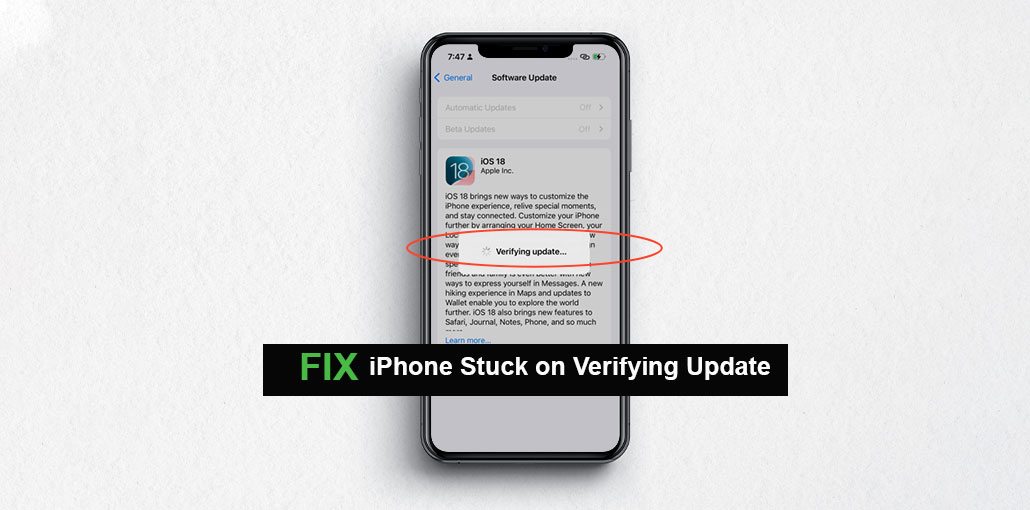
Is your iPhone stuck on Verifying Update screen and not moving? You’re not the only one. Many people experience this issue when updating their iOS, leaving them unsure whether to wait for a restart or another solution. In this article, we’ll go over the reasons why this happens and discuss proven methods to restore your iPhone to normal without data loss.
Why is My iPhone Stuck on Verifying Update?
If your iPhone is stuck on Verifying Update screen and doesn’t shut off, it’s most likely caused by one of these causes:
- Weak or unstable internet connection
- Apple server overload or downtime
- Corrupted or incomplete iOS update file
- Low storage space on iPhone
- Software glitch during the update process
- Battery or power interruption during update
- Background system process is stuck
- Temporary system freeze or hang
- Older iPhone performance delay
They tend to be the primary cause. If none of the suggestions below work, there’s an issue with the hardware. Let’s look at what we can do to fix an iPhone stuck on verifying update specifics.
Also read: How to Fix Sign Out is Not Available Due to Restrictions on iPhone
How to Fix iPhone Stuck on Verifying Update
1. Lock and Wake Your iPhone
Locking your iPhone and waking it could help you solve your phone stuck on verifying updates. This isn’t a great solution; however, it can allow you to resume the update once your locked iPhone is awakened.
- Press the Sleep/Wake button to lock
- Press again to wake the device
- Unlock your iPhone and check progress
2. Hard Reset iPhone
If you’re experiencing an iPhone stuck on verifying update, just hard reset your iPhone. This method gives amazing results, sometimes without any real effort to resolve any issue. To reset your iPhone, follow these steps.
- Press Volume Up
- Press Volume Down
- Hold the Power button until the Apple logo appears
3. Delete iOS Update and Reinstall
If you’re stuck with your iPhone verifying an update for ages, then simply delete the iOS update and then download it again. Follow the instructions below.
- Go to Settings → General → iPhone Storage
- Find the iOS update file
- Tap Delete Update
Then:
- Go to Settings → General → Software Update
- Download and install again
4. Put iPhone into DFU Mode
If verifying update iPhone stuck doesn’t resolve, try placing your device into DFU mode. Your iPhone can be restored by removing it from DFU mode. Follow these steps to switch your device into DFU mode.
- Connect the iPhone to the computer
- Open iTunes
- Press and hold the Power and Home buttons
- Release Power when the screen turns black
- Keep holding Home until iTunes detects the device
5. Restore iPhone Using iTunes Backup
Restoring your iPhone by using iTunes backup is another way to get rid of the iPhone stuck on verifying update issue. To restore your iPhone from iTunes, follow the steps below.
- Connect the iPhone to the PC
- Open iTunes
- Select device → Restore Backup
- Choose the latest backup
- Wait for the process to complete
6. Update iPhone via iTunes
If you’re still struggling with an iPhone stuck verifying update issue, try to upgrade your iPhone through iTunes. This will definitely help resolve your problem. Follow the steps below to update your iPhone using iTunes:
- Install the latest iTunes
- Connect iPhone
- Go to Summary → Check for Update
- Click Download and Update
Also read: iPhone Won’t Turn On? 6 Easy Fixes You Can Try at Home
7. Using Repair Tool
If your iPhone is stuck in verifying update screen, and you’re looking to remove it without losing any data, try using an iOS repair tool.
An expert iOS repair tool for your system that will fix the most common issues with updates, such as being stuck at the Apple logo, black screen, and verifying an update without erasing data. In its standard Repair mode, you can restore your device to normal with just a few clicks.
8. Check Apple Server Status
Sometimes your iPhone gets stuck on Verifying Update because Apple’s servers are overloaded–especially right after a new iOS version is released.
If you’re experiencing this issue, go to the Apple System Status page and check for any issues with iOS updating services. If you find a problem, you’ll need to wait until Apple resolves it before the update goes through.
Conclusion
Facing an iPhone stuck on verifying update issue can be frustrating, especially when the device won’t turn off. But don’t panic. This article explores several reasons that this could occur and offers a step-by-step process to help you get your iPhone back to normal.
FAQs: iPhone Stuck on Verifying Update
How long does verifying update take on iPhone?
The verifying update process usually takes 5 to 10 minutes. If it takes longer, there may be a problem.
Can I fix iPhone stuck on verifying update without losing data?
Yes, most fixes like restart, deleting update, or using repair tools do not erase data.
What should I do if my iPhone won’t turn off during update?
Try a force restart by pressing volume buttons and holding the power button.
Is it safe to delete iOS update and reinstall?
Yes, deleting the update file and reinstalling it is safe and often fixes the issue.
Does restarting fix iPhone stuck on verifying update?
Yes, a force restart often fixes temporary update issues quickly.









Leave a comment