

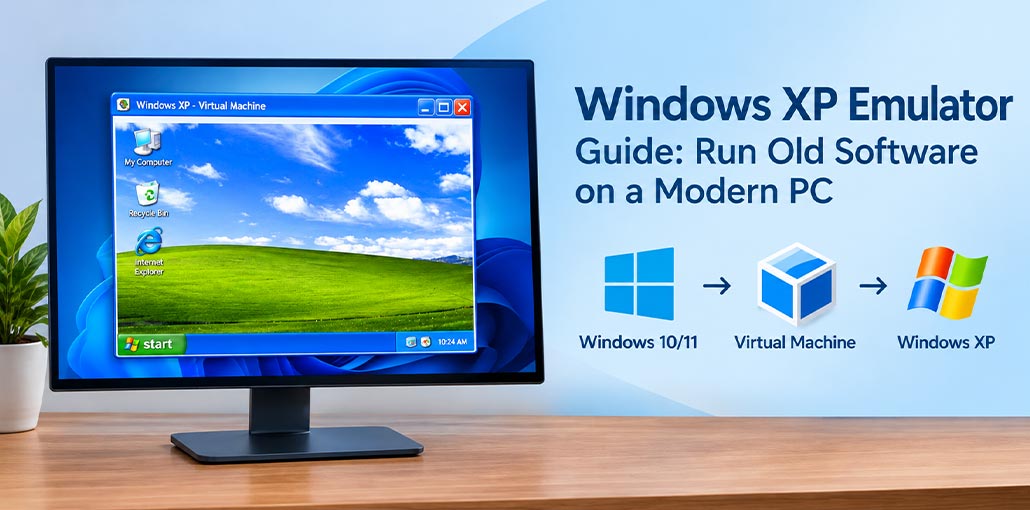
Not everything moves on when an operating system does. Some old programs are still running businesses. Some games haven’t been patched, re-released, or replaced. And if you’ve ever tried to run Windows XP software on Windows 11, you already know the result: nothing, or worse, a crash.
That’s where a Windows XP emulator comes in. Whether you’re on Windows 10 or Windows 11, you don’t need to hunt down old hardware — you just run XP in a window right on your current PC. A good Windows XP emulator for Windows 10 and 11 is more approachable than it sounds. This guide walks you through what it is, why you might actually need a Windows XP emulator, and how to get it working.
What Is a Windows XP Emulator?
A Windows XP emulator is software that recreates the Windows XP environment inside a window on your current computer. It lets you run old programs, games, and tools built for XP on Windows 10 or 11 without old hardware. Your PC does the work, while XP runs safely in a self-contained space.
Also read: Best Virtual Machine Software for Your Operating System
Why People Still Need a Windows XP Emulator
Microsoft officially ended support for Windows XP in April 2014, meaning it no longer receives regular security updates or technical support. Despite this, many users still rely on Windows XP to run legacy business software, operate older equipment, and play classic games that may not work properly on modern operating systems.
- Old business software. Some payroll systems, inventory tools, and niche industry programs were built for XP and never updated. Migrating can cost more than it’s worth.
- Industrial and lab equipment. CNC machines, testing devices, and certain medical hardware often run on XP-era control software that vendors stopped updating years ago.
- Games that won’t cooperate. Old copy protection schemes and 16-bit installers frequently break on Windows 10 and 11. XP is the environment they were built for.
- File formats no one else opens anymore. Some legacy file types just won’t open on a modern system. XP often can.
- Nostalgia, plain and simple. Bliss, the startup sound, Pinball. Some people just want it back.
Why you can’t just install Windows XP.
Installing Windows XP on modern PCs can be difficult because compatible drivers are often unavailable. Running an unsupported operating system also creates security risks. A Windows XP emulator for Windows 10 or Windows 11 lets you run older programs in a virtual machine without replacing your current operating system or needing old hardware.
How to Install Windows XP Using a Windows XP Emulator
Before you install Windows XP, you’ll need a few things ready: a legitimate Windows XP disc or ISO file, your product key, about 20 GB of free storage, and virtualization enabled in your BIOS settings (Intel VT-x or AMD-V). Setting up a Windows XP emulator is straightforward once you have these in place. One firm piece of advice — stay away from “pre-activated” XP downloads. They’re a well-known way for malware to hitch a ride onto your system.
Pick the tool that matches your setup.
Option 1: Install Windows XP with Hyper-V
Hyper-V is already sitting on your machine if you’re running Windows 10 or 11 Pro, Enterprise, or Education — making it the most convenient Windows XP emulator for Windows 11 and Windows 10 Pro users. No download needed. If you’re on a Home edition, skip this one and go straight to VirtualBox.
- Open Control Panel → Programs → Turn Windows features on or off.
- Tick Hyper-V, hit OK, and restart.
- Open Hyper-V Manager, then go to Action → New → Virtual Machine.
- Select Generation 1 — XP won’t boot under Generation 2.
- Allocate 512 MB to 1 GB of RAM and set up a 20 GB virtual disk.
- Load your XP ISO, fire up the machine, and work through the installation.
Worth knowing: XP sometimes can’t detect Hyper-V’s default network card. If you need internet access inside XP, add a Legacy Network Adapter in your VM settings — and seriously consider whether you actually need it connected at all.
Also read: Hyper-V Backup and Replication: Complete Data Protection for Hyper-V Virtual Machines
Option 2: Install Windows XP with VirtualBox
VirtualBox is a free Windows XP emulator that runs on Windows 10 and Windows 11 PCs. It allows users to install Windows XP in a virtual machine and run compatible legacy applications without installing the operating system directly on their computer. Its setup wizard helps simplify the configuration process, making it a practical option for users who want to run older software on a modern PC.
- Grab VirtualBox from Oracle’s official site and install it.
- Click New, name your machine, and set the version to Windows XP (32-bit).
- Point it to your XP ISO.
- Give it 512 MB or more of memory and create a 10–20 GB virtual disk.
- Start the machine and install XP like you would on any real PC.
Once you’re up and running, install Guest Additions — it smooths out the mouse behavior and lets you resize the window properly. Newer versions of Guest Additions no longer support XP, so you may need to track down an older release.
Option 3: Install Windows XP with VMware Workstation
VMware Workstation Pro went free for personal use a while back, which makes it an easy recommendation. It’s polished, performs well, and snapshot management is genuinely straightforward.
- Open VMware and click Create a New Virtual Machine.
- Choose Typical and select your XP ISO.
- Set the guest OS to Windows XP Professional.
- Name the machine, allocate around 20 GB for the disk, and finish the wizard.
- Boot it up and walk through the XP installation.
- Install VMware Tools at the end — it noticeably improves graphics and responsiveness inside the VM.
Whichever you pick to run Windows XP, do yourself a favor: disconnect XP from the internet if you don’t need it, and take a snapshot once you install Windows XP and get everything set up clean. Future you will be glad you did.
Conclusion
Installing Windows XP in a virtual machine doesn’t have to be complicated. Hyper-V, VirtualBox, and VMware each give you a safe way to revisit classic software without risking your main system. Pick the Windows XP emulator that fits your setup, keep the VM offline, and take a snapshot once everything works. Once you install Windows XP the right way, your old apps will run smoothly again.
FAQs: Windows XP Emulator
Can I run Windows XP on Windows 11?
Yes. You can install Windows XP on Windows 11 using a virtual machine such as VirtualBox or VMware Workstation, provided you have compatible installation media and a valid license.
Is it safe to run Windows XP on a modern PC?
Running Windows XP in a virtual machine provides isolation from your main operating system, but it does not eliminate security risks. Keep XP offline whenever possible, avoid untrusted files, and take regular virtual machine snapshots.
How much RAM and disk space does Windows XP need?
A basic Windows XP virtual machine can often run with 512 MB to 1 GB of RAM and a 10–20 GB virtual disk. More resources may be needed for demanding applications.
Do I need a Windows XP product key to install it?
A valid Windows XP license and product key may be required, depending on your installation media and licensing terms. Use legitimate installation files and avoid pre-activated downloads.
What is the best Windows XP emulator for Windows 10 and 11?
Oracle VirtualBox and VMware Workstation are popular options for running Windows XP in a virtual machine. Hyper-V is another option for supported Windows editions.






Leave a comment