

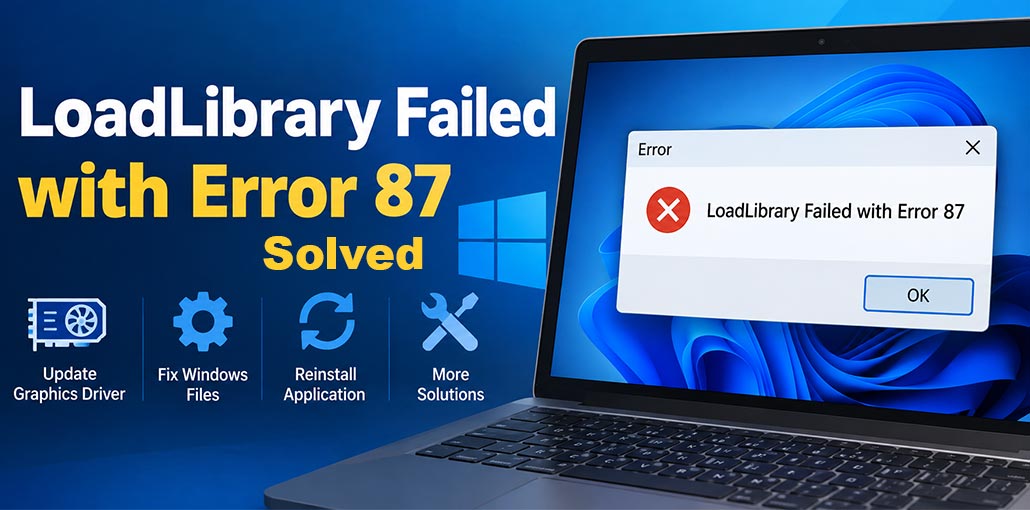
If you see LoadLibrary Failed with Error 87 when opening a game or application on Windows, the problem may be related to your graphics driver, Windows system files, application settings, or conflicting software. The error can prevent a program from starting correctly.
Fortunately, you can try several simple solutions before considering advanced fixes. Follow the methods below one by one to identify and fix the problem.
Why Does LoadLibrary Failed with Error 87 Happen?
Several issues can trigger LoadLibrary Failed with Error 87. Common causes include:
Common causes include:
- Outdated graphics drivers
- Corrupted GPU driver installation
- Damaged Windows system files
- Outdated Windows components
- Corrupted application files
- Conflicting graphics utilities
- Incorrect graphics settings
- Third-party software conflicts
Identifying the exact cause can take some testing, so start with the simpler solutions before making major system changes.
10 Ways to Fix LoadLibrary Failed with Error 87
1. Restart Your Computer
Restarting your device is the easiest solution to try. Temporary system processes, background applications, or graphics-driver problems can sometimes interfere with an application. A restart reloads these components and may clear a temporary issue causing the error.
Steps:
- Close the affected application.
- Click the Start button.
- Select the Power icon.
- Click Restart.
- Wait for Windows to start completely.
- Open the application again.
If LoadLibrary Failed with Error 87 appears again, continue with the next method.
Also read: LoadLibrary Failed With Error 126? Here’s How to Fix It
2. Update Your Graphics Driver
An outdated or corrupted graphics driver can prevent Windows applications from communicating correctly with your GPU. Updating the driver installs newer files and compatibility improvements that may resolve graphics-related loading problems.
Steps:
- Press Windows + X.
- Select Device Manager.
- Expand Display adapters.
- Right-click your graphics card.
- Select Update driver.
- Choose Search automatically for drivers.
- Follow the instructions on the screen.
- Restart your computer.
You can also download the latest compatible driver directly from your graphics card manufacturer’s official website.
3. Reinstall the Graphics Driver
If updating the driver does not fix LoadLibrary Failed with Error 87, the existing installation may contain damaged or incompatible files. Removing the current driver and installing a fresh version can help eliminate problems caused by a corrupted driver installation.
Steps:
- Press Windows + X.
- Open Device Manager.
- Expand Display adapters.
- Right-click your graphics card.
- Select Uninstall device.
- Follow the instructions to remove the driver.
- Restart your computer.
- Download the latest driver from your GPU manufacturer’s official website.
- Install the driver.
- Restart Windows again.
Now launch the affected application and check whether the error is resolved.
4. Run Windows Update
Windows updates can include system fixes, compatibility improvements, and updated components required by applications. If your Windows installation is outdated, installing available updates may fix problems between the operating system, applications, and graphics drivers.
Steps:
- Press Windows + I.
- Select Windows Update.
- Click Check for updates.
- Install any available updates.
- Restart your computer if required.
- Open the affected application again.
If LoadLibrary Failed with Error 87 started after an update, you can also check Windows Update > Update history.
5. Run System File Checker
Damaged Windows system files can interfere with DLL files and other components required by applications. The System File Checker tool scans protected Windows files and attempts to repair corrupted files automatically.
Steps:
- Open the Start menu.
- Search for Command Prompt.
- Right-click it.
- Select Run as administrator.
- Click Yes if prompted.
- Enter:
sfc /scannow - Press Enter.
- Wait for the scan to reach 100 percent.
- Follow any instructions provided by Windows.
- Restart your computer.
After restarting, open the affected application and check whether the problem has been fixed.
6. Use DISM to Repair Windows
If SFC cannot repair all damaged Windows components, DISM can help repair the Windows component store. This can be useful when system corruption is preventing applications from loading required components correctly.
Steps:
- Search for Command Prompt.
- Right-click it.
- Select Run as administrator.
- Enter:
DISM /Online /Cleanup-Image /RestoreHealth - Press Enter.
- Wait for the process to finish.
- Do not close Command Prompt while it is running.
- Restart your computer.
After restarting, test the affected application again. This may resolve LoadLibrary Failed with Error 87 when corrupted Windows components are responsible.
7. Reinstall the Problematic Application
If the error occurs with only one game or application, the program’s installation files may be corrupted or incomplete. Reinstalling the application removes its existing files and installs a fresh copy.
Steps:
- Press Windows + I.
- Select Apps.
- Open Installed apps.
- Find the affected application.
- Click the three-dot menu.
- Select Uninstall.
- Complete the uninstall process.
- Restart your computer.
- Download the latest version from the official source.
- Install the application again.
- Launch it and check the result.
8. Check for Conflicting Graphics Software
GPU overlays, recording programs, performance-monitoring tools, and other graphics utilities can sometimes interfere with applications. Temporarily disabling these programs can help determine whether another application is causing the problem.
Steps:
- Close the affected application.
- Exit unnecessary GPU utilities.
- Temporarily disable third-party overlays.
- Close recording or monitoring software.
- Restart Windows.
- Open the affected application again.
If the program works normally, enable your background utilities one at a time to identify the conflicting software.
9. Check Your Graphics Settings
Incorrect graphics preferences can cause application launch problems, especially on laptops that use both integrated and dedicated graphics. Reviewing the application’s GPU preference can help ensure that it is using the appropriate graphics processor.
Steps:
- Press Windows + I.
- Select System.
- Click Display.
- Select Graphics.
- Find the affected application.
- Click Options.
- Review the available GPU preferences.
- Select the appropriate option.
- Click Save.
- Restart the application.
If you recently changed GPU or overclocking settings, consider returning them to their default values.
Also read: Steam Error Code E87: How to Fix Steam Login Error
10. Perform a Clean Boot
A clean boot starts Windows with a limited number of services and startup programs. This can help identify whether a third-party application or background service is interfering with the program and causing the error.
Steps:
- Press Windows + R.
- Type msconfig.
- Press Enter.
- Open the Services tab.
- Select Hide all Microsoft services.
- Click Disable all.
- Open the Startup tab.
- Click Open Task Manager.
- Disable unnecessary startup applications.
- Close Task Manager.
- Click OK.
- Restart your computer.
- Test the affected application.
If LoadLibrary Failed with Error 87 disappears after the clean boot, a third-party service or startup application may be responsible.
How to Prevent LoadLibrary Failed with Error 87
After fixing LoadLibrary Failed with Error 87, keep Windows and your graphics drivers updated to reduce compatibility problems. Download drivers from official sources, update applications regularly, and avoid unnecessary GPU utilities that may conflict with graphics software.
Bottom Line
As you can see, LoadLibrary Failed with Error 87 can occur for several reasons, including graphics driver issues, corrupted system files, and software conflicts. If you are facing this error, try the solutions explained in this guide one by one. With the right troubleshooting method, you can identify the cause and get the affected application working again.
FAQs: LoadLibrary Failed with Error 87
What does LoadLibrary Failed with Error 87 mean?
LoadLibrary Failed with Error 87 means Windows was unable to load a required DLL, graphics component, or application-related library correctly. It usually indicates a driver, system file, application, or compatibility issue rather than a damaged graphics card.
Why does LoadLibrary Error 87 appear when I start a game?
If the error appears when launching a game, the graphics driver, game files, Windows components, or a third-party overlay could be responsible. Updating the GPU driver and verifying or reinstalling the game can help.
Is LoadLibrary Failed with Error 87 a graphics card problem?
Not always. Although graphics drivers are a common cause, the error can also result from corrupted Windows files, application problems, incorrect graphics settings, or conflicts with other software.
How do I fix LoadLibrary Failed with Error 87 on Windows 11?
Try updating or reinstalling your graphics driver, installing Windows updates, repairing system files with SFC and DISM, and reinstalling the affected application.







Leave a comment