

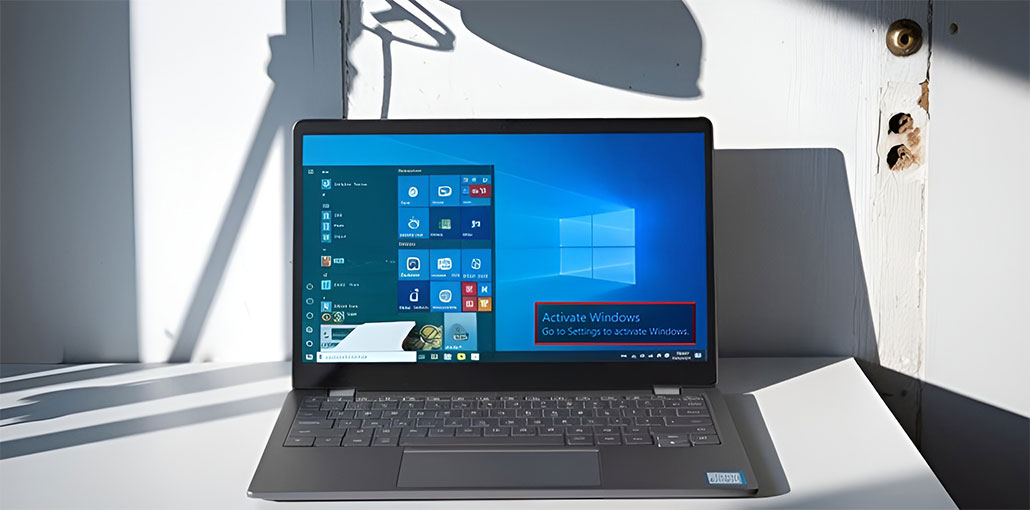
Are you aware of that “Activate Windows” watermark on your Windows 10 screen? This can be extremely irritating, especially in cases where it covers apps or messes with the screenshots. This is usually due to license issues or a mistake during activation.
In this blog, I’ll discuss the root causes behind the Activate Windows watermark sign and offer a step-by-step solution to remove it from your Windows 10 screen.
What is the Activate Windows Watermark?
The Activate Windows watermark is a common issue faced by users when using Windows. In this instance, there is a transparent Watermark appears on the lower right of the screen, and it is extremely annoying for users to notice this watermark when working on their computer or laptop.
We will look at an issue known as”Activate Windows” watermark, which is a result of repeated use of the same product key, and due to many other causes, as well. We will discuss the issue and the way to remove the Activate Windows watermark.
Reasons Behind Activate Windows Watermark
The motives behind Activate Windows Watermark are:–
1. Product Key and Version Incompatibility
It is the main reason and occurs when the product key to buy and operate Windows is different. This could be explained by the fact that the user is using the product key for Windows Professional, and he/she installs Windows Enterprise on the system.
2. Invalid License
Many people offer fake product keys online. However, Microsoft does not permit the use of Windows with the same keys. Therefore, the licenses for those keys are considered invalid, and the watermark can be found on the right-hand side of the display.
Two main causes of this watermark. In the next section, we will review how to remove the Activate Windows Watermark.
Also read: Is Windows Update Stuck? 7 Easy Fixes for Windows Users
Why You Remove the Activate Windows Watermark
The most important aspect is the reason you have to remove Activate Windows Watermark if it is just the watermark. The watermark, located at the bottom right of the screen, is an issue for a majority of users. Additionally, the watermark indicates that your Windows is not active and therefore, unactivated Windows is not equipped with the following capabilities:
- Windows Security and Defender Features: Windows Defender is not activated. Windows does not provide a security firewall or Windows Defender security.
- Enable Microsoft Office to be installed: You cannot install Microsoft Office on unactivated Windows. and a variety of other software programs that you cannot use in unactivated Windows.
- Installation of Security Updates: You can’t install the most up-to-date updates and bug fixes to the system to improve its efficiency, and beneficial when Windows is not active.
- Customize the Desktop: You can’t alter the desktop settings, nor can you alter the wallpaper if your Windows isn’t activated.
There are various other features missing if you don’t activate Windows on your PC.
How to Fix Activate Windows Watermark in Windows 10
There are various methods to solve the Activate Windows Watermark issue, which will require modifications to both external and internal files.
1. Using Product Key
If a user purchases licensed Windows and then installs it, he/she will be given a product key that can be used to reinstall Windows on the system. When using this key, the user can go to settings to activate Windows.
- Open Settings or press Windows + I on the keyboard, then select “Update & security”.
- Click on “Activation” and tap on “Change product key.”
- A dialog box will be displayed. Enter the product’s key and click “Next”.
Find Windows 10 and install it on your system. Restart the system and the Activate Windows Watermark issue will be solved.
2. Using Ease of Access
Windows offers its users an option called the Ease of Access Center, which allows users to make changes to the system at any time. However, the user must possess an understanding of the feature before using it.
Follow these steps:
- Open Settings or press “Windows+I” from the keyboard and type “Ease of Access Center” in the search bar.
- A dialog box will appear. Select “Make the computer easier to see”.
- Click on the checkbox that reads ” Remove background images (where available,” and then click “Apply” and then “OK.”
Following the steps listed above, the Windows Activation Watermark will no longer bother you.
3. Disabling Windows Tips
This error can be avoided by disabling the Windows 11 tips provided by the system.
- Open Settings or press Windows + I from the keyboard. A window will open, and click on “System.”
- Now, click on “Notification & action” as illustrated in the image below. Turn off the slider labeled “Get tips, tricks and suggestions as you use Windows” and the one below it.
The system will now deactivate the tips and tricks available for Windows and fix the error.
4. Using Script
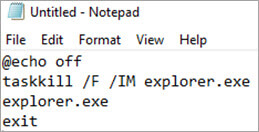
Windows Explorer is responsible for reminding users about an Activation Windows watermark. If you use a script and save the file in batch format and then run the script as Administrator, you can override this reminder. Use the instructions outlined below to complete the following task
- Click on the Windows button and type in Notepad.
- Type the text written below in the file,

- Save the file as Active.bat and then select the file to be saved as All Files.
- Locate the file and right-click it. Then click “Run as Administrator.”
Then restart your computer, and the Activate Windows watermark problem will be solved.
5. Using Third-Party Tools
There are various third-party software tools that can be used to resolve the watermark issue. You can download the watermark disabler tool on the system you are using.
Third-party Activate Windows Watermark remover tools
- Universal Watermark Disabler
- Remove Watermark Utility
- Winaero Tweaker
Install the program and then restart the system. Then, the error will be solved.
Also read: What is the Network Security Key: How to Find for WiFi, Window and Android
6. Using Windows PowerShell
The Windows PowerShell allow to change the main files of your system, as it gives access to all files. Use the instructions below to fix the activation Windows watermark by using Windows PowerShell:
- Press the Windows button, and then search for Windows PowerShell. Select the right-click option “Windows PowerShell” and click on “Run as administrator”.
- A window will appear. Enter “slmgr /renew” and click Enter.
Then restart your system, and the issue will be solved.
7. Using Regedit
This method is extremely risky, and only if you know how to personalize your system should you try this method to remove the activating Windows watermark. This process changes to Regedit files that directly affect the system core files.
- Press Windows + R on the keyboard, and enter “regedit” in the search bar. Then, click “OK.
- Enter the mentioned address in the search bar HKEY_CURRENT_USER\Control Panel\Desktop and navigate to “Desktop”. Then, click “Paint Desktop Version.”
- A dialog box will pop up. Change the value of the data into “1”.
Reboot the system, and activate Windows Watermark issue will be solved.
Wrap Up
In this article, we’ve discussed the reason behind Activate Windows” watermarks, and we’ve provided 7 effective ways to get rid of them. If you’re facing an unactivated Windows copy or are having issues with activation, the strategies we’ve provided in this guide are easy, practical, and simple to follow.
Following these step-by-step fix suggestions, you can permanently remove Activate Windows watermark and enjoy an uncluttered desktop experience. If one solution doesn’t work, then don’t be afraid to try another one. Also, ensure that you can check your Windows activation is valid to avoid any future problems.
FAQs: Activate Windows Watermark
What is the Activate Windows watermark?
The Activate Windows watermark appears when your Windows operating system is not activated with a valid license key.
Can I remove the Activate Windows watermark permanently?
Yes, the only permanent and legal way is to activate Windows using a genuine product key or digital license.
Is it safe to ignore the Activate Windows watermark?
While Windows will still work, ignoring it means missing security updates, customization options, and full Windows Defender protection.
Can third-party tools remove the Activate Windows watermark?
Yes, some tools claim to remove it, but they may pose security risks and violate Microsoft’s terms of service.
Why does the Activate Windows watermark keep coming back?
It often returns after system updates, restarts, or when temporary fixes stop working without proper activation.








Leave a comment