

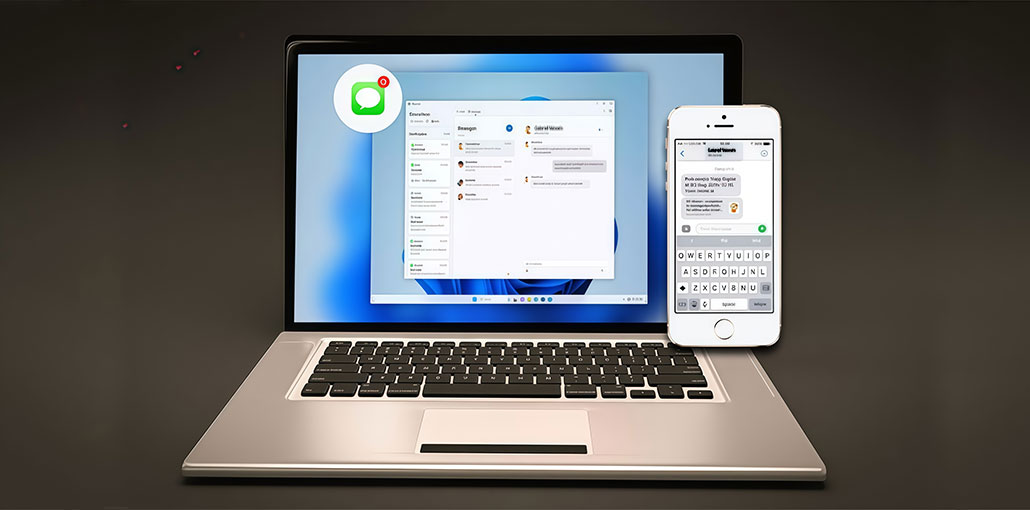
Apple will enable communication among iPhone and Android phones more conveniently later in the year, since iOS 18.2 will support messaging using the RCS standard. If you want to use iMessage on Windows PC, the experience is likely to be slow at most. Apple does not natively support iMessage on Windows 11, which is not surprising, but several third-party apps fill the gap.
Microsoft, along with Intel, have their own solutions, and some independent developers contributed to the creation of AirMessage and Bluebubbles to give users more options and make an easy-to-use iMessage for Windows.
The problem with using iMessage on Windows is that there’s no perfect solution. Based on the device you have and the features you require, you’ll get an options recommendation on the right app. Let’s discuss the top four tools to use iMessage on Windows and determine which one is best for you.
How to Get iMessage on Windows: 4 Best Ways
1. Microsoft Phone Link
Top of the list to get iMessage on Windows PC: Microsoft’s Phone Link. Although it’sn’t the most feature-rich option, it’s also one of the best-performing, which is a good thing. If you own a Windows 11 system with Wi-Fi and Bluetooth and an iPhone, it will workand with no additional system requirements.
When you connect your iPhone and Windows PC, you can start iMessage conversations from the Phone Link app. However, it comes with similar limitations to Intel Unison. You can view conversations from the past and only those you begin from your computer.
It’s still the preferred choice for iPhone users with a Windows 11 desktop, and they don’t need to think about compatibility. It’s quick and simple to set up.
Steps to Use iMessage with Phone Link
- Open Phone Link on your Windows 11 PC
- Select iPhone as your device
- Enable Bluetooth on both devices
- Pair your iPhone with Windows using the on-screen code
- Grant message and notification permissions on iPhone
- Start sending messages from the Phone Link Messages tab
- Messages sent to iPhone users will appear as iMessages.
Pros
- Official Microsoft solution
- No Mac required
- Fast and easy setup
- Stable and secure
- Works on any Windows 11 PC
Cons
- Cannot view full iMessage history
- Only messages started on the PC appear
- Limited features (no reactions, attachments)
Also read: iMessage Activation Error: 6 Quick Fixes for Instant Access
2. Intel Unison
Intel Unison is an application created by Intel that lets you connect your smartphone and computer. iPhones are also supported. Although the name suggests that this is an Intel-specific product, this can actually function with every Windows 11 PC via Wi-Fi and Bluetooth. However, the full support and extra features are only available to laptops that have Intel Evo and vPro brands, and a 13th-generation Intel CPU or later. It’s required to have an iPhone running iOS 15 or later.
After connecting the iPhone to your Windows PC, you’ll be able create new messages with your Intel Unison desktop application. If you’re in conversation with an iPhone user, the messages will be sent as an iMessage. The best part about using Intel Unison is that you don’t require a spare Mac to take advantage of iMessage. You need an iPhone. However, there is a downside that older conversations will not sync between your computer and mobile. Only conversations from the Windows PC will be displayed.
Steps to Use iMessage with Intel Unison
- Install Intel Unison on your Windows 11 PC
- Install Intel Unison from the App Store on your iPhone
- Turn on Wi-Fi and Bluetooth on both devices
- Pair your iPhone with the Windows app
- Open the Messages tab and start a new chat
- Messages to iPhone users are automatically sent as iMessage.
Pros
- No Mac required
- Cleaner interface than Phone Link
- Supports file sharing and calls
- Works on most Windows 11 PCs
Cons
- Full features limited to Intel Evo/vPro laptops
- No syncing of old iMessage conversations
- Only PC-initiated chats appear
3. Bluebubbles
The next one up is Bluebubbles, which functions the same as AirMessage but without the instability issues. If you have an extra Mac to use as a server, Bluebubbles is your best choice for using iMessage on Windows. The app developers utilize the Google Firebase Server as an intermediary for your devices, and this enhances battery life and stability.
Instead of having your Android mobile or Windows laptop continuously polling your Mac to check whether there’s a new iMessage available, the Firebase Server will inform your devices that it’s time to upgrade. Similar to AirMessage, but the benefit is that you can view all of the iMessage history, which makes it more efficient than Intel Unison or Phone Link in this respect.
Furthermore, Bluebubbles offers a dedicated Windows application and an online client, making it an all-purpose solution. To enjoy this versatility, however, you must go through a long setup process to get Bluebubbles Server running on your Mac. It could take up to one hour if you’re acquainted with the iMessage server, or the Firebase process can push casual users.
Steps to Use iMessage with BlueBubbles
- Set up a spare Mac as a server
- Install BlueBubbles Server on the Mac
- Configure Google Firebase (for notifications)
- Sign in with your Apple ID on the Mac
- Install BlueBubbles Windows app or use the web client
- Log in and sync your iMessage history
Pros
- Full iMessage history sync
- Dedicated Windows app + web client
- Better stability than AirMessage
- Lower battery drain using Firebase
- Supports reactions, attachments, group chats
Cons
- Requires a Mac running 24/7
- Long and technical setup process
- Not beginner-friendly
Also read: How to Enable iMessage on iPhone: 5-Minute Quick Guide
4. AirMessage
The final option on the list to get iMessage on Windows is AirMessage, which is the reason it’s notorious for being a shaky experience in certain instances, and it requires a Mac to be used as a server. The method of operation is easy. Install the AirMessage Server app on your Mac and then grant that permission for it to make messages available on your behalf. If it’s time to send a message using your AirMessage for Android application or web client on your Windows PC, it’ll be transferred through your Mac. Then the Mac will send the message using a genuine message as a real iMessage.
This is a preferred method over Intel Unison and Phone Link because it allows you see the message history sent by iMessages, which weren’t initiated from your personal computer. It also provides excellent support for cross-platforms. The Android application is sleek, and the web client allows users to use AirMessage on any device with an internet browser, including a Windows PC. But you can encounter bugs or errors frequently. Certain issues may necessitate restarting your AirMessage Server app on your Mac, and this can be a problem for those away from home. If you don’t have a Mac to serve as a server, this isn’t an option at all.
Steps to Use iMessage with AirMessage
- Install AirMessage Server on a Mac
- Grant message access permissions
- Create an AirMessage account
- Install AirMessage Web or Android app
- Sign in and start messaging from Windows
- Messages are routed through your Mac and sent as real iMessages.
Pros
- View complete iMessage history
- Android + web support
- Works on any browser (Windows, Linux, Chromebook)
- No Windows app installation required
Cons
- Requires a Mac server
- Can be unstable or buggy
- Server restarts may be needed
- Slower than BlueBubbles
Quick Comparison Table: iMessage on Windows
| Tool Name | Works on Windows | Mac Required | iPhone Required | View Full Message History | Ease of Setup | Best For |
|---|---|---|---|---|---|---|
| Microsoft Phone Link | ✅ Yes (Windows app) | ❌ No | ✅ Yes | ❌ No | ⭐⭐⭐⭐⭐ | Quick & simple use |
| Intel Unison | ✅ Yes (Windows app) | ❌ No | ✅ Yes | ❌ No | ⭐⭐⭐⭐ | More features without Mac |
| BlueBubbles | ✅ Yes (App + Web) | ✅ Yes (Server) | ✅ Yes | ✅ Yes | ⭐⭐ | Full iMessage experience |
| AirMessage | ✅ Yes (Web) | ✅ Yes (Server) | ✅ Yes | ✅ Yes | ⭐⭐⭐ | Cross-platform messaging |
Final Remarks
There are four options to get iMessage on Windows PC, even if you’re using an iPhone. I’d suggest exploring AirMessage as well as Bluebubbles. The ability to view past conversations that have been recorded is an essential feature for me, and it’s nice to have Android and web-based support. But the quickest and simplest solutions for iMessage on Windows are Phone Link and Intel Unison. They are easy to set up and are reliable. They also do not require an Mac. Whichever choice you pick, you’ll be able keep those beautiful blue bubbles in your Windows 11 computer.
FAQs: iMessage on Windows
Can you use iMessage on Windows?
Yes, you can use iMessage on Windows with third-party tools like Microsoft Phone Link, Intel Unison, BlueBubbles, and AirMessage. Apple does not officially support iMessage on Windows.
Does Windows 11 support iMessage natively?
No. Windows 11 does not natively support iMessage. You must use companion apps or Mac-based server solutions to access iMessage on a Windows PC.
Can I use iMessage on Windows without a Mac?
Yes. Microsoft Phone Link and Intel Unison allow you to use iMessage on Windows without needing a Mac. However, message history and features are limited.
Is it safe to use third-party apps for iMessage on Windows?
Yes, tools like Phone Link, Intel Unison, BlueBubbles, and AirMessage are widely used. However, you should avoid unknown emulators or unofficial apps that ask for your Apple ID directly.





Leave a comment