

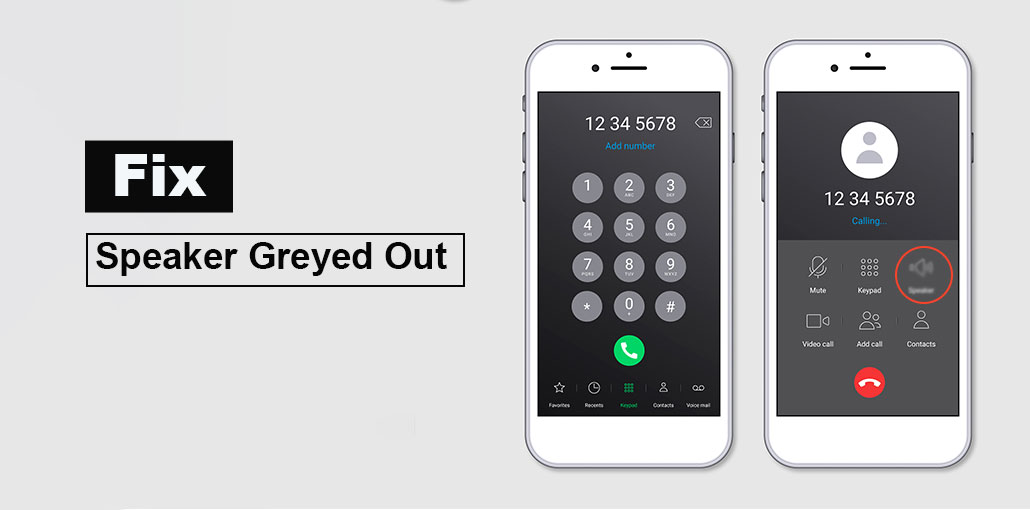
Has your iPhone speaker greyed out? Many iPhone users have complained about no sound on calls or the speaker being greyed out when using their phones. This issue is related to the possibility that you may be unable to hear other people’s voices through the speaker, and it’s also the reverse, but it performs a function when playing music or videos. In addition, the speaker button will become unusable during a phone or video call with other social media platforms.
The problem can be described as the disabled microphone on the iPhone. Why is this happening? What can you do to fix this issue? The 10 most effective solutions are provided to solve the iPhone speaker not working on calls issue.
Why Is My Speaker Button Greyed Out?
If you are experiencing an iPhone speaker greyed out during a call, this could be due to a variety of factors. Let’s take a look.
- Software glitch: Temporary iOS bug can make speaker unresponsive
- Audio IC issue: iPhone 7 “Loop Disease” can disable the call speaker (hardware repair needed)
- Blocked speaker: Dust or dirt in the grill can reduce or block sound output
- Bluetooth interference: Connected devices may redirect audio away from the iPhone speaker
- Stuck headphone mode: iPhone may think headphones are connected even when they are not
- Damaged speaker: Physical damage may require speaker replacement by a technician
How to Fix iPhone Speaker Greyed Out During a Call?
Once you’ve identified the potential causes, we’ll look at some practical solutions you could try to resolve the iPhone speaker greyed out on calls issue.
1. Restart Your iPhone
If the speaker on your iPhone is greyed out during calls, it generally indicates that the phone audio is going elsewhere (like Bluetooth, headphones, or even a system glitch). A simple restart usually eliminates the problem.
Also read: iPhone Microphone Not Working? Try These 9 Fixes
2. Turn off the Silent Mode
If you notice your iPhone 7 speaker greyed out during a call, ensure that your iPhone isn’t in Silent Mode. It is the Silent switch, located on the left side of the iPhone, designed to regulate the volume of sound played by the speakers. If you’ve noticed that your iPhone has a volume issue, make sure that the Silent switch is turned off.
3. Turn off Do Not Disturb
If the iPhone speaker button is greyed out during your call, it is important to determine whether you’ve turned off Do Not Disturb by accident. If you enable Do Not Disturb on your iPhone, your iPhone speaker’s logo will be greyed out whenever you make calls to other people. To test it, you must access your settings app and then select from the Do Not Disturb section. Tap the button to turn it off.
4. Reconnect Your Bluetooth Accessories
If you’re using Bluetooth accessories, you have a Bluetooth link between your iPhone and your Bluetooth device. Sometimes, improper settings or Bluetooth issues could cause the iPhone speaker buttons to be greyed out. You can fix an iPhone audio problem during call by disconnecting from your Bluetooth connection to the iPhone using the specific steps below:
- Navigate to your settings app and select Bluetooth. Bluetooth selection.
- Check your Bluetooth device, then click on the icon next to it.
- Select ” Forget this device and then Forget Device to remove the Bluetooth devices.
- Return to this Bluetooth webpage and search for the device you want to connect.
5. Check the Headphone Mode
iPhone speaker greyed out could be the device has become stuck in headphone mode, which is a frequent issue with a myriad of iOS problems. If you want to ensure that your iPhone isn’t in headphone mode, try adjusting your volume to see whether you see a headphone display at the top of your screen. If you can connect and remove your headphones until you can fix the iPhone speaker greyed out issue.
6. Set Call Audio Routing
Another option to fix the iPhone speaker greyed out is to adjust the call audio routing feature on your iPhone. This accessibility setting can help you ensure that any audio is routed while on calls. Follow these steps to set Call Audio Routing in the settings.
- Start by opening the Settings app first, then scroll down until you find an accessibility option.
- Select accessibility option. Followed by calling Audio Routing.
- Set the Call Audio Routing to be Speaker, not Automatic.
7. Update iPhone System
Updating the iPhone’s software to the latest version can remove viruses and bugs that can cause the iPhone speaker to turn off. If you have not updated your iPhone software yet, follow the steps below.
Go to iPhone’s Settings > General > Software Update,
If there’s an updated iOS version, press the Update Now button to download the most current version of iOS.
Also read: iPhone Touch Screen Not Working? Causes + 9 Quick Fixes
8. Reset All Settings
To fix the iPhone speaker greyed out on calls, try resetting all settings. This will be helpful for you if the issue stems from a software glitch. Here are the steps you can take to reset the options on your iPhone.
- Navigate to your settings application on the disabled iPhone, then select the General option.
- Select the transfer or reset iPhone option, then click it, then Reset All Settings – Reset.
- When a prompt asking to confirm your details pops up, tap “Reset All Settings and then Reset All Settings.
9. Restore iPhone via iTunes
Also, you could restore your iPhone using iTunes to figure out the iPhone volume that is greyed out. Before you begin the next steps, it is recommended to back up your data because it could erase your iPhone data.
- Start iTunes, then connect the powered -off iPhone to your computer.
- Click the iPhone icon when the device appears on iTunes successfully. Then you can put your iPhone in recovery mode.
- Click Restore iPhone in the column in the Summary.
- Click the Restore button again.
10. Contact Apple Center
If, for some reason, all the methods above fail to solve the iPhone speaker greyed out issue can be a hardware problem with the audio components of your iPhone. You can visit a local Apple Store to seek expert advice. It is important to note that this approach could cost you a few dollars and also take a bit of time.
Summing Up
You can fix your iPhone speaker greyed out using a variety of methods. We’ve reviewed some of the best methods to get your speaker button working properly and to get phone calls restored to normal.
FAQs: iPhone Speaker Greyed Out
Why is my iPhone speaker greyed out only during calls but works otherwise?
This usually means there is an issue with call audio routing or microphone, not the speaker itself.
How do I know if my iPhone speaker problem is hardware-related?
If the issue persists after resetting and updating iOS, and affects calls, mic, and voice memos, it is likely a hardware problem.
Can I fix the iPhone speaker greyed out issue without repair?
Yes, most cases are software-related and can be fixed using simple troubleshooting steps.
Is it safe to use third-party repair for speaker issues?
It is safer to visit authorized service centers, but trusted technicians can also fix hardware issues at lower cost.




Leave a comment