

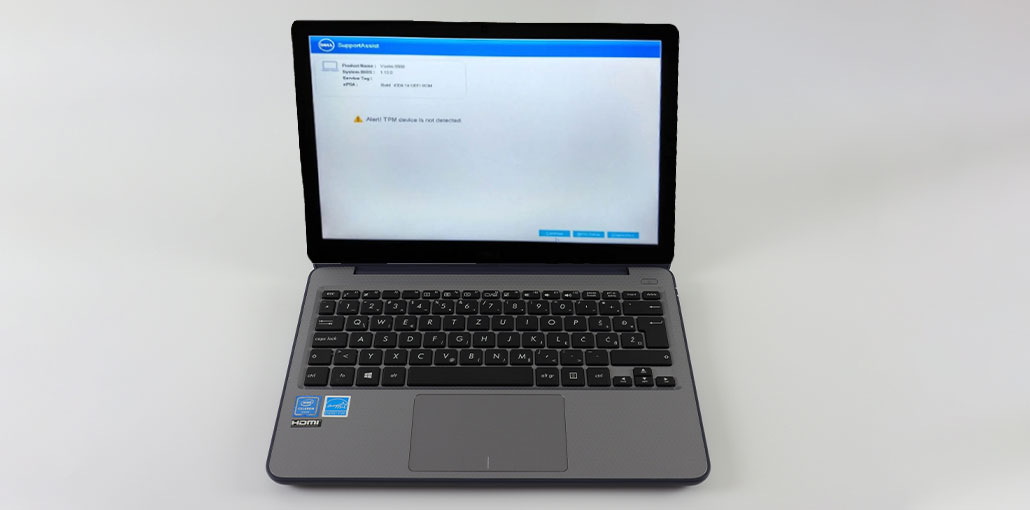
Here are a few ways to get back to safety by removing the “Alert! TPM device is not detected” error.
Researchers in the field of security are facing a tough time keeping us secure. You can be a victim of cyber-related scams that are all the rage online.
This is a basic security measure that is important to solve the TPM device not detected error, which an experienced cybercriminal can bypass.
The most difficult thing to miss is the mechanism that’s built into the hardware. In this sense, having a functioning Secure Platform Module (TPM) is crucial.
What is TPM and Why It’s Important in 2026
TPM (Trusted Platform Module) is a motherboard-based chip that serves as a security guard for your computer. In addition, it could be integrated with modern CPUs, but operates in a separate operating system that provides chip-level security.
TPM is essential because it powers:
- Windows 11 security requirements
- BitLocker encryption
- Secure Boot protection
- Windows Hello authentication
Without TPM, many modern security features simply won’t work.
Also read: KMODE Exception Not Handled Error in Windows 11/10: Ultimate Fix Guide
Why You’re Seeing TPM Device Not Detected
Most commonly related to Dell PCs. This is a boot-time error that you can ignore to continue the system with a few restrictions and risks.
- TPM is Disabled in BIOS
- Outdated BIOS Firmware
- Driver or System Issues
- Windows Glitch
- Power or CMOS Issues
- Hardware Failure (Rare)
How to Fix the TPM Device Not Detected Error
1. Enable TPM in BIOS
First step is to see if the chip TPM is present and active in the BIOS.
- Press Win + R
- Type tpm.msc and press Enter
This is the output of the TPM being disabled or not present with the hardware:
If you have an old processor, it has a built-in TPM module. You can now upgrade your CPU or buy a TPM chip and install it on your motherboard.
Another possibility is that it’s turned off in the BIOS, and TPM version detection error.
Restart your PC and enter the BIOS (press F2, DEL, or ESC during startup). Go to the Security or Advanced section and find TPM settings like TPM, Intel PTT, or AMD fTPM.
There could be something else to this TPM device not detected issue. We’ll look into other solutions.
2. Update TPM Driver
It’s the simplest of the bunch. Type Device Manager in the search bar and then open it.
- Then, find the security devices, and click the Update Driver beneath the Trusted Platform Module.
- Then reboot the system and verify whether the issue persists.
Try the following solution if you are still seeing the TPM device not detected.
3. Reset CMOS or Remove Battery
The most popular solution tried by many. You can turn off the machine and then safely remove the battery.
For desktops, you can open the CPU cabinet and pull out the CMOS to perform a BIOS reset.
Then, wait several minutes before plugging the device back in to check whether you’re in the TPM device and it’s not being recognized.
Still stuck? You can try another TPM device not detected solutions…
4. BIOS Update
A due BIOS update can also be the reason.
But updating to the BIOS without any technical knowledge is dangerous. A mistaken update or power loss during a BIOS flash may prevent your motherboard from booting even once, and you will have to ask for a minimum to replace the BIOS chip.
Yet it is possible to update the BIOS, which is built for laptops or computers. First, you must remove the BitLocker device encryption.
Go to the OEM site, download the BIOS to your personal computer, and then run the file, following the on-screen instructions.
However, changing the BIOS isn’t as easy for custom PCs.
To begin, you should check the motherboard version, then install the BIOS from the manufacturer’s website and save it to a USB.
After that, restart your PC, then open the BIOS program.
Then, look for BIOS updates for your motherboard, and follow the instructions for your model.
Also read: Is Windows Update Stuck? 7 Easy Fixes for Windows Users
5. Clear TPM (Advanced Step)
If TPM is detected but not working correctly, clearing it may help.
Go to Windows Security → Device Security → Security Processor and select the option to clear TPM.
Keep in mind that this action removes stored encryption keys, so it should be done carefully.
Final Thoughts on fix TPM Device Not Detected
TPM device not detected is one of the most common issues that users encounter while trying to install Windows 11.
But a functioning TPM is beneficial for a variety of reasons.
The options mentioned are activating TPM via BIOS, updating the TPM driver, disconnecting the battery, and then, finally, updating the BIOS.
If it’s still looking at you every time you boot, contact support.
FAQs: TPM Device Not Detected
What does “TPM Device Not Detected” mean?
It means your computer cannot find or access the Trusted Platform Module (TPM). This usually happens when TPM is disabled in BIOS, not supported, or not properly recognized by Windows.
Is TPM required for Windows 11?
Yes, TPM 2.0 is a mandatory requirement for installing and running Windows 11. Without it, you may not be able to upgrade or use certain features.
Why is TPM not showing in Device Manager?
This can happen if TPM is disabled in BIOS, drivers are missing, or there is a firmware issue. Enabling TPM and updating drivers usually fixes the problem.
Can a BIOS update fix TPM not detected error?
Yes, updating BIOS can fix compatibility issues and enable proper communication between TPM and the system.







Leave a comment