

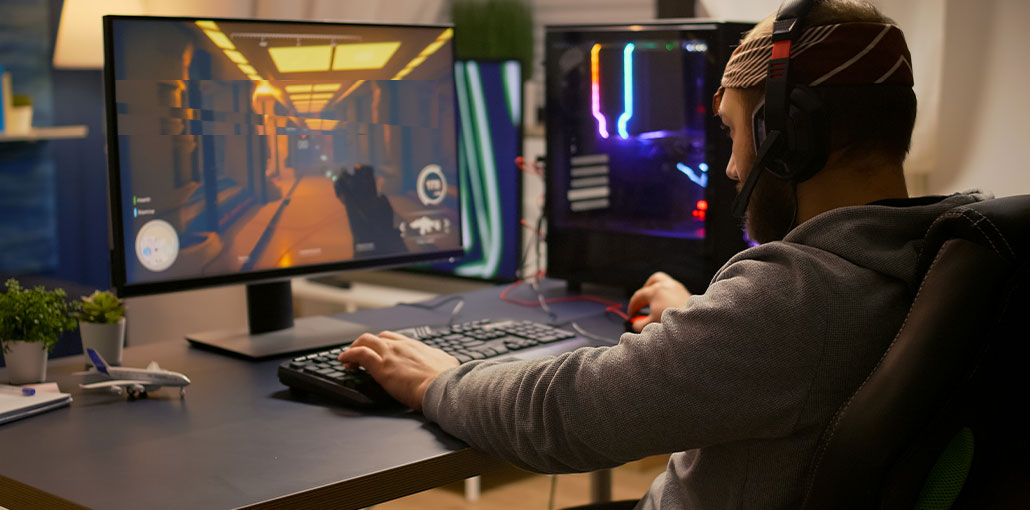
Screen tearing is a common cause of reducing the gaming experience and has always been an issue for gamers who play high-resolution, fast games. Many gamers playing Elden Ring and Modern Warfare have complained of screen tearing. How can we fix this issue? Let’s discover the answer in this article.
What is Screen Tearing?
Screen tearing can be described as a visual effect in video displays when a device displays details from multiple frames in a single draw. This problem occurs because the video stream sent to the device is not in sync with the screen’s refresh frequency. In essence, the screen, whether it’s an LCD or a monitor, is caught between two frames while it refreshes. Instead of a smooth and cohesive image, viewers see fragmented lines or a horizontal divide across the screen. This is particularly noticeable and distracting in fast-paced scenes, such as those in games or videos.
Understanding What Causes Screen Tearing
To find the right solution for you, we’ll first need to understand why you’re experiencing screen tearing in the first place. The problem is related to your monitor and GPU. The GPU produces and transmits images at a certain frequency. The rate is expressed by frames per second (FPS). Your monitor will display images at a specific rate. This is known as its refresh rate, and is measured in Hertz (Hz). For example, the 60Hz monitor can fill the screen 60 times per second.
Screen tearing occurs when the frame rate exceeds the monitor’s refresh rate. Your powerful GPU produces new images faster than your monitor can display them. The monitor will start drawing a new image before the previous is completed. The result of this combination of images is what you see as tears.
Also read: Fix Computer Screen Flickering: Step-by-Step Guide (2025)
How to Fix Screen Tearing?
Fixing the screen tearing issue requires ensuring that the output of your graphics card is in line with the monitor’s frame rate, so that each keeps up with the other. Below are five tips to help you troubleshoot the issue and identify the one that helps you.
Change Your Resolution Rate
The reason you may experience screen tearing could be that your screen resolution is set to an insufficient setting. The reason this happens is that when the resolution of your monitor is greater than the one currently shown, it’s quite likely that high-motion images will show the screen breaking.
If you’d like to adjust your refresh rate to resolve your screen tearing problem, a comprehensive guide is available with various methods for changing your refresh rate. This includes the window settings and in your specific GPU’s control panel.
Enable/Disable Nvidia VSync
If you’re unfamiliar with VSync, it’s a program developed by Nvidia that claims to manage screen tearing and the frame rate-related stuttering you may be experiencing. The method by which VSync operates is to prevent any frames that are faster than the system can handle, without requiring you to adjust your settings. But there are situations where Nvidia VSync is enabled, which is why your screen will tear.
Check Graphics Card Drivers
The problem with graphics cards is that they’re constantly being upgraded with new drivers to enhance performance in the most recent games. However, this can cause issues such as screen tear. On the other hand, GPU driver updates can also resolve screen tearing if you’re running an extremely old model, and getting to the optimal sweet spot will require some installation and uninstallation.
Before doing anything to your graphics driver, we recommend booting your computer into safe mode in this case. To do this, press F4 or 4 while it is turning on.
Toggle your game settings
Windows is constantly upgrading its operating system, seeking to bring the latest features to a wide range of users. The company has created the Game Mode feature for users who use their PCs for gaming. The Game Mode is usually used to help users optimize their system, as it is designed to extract the maximum performance from your processor without the typical stress it can cause. However, many users have experienced screen tearing on their screens while Game Mode is enabled, so turning it off may resolve any issues.
Disable ‘Smooth-Scrolling’
Smooth scrolling is a feature of Windows that alters the screen’s appearance when scrolling to ensure a smooth and seamless experience. However, if you enable this feature, it may cause negative effects while playing and could cause screen tearing.
Turn Off Frame Limits
Many applications and games come with a frame limitation set by default, which can significantly impact any screen tearing. This feature can usually be beneficial to the apps and games you have open. However, when it causes screen tearing, it must be removed.
The process of turning limitations on fame off can be difficult since the option appears in various places, game to game and app to app, which means there’s no clear way to set it.
In most cases, however, there’s a specialized graphics settings section within the settings menu where you can determine if frame limits are in place and remove them.
Also read: Second Monitor Not Detected? 8 Easy Fixes for Windows & Mac
Using Another Browser
Screen tearing in a browser typically indicates a problem with that particular browser, not your whole system. Try switching to unblocked browsers to determine whether the issue is browser-specific or a more general problem. This will help identify the root of the issue and fix it accordingly.
I hope that any of the ways for fixing screen tear can help you solve your problem!
Additional Best Practices to Prevent Screen Tearing
While tweaking your hardware and graphics settings can be a significant step in repairing screen tear, there are some additional suggestions and best practices you should consider. The first is to reduce background processes that can drain your system’s resources, as they can cause screen tearing. Ensuring you have the right cooling for your system is equally important because overheating can affect performance and increase screen tearing.
Additionally, using FPS limits can help control frame rates and reduce screen tearing. By following these guidelines and the best techniques, you can further minimize or prevent screen tear for a smoother and more enjoyable viewing experience.
Be aware that by understanding the root causes, considering improvements to your hardware and other tips, and the best practices, you can efficiently repair screen tearing and boost the performance of your monitor for smooth and seamless viewing.
FAQs: Screen Tearing
What's the difference between G-Sync and FreeSync?
G-Sync (NVIDIA) and FreeSync (AMD) dynamically match refresh rates to FPS, fixing tearing without VSync drawbacks. Both work on compatible monitors.
Can screen tearing damage my monitor?
No, it's a visual artifact only—no hardware harm. It just ruins gaming immersion
Best monitor settings to stop screen tearing?
Set refresh rate max, enable adaptive sync, cap FPS at refresh rate minus 3 (e.g., 141 for 144Hz).
Is screen tearing only a problem in games?
No, it can occur in videos, desktop scrolling, or any fast-motion content when frame rates mismatch monitor refresh. Gaming shows it most due to high FPS.
Screen tearing in browser or YouTube?
Disable hardware acceleration in Chrome/Edge settings, update GPU drivers, and ensure 60Hz+ refresh rate.



Leave a comment