

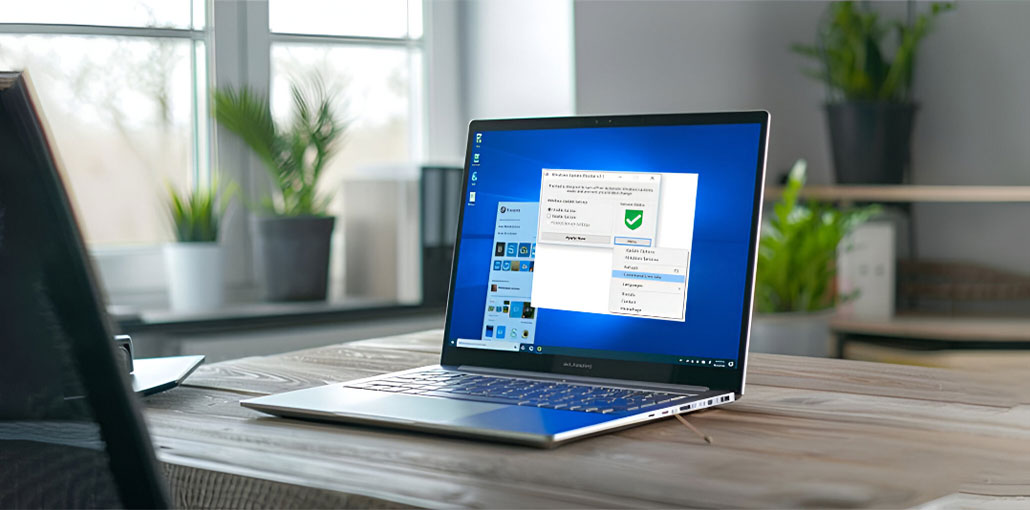
However, you can disable or stop Automatic Windows Updates on Windows 11/10 using the Group Policy Editor and the Registry Editor, or pause Windows Updates through Settings. If you’re searching for free software that can aid you in stopping or blocking automated Windows 11/10 updates, then you’ve found the right spot.
Additionally, Microsoft also offers a tool known as “show or hide updates,” which allows users to block unwanted Microsoft Updates. With it, you can disable Windows 10 from downloading specific updates.
While we don’t recommend stopping automatic Windows updates, if you are seeking a Windows update blocker software to control them, go through the following article.
9 Best Windows Update Blocker Tools
Here is a list of free Windows Update Blocker tools that will help you block or stop automatic Windows 11/10 updates on your personal laptop. The Windows Update Blocker tools can help you control, manage, and prevent the automatic Windows Updates on your Windows 11/10 computer with ease.
1. Windows Update Blocker
Windows Update Blocker allows you to manage Windows Updates & lets you disable Windows Update Medic Service (WaaSMedicSVC) as well. This tool is fully portable. All you need to do is obtain the ZIP file under 800kb, decompress it, and then start using the tool.
Its User Interface is easy to use and doesn’t require extensive knowledge. You can observe that the UI includes two radio buttons that allow you to change the Windows Update Service. Windows Update service on ” Enable Service” or ” Disable Service” or to secure the system’s services settings.
Pros
- Lightweight and fully portable (no installation required)
- Simple, user-friendly interface
- Can disable Windows Update Medic Service (WaaSMedicSVC)
- Works effectively on Windows 11/10
- Uses minimal system resources
Cons
- Limited advanced customization
- Not open-source
- Updates must be re-enabled manually
- Long-term use may reduce system security
Also read: Windows 11 Media Creation Tool: A Complete Guide to Download and Install
2. StopUpdates10
StopUpdates10 can make it much easier for its users to disable and block updates for Windows. By pressing one button, you can completely stop updates without causing any harm. The program executes several tasks running in the background to ensure Windows is unable download updates from the server.
It also stops forced updates and stops any update notifications, allowing you to focus less on work and not worry about update notifications. The principal goal of the program is not to completely disable updates (it is not recommended to do so); however, it is to give you an option to stop updates temporarily. This is why StopUpdates10 provides a fast Restore option that will bring your computer back to its original state, where updates were permitted. This feature comes in useful when you have a faster connection and choose to update.
Pros
- One-click solution to stop updates
- Blocks forced updates and notifications
- Includes a quick “Restore Updates” option
- Beginner-friendly interface
- Good for temporary update blocking
Cons
- Runs background tasks continuously
- Less control for advanced users
- Not ideal for long-term update management
- Free version has limited advanced options
3. Wu10Man
Utilizing Wu10Man is quite simple. This Windows update blocker is not difficult to master. It helps you with setting Group Policy, Disabling Services, blocking URLs, and Pausing Windows Updates.
Administrator access is required to run this application because you’re writing to the Registry, altering Services, and changing the Hosts file. Once you have access, you can stop the automatic updates to your system by using the following option.
Pros
- Advanced control over Windows Updates
- Uses Group Policy, Services, Registry, and Hosts file
- Can block update URLs
- Suitable for power users and IT admins
Cons
- Requires administrator access
- Not beginner-friendly
- Improper use may cause system issues
- No frequent updates to the tool itself
4. Kill-Update
Kill-Update is loaded when the user has logged in to the system. The program checks every 10 seconds to find Windows update service patches and packs. If update services are in place, the Kill-Update program will automatically stop this update service. Users can prevent the Windows system from updating by using this application. You can also disable the application manually when your system is in good health and ready to upgrade.
Pros
- Automatically stops update services in real time
- Runs at system startup
- Prevents updates without user intervention
- Simple concept and execution
Cons
- Constant background monitoring may use resources
- Limited configuration options
- Must be manually disabled to allow updates
- Not actively maintained
5. WuMgr
WuMgr or Update Manager for Windows is a free and open-source software built on Windows Update Agent API that allows you to find and install missing updates on your PC.
It is an all-in-one Windows Update Utility. It allows you to control updates and install manually updated versions. It’s simple to understand and use, and provides you with more control over the whole Windows Update configuration.
Pros
- Free and open-source
- Allows manual update selection
- Provides granular control over updates
- Built on official Windows Update Agent API
- Good transparency and reliability
Cons
- Interface may feel technical for beginners
- Requires user knowledge of updates
- No automatic update blocking by default
- Less suitable for users wanting “one-click” control
6. Win Updates Disabler
Windows Updates Disabler is yet another free Windows update blocker tool that allows users to completely deactivate or turn off Automatic Updates on their Windows system. Additionally, it allows you to disable or activate Windows Defender, Windows Security Center, and Windows Firewall. It is also a portable version available.
Pros
- Can disable multiple Windows services (Updates, Defender, Firewall)
- Portable version available
- Easy-to-use interface
- Works across multiple Windows versions
Cons
- Disabling Defender and Firewall can be risky
- No selective update control
- Not open-source
- Limited updates and support
7. WAU Manager
WAU Manager is a completely free Windows Automatic Updates Manager software to delay, stop managing, conceal the update, unhide, install, and uninstall Windows updates on Windows 11/10. It is a Windows Update manager that offers granular control over updates.
Pros
- Granular control over Windows updates
- Can hide, unhide, install, or remove updates
- Supports Windows 11/10
- Ideal for advanced users
Cons
- Interface may overwhelm casual users
- Requires some technical understanding
- No official Microsoft support
- Risk of misconfiguration if misused
Also read: Top 10 Tips and Tricks for Windows 11
8. GRC InControl
InControl is a Windows update blocker tool that lets users install Security Updates and block all other non-security Updates. In other words, it means that you will be able to keep your Windows version where it is. There will be no new security updates, and Feature Updates or versions will need to be installed or downloaded.
Pros
- Allows staying on a specific Windows version
- Blocks feature updates while allowing security updates
- Very simple and lightweight
- Trusted developer (Gibson Research)
Cons
- Limited functionality beyond version control
- No manual update selection
- Not suitable for users wanting complete update control
- Focused mainly on feature updates
9. Win Update Stop
The Win Update Stop (This one is no longer available for free) offers a simple method to stop Windows 11 updates. You don’t have to go into settings or even the registry to perform this manually. Simply pressing an icon will disable updates on your system. You can switch them off if you’d like. Not only Windows 11/10, but this Windows update blocker is also compatible with every version of Windows, which includes Windows 8 and Windows 7. Which means that, regardless of the version you’re running, you can stop all kinds of updates with this program.
Win Update Stop has an uncluttered UI. It displays only the update status, followed by two buttons that enable or disable updates. There’s also a button that says ‘Check to see if there are Windows updates’. If you click this option, it will bring you to the Updates section in Settings, where you can use the manual search for updates available.
Pros
- Extremely simple interface
- One-click enable/disable updates
- Compatible with Windows 7, 8, 10, and 11
- No need to edit the registry or settings manually
Cons
- No longer available for free
- Limited advanced features
- Closed-source software
- Long-term update blocking may reduce security
Final Word
If you’re running a Windows update blocker tool installed on your system, your PC will run smoothly. It is what I have experienced personally. I believe I provided all the details about the Windows update blocker tool in my post.
FAQs: Windows Update Blocker
What is the best Windows Update Blocker for Windows 11?
Windows Update Blocker and StopUpdates10 are among the best tools for Windows 11. They are lightweight, easy to use, and effective at stopping automatic and forced updates without complex configurations.
Can I block feature updates but still receive security updates?
Yes. Tools like GRC InControl allow you to block feature updates while still receiving important security patches, helping you maintain system stability and safety.
How do I re-enable Windows Updates after blocking them?
Most update blocker tools provide a Restore or Enable Updates option. You can also manually re-enable updates through Windows Settings or Services.
Are free Windows Update Blocker tools reliable?
Many free tools are reliable and widely used. However, users should download them from trusted sources and avoid disabling critical security features unless necessary.








Leave a comment