

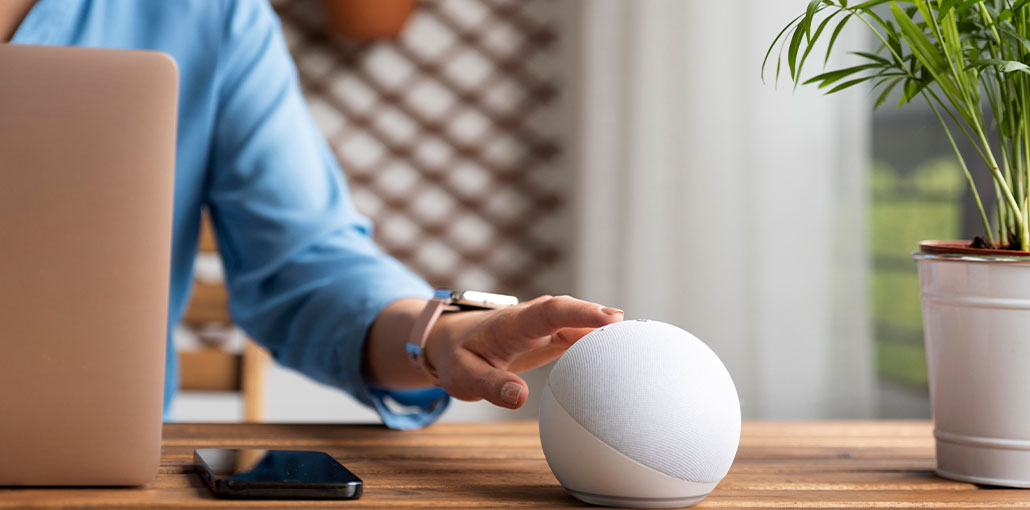
The more complex our devices become, the more likely we’ll encounter problems, and devices with Alexa support aren’t immune. Even though Echos are smart speakers, especially thanks to the Alexa implementation and broad support for smart home gadgets. However, the issue of Alexa not responding to voice commands can be frustrating.
However, don’t fret, we’re here to help fix Alexa not responding. It’s good to know that there are a handful of adjustments that will bring your beloved Amazon Alexa voice-activated assistant back to providing uninvolved suggestions. While there are slight differences from one model to the next, the fundamental actions will be similar all the time, particularly when you own the Amazon smart speaker, as they all use the same or similar operating systems.
In this regard, you’ll find them listed in the sequence we believe you should try. In the end, restarting your device requires less effort overall than performing a complete reset.
Why Alexa Is Not Responding? Common Reasons
Why is my Alexa not responding, or is Alexa not working? Knowing the reason can help to fix the issue easily. Here are common reasons
- Alexa Mic is muted or turned off
- Wake word not recognized
- Poor Wi-Fi or internet connection
- Alexa App Issues
- Outdated device firmware
- Device placement near walls, corners, or electronics can cause interference
Also read: How to Connect Alexa to WiFi: 3 Simple Setup Methods
How to Fix Alexa Not Responding
1. Make sure your device can hear you
Before you change settings, ensure that your device can hear you. Verify the microphone mute button on and off the echo device. If not, the device should signal that the red LED lighting on Echo speakers means the Alexa mic is off.
Also, ensure that background noise doesn’t obscure your voice. If you’re using a speaker, switch it off (and possibly use the sound machine function to keep the Echo moving forward), and check whether your Amazon Echo not responding issue is solved.
2. Restart your device
It’s a good idea for any technical issue you’re encountering. In most cases, restarting your device will fix Alexa not responding. In this case, disconnect your device for at least 30 seconds. Then reconnect it. If it’s battery-powered, remove all batteries for approximately the same amount of time before plugging them back in.
3. Fix the Wi-Fi
Network issues are usually the reason for Alexa not working. Alexa (and other voice assistants) do not work without an internet connection. Restarting the device can often resolve the Alexa not responding issue, but if it doesn’t work, you must reset the Wi-Fi. To do that, Open Alexa app, go to the Devices tab, then Echo & Alexa > [Device which isn’t functioning]. Select ‘ Change’ next to Wi-Fi, and follow the on-screen prompts.
Make sure the Echo is receiving a strong signal. You should be able to observe signal strength on the app. However, you can also walk to where the device is and count the number of bars your phone has determine if it’s in a dead zone.
4. Check the Wake Word
If your internet connection is good, the next step to fix Alexa not responding issue is to ensure you have the right Wake Word selected. Return to your setting ( Devices > Echo & Alexa > [device that’s not working). Look for ‘ Wake Word’. There will be an option menu. You can modify your Wake Word if you want; however, the most important point to remember is that the correct option was chosen. If so, it’s not the problem.
5. Update Alexa
Sometimes, issues occur because your device requires a firmware update. To do this, your device has a reliable internet connection and use. As we’ve already checked your Wi-Fi, make sure it’s connected, and then press the Mute button. Allow it to rest for up to an hour, as it will automatically scan and install any software updates.
Also read: Why Is Siri Not Working? 8 Easy Fixes You Can Try
6. Reset the device
You can physically restart your device by pressing the combination of buttons. It will depend on the manufacturer since the first Echo speakers will require a push-pin or paperclip to press a recessed switch, and you’ll need to hold the button until the light turns orange. Be sure to check your manual based on your model. For instance, the Echo Show requires pressing the Mute and Volume Down buttons for approximately 15 seconds.
Conclusion
The top 6 solutions to solve the “Alexa not responding ” issue with your Amazon Echo speaker. While you’re commanding the smart speakers to wake up, ensure you speak your Wake Word loudly and lucidly. It is helpful if there’s no noise around. If you know of a solution to this issue, tell us by leaving a comment!
FAQs: Alexa Not Responding
Why is my Alexa not working?
If Alexa isn’t working at all, it could be caused by internet connectivity issues, software glitches, or conflicting skills. Restart your Echo device, check your Wi-Fi, and ensure your Alexa app is up to date.
Why does Alexa keep saying 'Sorry, I didn’t catch that'?
This usually happens when Alexa cannot understand your voice or wake word. Try voice training in the Alexa app, speak clearly, and reduce background noise.
Why is my Alexa red light showing?
A red light means the microphone is muted. Press the mic button to turn it back on — the red light will disappear, and Alexa can hear commands again.
How do I fix Alexa not responding?
Check the microphone, restart the device, verify Wi-Fi, ensure the correct wake word, update the firmware, or reset the device as a last resort.
How do I know if my Alexa firmware is up to date?
Ask: “Alexa, what’s your software version?” or check in the Alexa app under Devices, select Your Device, and click Device Software Version.






Leave a comment