

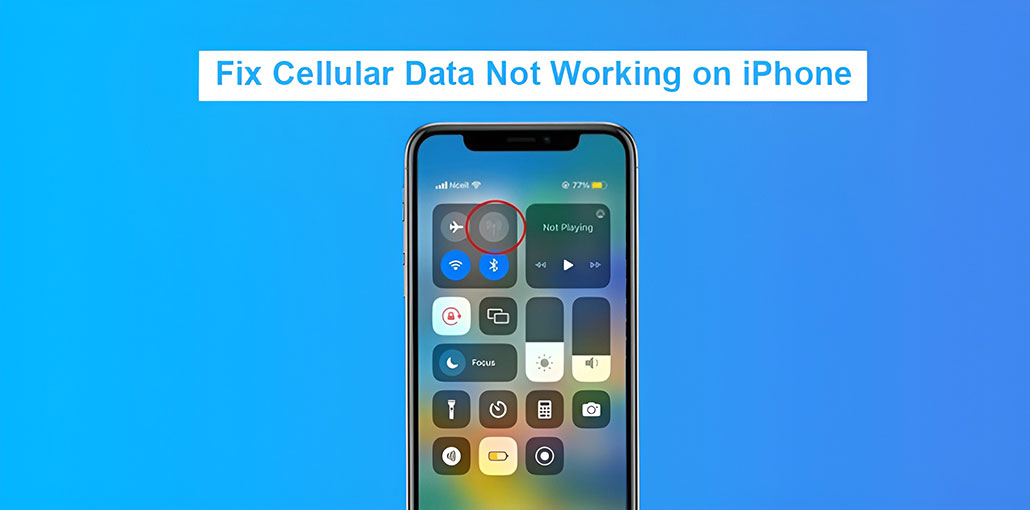
Are you having problems with cellular data not working on your iPhone or iPad? Try these troubleshooting techniques to resolve internet issues.
If your cellular data not working on your iPhone and iPad, you may get alerts that read ” Could Not Activate Cellular Data Network.” Sometimes your top status bar or Network indicator within Control Center might display “No Service” or searching. If you find yourself in this situation, these solutions should help fix the iPhone cellular data not working problem.
Take note, Cellular Data is sometimes referred to as mobile data and Mobile Services in several countries. Follow the steps to solve the cellular data not working issue on iPhone.
Why Is My Cellular Data Not Working?
Here are the most common reasons why your cellular data may not be working:
- Cellular Data Is Turned Off
- Poor Network Coverage
- Network or Carrier Issues
- SIM Card Problems
- Data limit reached
- VPN or App Interference
- Software Glitches or Outdated System
Also read: iPhone Not Receiving Texts? 12 Fixes to Get Messages Back
How to Fix Cellular Data Not Working on iPhone
1. Make Sure Cellular Data Is Enabled
Before you go for the solution, ensure that your cellular data is enabled. To check this, go to Control Center and check if the mobile button is green. If it’s not, then tap it to turn on cell data. It is also possible to activate it through the Settings app.
2. Toggle Airplane Mode
Open Control Center and tap the airplane icon. After waiting around 10 minutes, press the same button to turn it on. By doing this, you disconnect and reconnect the wireless networks, which in general enhances the connectivity of your cell phone.
3. Check Your Signal Strength
Open Control Center and see the number of bars available for your cell phone network. If the number is one or zero, it could mean that cellular data not working at all times.
In this case, you can try changing your location to one of your home or room (like close to your entrance or the window) that offers greater coverage. It is possible that you won’t get cell coverage if you’re in a remote location.
4. Manually Search for a Network
Click on iPhone Settings > Cellular > Network Selection and switch off Automatic. After that, you can expect that your iPhone will start searching for networks. After the search is complete, you can select the carrier provider if it comes up.
Note:
If you have several SIM Select one first to view your Network Selection option.
Your provider may have a partnership with another carrier to use services, or could have a small local carrier owned by a large carrier. If you are aware that your carrier is involved in such alliances, simply tap their name from the results of a network search and check if you receive coverage.
5. Enable Data Roaming
If you’re planning to travel internationally (or perhaps to another telecom circle or state in certain countries), be sure to activate data roaming by visiting settings > Cellular > Cellular Data Options > Data Roaming.
6. Set the Correct Date & Time Settings
The Internet could not work properly when the date and time settings are incorrect. The most straightforward solution to fix this is to enable the ste automatically in Settings > General > Date and Time. After that, you can restart your iPhone, and the mobile data should be working fine.
7. Restart Your iPhone
In some cases, minor issues may prevent cell data from working in your iPhone. This can be fixed by switching off the iPhone and then turning it back on.
Also read: Call Failed iPhone: 9 Quick Ways to Fix It
8. Check Your Data Allowance
Before moving on to the next options, ensure you have sufficient data allowance for the month, day, and billing cycle. You can use your carrier’s official app or contact customer service to check your data balance. If you’re facing outstanding bills, you have to pay them, and your internet should be restored shortly.
9. Disable VPN
If you’re using a VPN app on your iPhone, start it and shut it down. After this, fix the mobile data and get the cellular data work normally.
10. Turn Off Wi-Fi Calling (If Enabled)
In some cases, Wi-Fi Calling could interfere with normal calls and cellular data. Therefore, give this one attempt if your cellular data is not working on your iPhone. You can go to Settings > Cellular > Wi-Fi Calling and disable Wi-Fi calling on this iPhone.
NOTE: Not all carriers offer Wi-Fi calling; therefore, you may or may not find this toggle in the iPhone’s Settings.
11. Update Carrier Settings
Carriers push setting updates to fix problems and introduce new features such as 5G support, Wi-Fi calling, and many more. Certain updates to the carrier’s settings aren’t required and show two options: Upgrade or not now. If you decide not to update, go ahead and install the carrier update manually.
If you are required to update your carrier, you must click Okay instead of Update or Not Now.
12. Update your iOS
Cellular data may not work due to bugs in the outdated versions of iOS on your iPhone. Therefore, it’s imperative to go to Settings > General > Software Update and install and download the most recent Version of iOS.
13. Reinsert Your SIM Card
iPhone SIM failure may be an issue with cellular data not working. Use the SIM ejector tool to remove your physical SIM card from your iPhone carefully. Then, clean it with a soft dry cloth, and then insert it with care. After that, your mobile data should work perfectly.
14. Check for Local Network Outages
If there’s a disturbance, such as unrest or a violent protest in your locality, local authorities can temporarily suspend cellular service within your district or county. In such instances, there is nothing you can do other than wait for the situation to cool down and service to be restored. Remember that in these instances, the customer support of your service provider might already be overwhelmed by numerous calls. Therefore, it’s best to avoid calling them and instead be informed via your local newspaper.
15. Reset Network Settings
This is a vital option to consider if cellular data not working for your iPhone. Go to Settings > General > Transfer or Reset iPhone > Reset > Reset Network Settings. After this is done, your cellular data should work as the first time.
Also read: How to Fix the Cannot Verify Server Identity Error on Your iPhone
16. Reset All Settings
If network resetting does not bring you luck, you can try reset all settings on your iPhone.
17. Contact Your Carrier
In a few instances, there may be an error or issue on the side of your provider with billing or another account issue. The only way to resolve the problem is to reach out by call, chat, or visit the official store.
18. Reach Out to Apple Support
If the solutions above are unsuccessful, chat with Apple Support and find out what they can do to resolve the internet issue.
19. Restore Your iPhone
If there is no solution to fix the cellular data not working issue, erase your iPhone and then set it up once more. You can also use a Mac or PC to restore your iPhone data to recovery mode.
20. If 3G isn’t working on your iPhone
Carriers across the world (like AT&T) are phasing out their 3G service to make way for the new Generation of 4G LTE and 5G. If you’re running an iPhone 5s, 5c, or older, your phone isn’t compatible with AT&T for calls or data services on 3G. If this is the case, you can switch to another carrier that still provides 3G services. Another option is upgrading to a new iPhone.
Wrap Up: Solve iPhone Cellular Data Not Working Issues
Hopefully, the troubleshooting method given below will allow you resolve the issue of cellular data not working properly on the iPhone and iPad. Each step is equally crucial and should quickly resolve the internet issue.
FAQs: Cellular Data Not Working
Why is my cellular data not working on iPhone but Wi-Fi works?
This usually means there is a network, SIM, or carrier issue. Check if cellular data is enabled and make sure your data plan is active.
Why does my iPhone say “No Service” or “Searching”?
This can happen due to poor network coverage, carrier outages, SIM card problems, or incorrect network settings.
Why is my iPhone showing signal but no internet?
This may be caused by network congestion, incorrect APN settings, a data limit, or a temporary carrier issue. Restarting your iPhone or resetting network settings often fixes it.
Could my SIM card be the reason cellular data isn’t working?
Yes, a damaged, loose, or inactive SIM card can prevent your iPhone from connecting to mobile data or cellular data not working.



Leave a comment