

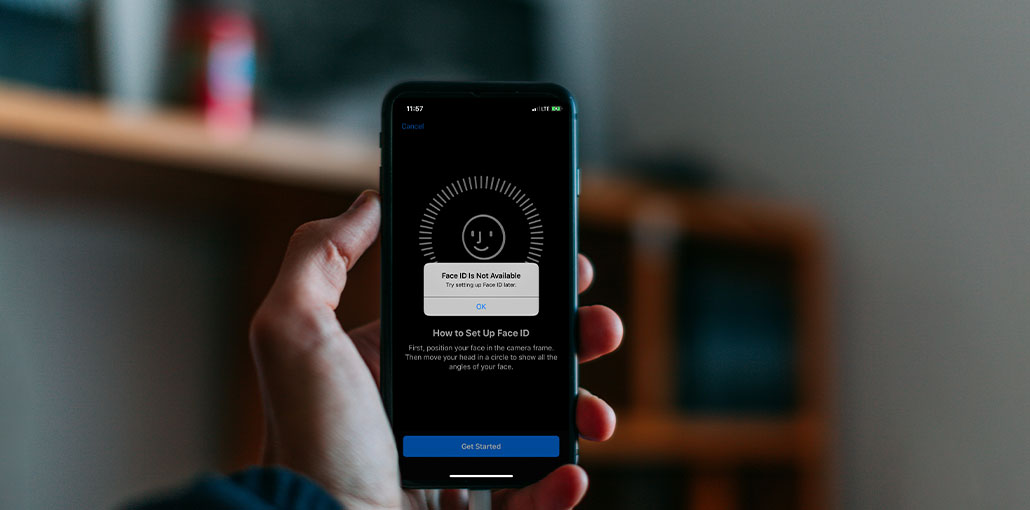
Face ID is more convenient than passwords, so Face ID is a preferred method of security and authentication for certain iOS device users. However, there are times when Face ID is not available on iPhone due to a stuck or recognition, face-related issue. Be assured that you will not experience it! It’s a good thing you came across this article. Check out this article to learn seven methods to fix the Face ID not available on iPhone issue.
Why Is Face ID Not Available on iPhone?
After you update your iPhone, the ” Face ID not available issue may be due to a software glitch or sensor-related issues. Because Face ID relies entirely on the camera and system software, issues with either can cause this error.
Common reasons include:
- Your face isn’t clearly visible due to angle or obstruction
- Dust or dirt covering the front camera
- Too many failed unlock attempts (Face ID temporarily disables)
- Bugs or compatibility issues with the new iOS update
- Your device is locked via the Find My iPhone app
- Security restrictions set by Apple Inc. (e.g., long inactivity requiring a passcode)
In most cases, the issue is temporary and can be fixed easily.
Also read: Why Is My iPhone Camera Not Working and How Do I Fix It?
7 Methods to Fix “Face ID Not Available” on iPhone
iOS 26/18 is a feature that allows users to unlock their iPhone via Face ID, and it was designed to be even better. But, there are situations where the user is looking for a solution to resolve Face ID not available on iPhone. Here are seven methods to enable it for iPhones running iOS 26/18.
1. Check Device Compatibility
Face ID is available only for users running iPhone version X or later that include iOS 26/18, and are more likely to have the Face ID not available issue. Face ID authentication isn’t available on your phone if you are currently using an iPhone running version 8 or older versions.
2. Update Your iPhone
If you’re running any of the iPhone versions listed above, you can check if updates are available on your device. Updating your iPhone could be beneficial by bringing you the latest features and fixing major or minor software bugs, specifically on the Face ID. It could be a software glitch that causes you to experience the Face ID not available iPhone problem.
3. Check Face ID Settings
The Face ID you have set up may require proper setup, and you should check for it. This is useful whether everything was enabled with Face ID. You’re more likely to be unable to use Face ID on a specific app or other third-party apps if you aren’t in a position to apply Face ID authentication to it. For a quick check, you can follow these steps to resolve the “Face ID is not available” issue.
- Open Settings
- Tap Face ID & Passcode
- Enter your passcode
- Turn ON Face ID for required options (iPhone Unlock, App Store, etc.)
- Enable Face ID for apps under Other Apps
4. Clean the TrueDepth Camera
If there’s a blockage in the screen of your TrueDepth Camera, Face ID isn’t working. Make sure there aren’t any fingerprints, dirt, or even a substantial screen protector that is covering the TrueDepth Camera. You can use microfiber cloths to wipe any obstructions that block the view of your TrueDepth Camera. Check if this will fix your Face ID not available iPhone issue.
After completing the three initial check methods, Face ID might already work in iOS 26/18. If it isn’t, but it needs to be enabled and functioning with your gadget, these are some other options.
5. Position Your Face Correctly
Users have to keep their iPhone horizontally to take a face scan using the TrueDepth camera. However, after some updates, you can use Face ID to scan the face horizontally. However, it is not a horizontal scan. TrueDepth Camera scanner comes with various angles. No matter whether your iPhone is lying on the ground or sat upon it, ensure it’s at a distance or closer to your face to avoid the ” Face ID not available ” issue.
6. Reset Face ID
If you continue to receive messages that say”Face ID not available, try again later,” you can delete the relevant information stored on your Face ID and set up a new one. This can help Face ID work better if you already wear glasses or have made some modifications, either to your hair or other appearance. Additionally, in this method, you can recheck or change the initial setup process you’ve already completed. If you want to change your Face ID, follow these easy steps.
- Open Settings
- Tap Face ID & Passcode
- Enter your passcode
- Tap Reset Face ID
- Tap Set Up Face ID and follow the on-screen instructions
Also read: How to Bypass Screen Time Passcode: 6 Best Methods
7. Restart Your iPhone
Restating your iPhone every week will improve its performance. Regarding the issue with Face ID not being available on your iPhone, this might be an effective way to refresh your Face ID and resolve it if it’s just an app crash. After restarting the app, you can try your Face ID feature again after entering your password.
Prevention Tips for Face ID Issues
To avoid the “Face ID Not Available” error in the future, follow these simple tips:
- Keep the front camera clean and free from dust or smudges
- Avoid covering the TrueDepth camera with low-quality screen protectors
- Hold your iPhone at a proper angle while using Face ID
- Update your iPhone regularly to prevent software bugs
- Avoid too many failed unlock attempts
- Restart your device occasionally to maintain performance
Summing Up
When you’ve completed the steps above to fix the iPhone Face ID issue, you will now be able to use it without any issues, and it is already working exceptionally well. If not, try the best ways below to resolve Face ID not available on your iPhone, and with a few clicks.
FAQs: Face ID Not Available
Why does my iPhone say “Face ID Not Available” suddenly?
This usually happens due to a temporary software glitch, camera obstruction, or after multiple failed attempts. In some cases, it may also indicate a hardware issue.
Why did Face ID stop working after an iOS update?
After an update, bugs or compatibility issues may affect Face ID. Updating to the latest version or resetting Face ID often resolves the problem.
Does Face ID disable after too many failed attempts?
Yes, Face ID temporarily disables after multiple failed attempts for security reasons. You’ll need to enter your passcode to enable it again.
Is Face ID not available a hardware problem?
Not always. Most of the time, it’s a software or setup issue. However, if it persists, it could be related to the TrueDepth camera hardware.
Is Face ID safer than a passcode?
Face ID is designed to be highly secure, but Apple still requires a passcode as a backup for added protection.







Leave a comment