

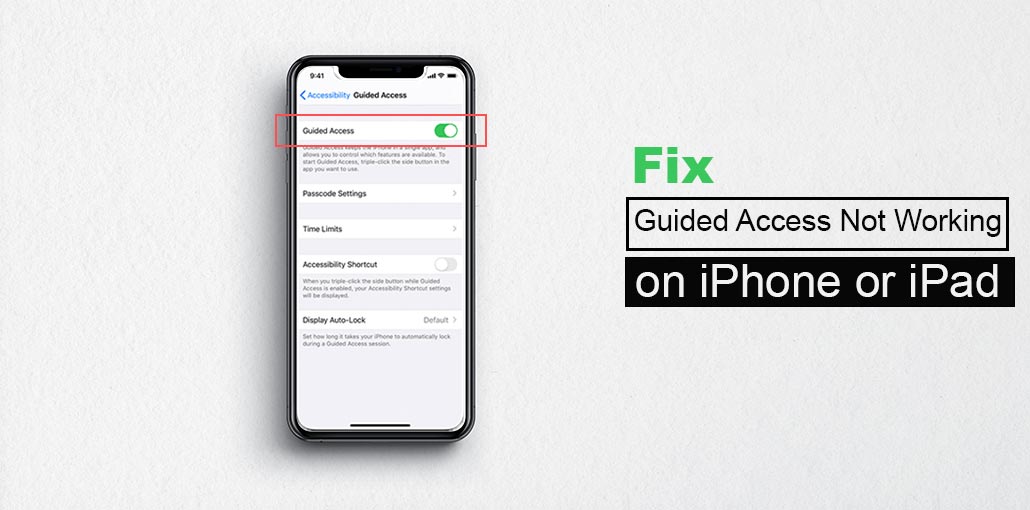
Guided Access is a feature that allows you to use a single application and limits your activities within a specific area. It is possible to benefit from this feature if your child requires access to an iPhone or iPad to keep them from being distracted. Particularly, you can install a Guided Access passcode and time limits that are similar to the Screen Time limit.
However, it is not always the case that this feature does not respond when you triple-click. Why does Guided Access not working on iPhone? What should you do to solve it? Here, you’ll find explanations and solutions for when Guided Access not working.
Why Is My Guided Access Not Working
If the problem, iPad or iPhone Guided Access not working, you’ll find it difficult to secure your device with a single app and also control specific features. The reasons for this are numerous and diverse. The most common reasons are listed.
1. Incorrect Settings Configuration
Guided Access may be turned off, or the Accessibility Shortcut may not be set properly.
2. Outdated iOS/iPadOS Version
Running an old system version can cause compatibility issues or bugs.
3. Software Glitches or System Bugs
Temporary system errors may prevent the feature from responding.
4. Passcode Problems
Incorrect or forgotten Guided Access passcodes can prevent starting or exiting the session.
5. Hardware Issues
A damaged Home or Side button may stop the triple-click action from working.
Also read: How to Fix the Cannot Verify Server Identity Error on Your iPhone
How to Fix Guided Access Not Working
If you’re new to dealing with iOS issues, it’s hard to come up with a solution on your own. Therefore, if Guided Access not working on your iPhone or iPad, try these simple solutions to fix it.
1. Disable and Enable Guided Access Feature
If you do not turn on Guided Access, or even if you’ve disabled it, but it’s not responding, it is best to disable the feature first and then enable it to ensure it is refreshed.
- Go to Settings and find accessibility.
- Scroll down to find guided access. Turn it off and close the Settings application.
- Then come back to the Guided Access screen to enable this feature again.
2. Restart or Force Restart Device
To avoid the possibility of a slow system, the first thing you need to do is reboot or restart your iPhone or iPad. In Settings, go to General and scroll down until you reach the shutdown option, and drag the power-off slider until you switch off your device. After that, press the power button until the device turns on again.
3. Remedy Guided Access Settings
A mistake in the settings of your iPhone or iPad could result in an issue with Guided Access not responding. There are many settings that you can fix.
Create a guided Access passcode
Navigate to Settings, Find Accessibility, look for Guided Access, and click Passcode Settings, after which set your Guided Access Passcode. You can then activate and then exit Guided Access by triple-clicking while entering the passcode.
Triple-click the side button for Guided Access
Navigate to Settings- Accessibility and then locate the Accessibility Shortcut. Check the box for Guided Access to allow triple-clicks in this action.
Add Guided Access to Control Center
If you’re unable to enable Guided Access with a triple-click, you can include it in Control Center. Start by opening Settings, finding Control Center, and then adding the Guided Access feature by pressing the plus button. After that, you can open Control Center to have a test.
4. Update iOS/iPadOS Software
In most cases, iOS updates will give users a better experience. They fix possible bugs, improve performance, and add new features. If you are experiencing Guided Access triple-click not working on your device, you can try a software update.
- Choose General in the Settings app.
- Then head to the Software Update option.
- Tap on Download and install to upgrade your iPhone and iPad to the latest version.
5. Use iOS System Repair Tool
As we mentioned previously, your iPhone or iPad might experience a system malfunction in which Guided Access does not appear or the passcode screen doesn’t appear, and the passcode cannot be entered or accepted. The most effective solution is to fix your iOS/iPadOS system using iOS System Recovery software.
6. Reset All Settings
If you aren’t sure what’s wrong with your configuration in Guided Access, you can try resetting all options on the iPhone and iPad. Many users on the forum tried it and left positive comments.
- Run the Settings app on your device, then tap “General”.
- Find Transfer or Reset iPhone and then select the Reset option.
- Select Reset All Settings. Enter your passcode according to the requirements.
- Once your device is rebooted, triple-click again to test whether the Guided Access works.
7. Factory Reset iPhone/iPad
Factory settings are a great way to get your device into its default status. This means that the Guided Access feature not working can be fixed. If you decide to use this approach, ensure that you back up your data first.
- Go to Settings and select the General option.
- Tap Transfer or Reset iPhone and then choose to erase all content and Settings.
- Now type in your passcode to begin the process.
Also read: Face ID Not Working on iPhone? 7 Easy Fixes (2025 Guide)
8. Restore Device using iTunes
Identically, you can use iTunes on your PC to reset your device with the same concept as a factory reset. Before trying this method, make sure that the Find My feature is disabled. If it is not, shut it off first, and then follow the steps below.
- Plug the iPhone or iPad into your computer and run iTunes.
- Locate your device icon and click on the summary module.
- If you have no backup, select Backup Now.
- Click the Restore options on iPhone and iPad. You will see your device restored, and you can enable Guided Access again on your device.
Contact Apple Support
Hardware problems, such as physical damage to the Home or Side button, that you are unaware of or that are difficult to visually see, can cause Guided Access not working. If you are unable to resolve the issue, it is recommended to contact the Apple support team for assistance.
Summary: Fixing Guided Access Not Working on iPhone
While you’re facing a Guided Access not working issue can be frustrating. This article provides easy ways to troubleshoot and solve Guided Access when it’s not working as expected.
FAQs: Guided Access Not Working
Why is Guided Access not working on my iPad but working on iPhone?
Check if both devices are running the same iOS/iPadOS version. Different system versions or settings may cause inconsistent behavior.
Why is Guided Access not showing in Accessibility?
If Guided Access is missing, your device may be running an outdated iOS version or experiencing a system glitch. Update your software and restart your device to make the feature appear again.
What should I do if I can’t exit Guided Access?
Triple-click the Side or Home button and enter the Guided Access passcode to exit. If Face ID or Touch ID is enabled, you can use it instead. Restart the device if the screen is unresponsive.
How do I fix Guided Access not working on iPhone?
To fix Guided Access not working issue, turn the feature off and on, restart your device, enable it in Accessibility Shortcut, and update iOS. If the issue continues, reset all settings or restore your iPhone to resolve system-related problems.









Leave a comment