

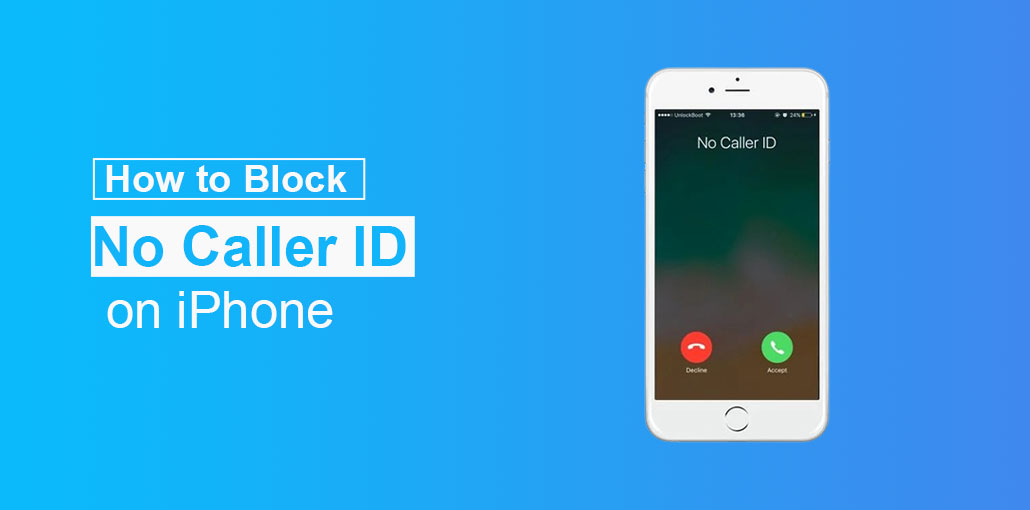
“Anonymous,” “Private,” or “Blocked”. In these cases, the caller ID is hidden, and you’re left without knowing who is calling you. There are times when you don’t have time to respond to these calls, or perhaps you do not want to talk to unknown numbers. Whatever the reason, you might want to block these with no caller ID. Well! Find out how to block No Caller ID on iPhone.
What is “No Caller ID”?
If you see “No caller ID” when receiving a call, it means the caller has hidden their number for personal reasons or the nature of their job. People and businesses sometimes hide their IDs to remain anonymous and limit the use of their personal information. For example, fundraisers and telephone marketers hide their numbers to avoid receiving calls.
“No caller ID” may originate from legitimate callers, scammers, or stalkers, as they use this technique to hide their identities when committing criminal acts. This allows them to attack massive numbers of telephone numbers without being caught and risking legal consequences. Unseen numbers can cause unsuspecting customers to respond to inquire about the number and help scammers’ methods.
Also read: iPhone Call Forwarding: How to Set Up + 6 Best Apps
What is “Unknown Caller”?
“Unknown caller” may appear on your phone’s screen after you receive a phone call. This means that network problems are preventing the caller ID details from reaching your device. This could occur even if the unidentified person is listed in your contact list. The phone service provider can’t identify who is calling.
“Unknown caller” may also display on your phone as an unanswered call when you are trying to contact you from a different country. The phone service provider you use may not recognize an international caller ID due to the different communication systems.
If you don’t expect an unidentified phone number, don’t respond. Someone who wants to reach you may send a message. Make sure you have space on your voicemail box.
How to Block No Caller ID on iPhone
You’ve now learned the meaning of “No Caller ID” and the definition of an unknown caller. We will discuss how to block no Caller ID on iPhone.
1.) Open the Settings App on the iPhone.
2.) Scroll down to Phone and tap it.
3.) On the screen, you’ll see”Silence” Unknown Callers tab close to the lower part of the screen.
4.) Then, you can change the switch to block “No Caller ID” phone calls.
That’s everything there is to say about it. In addition, if any calls do not meet the requirements above, the iPhone will allow the call to go through, especially if its number is tied to an outgoing call or listed in Siri’s Suggestions.
If your iPhone is old, consider upgrade at iOS 17 for the no-collar ID feature, which can take calls for you and determine if they’re urgent.
How to Stop No Caller ID Calls on iPhone Using Do Not Disturb Mode
Another way to block no caller ID on iPhone is to use the Do Not Disturb feature. This will ensure that when Do Not Disturb mode is activated, you can receive only calls from contacts on your list.
1.) Start Settings on your iPhone. Settings application on your iPhone
2.) Scroll down, then tap on Focus
3.) Choose one from the list or click on the + icon to create a new one.
4.) Tap on people under Allowed Notifications
5) Tap on Calls From
6) Select All Contacts
7) To activate the settings, simply swipe downwards from the upper right-hand corner of your phone to open the control panel.
8) Tap on Focus
9) Click on the focus you have just created
The only calls you’ll receive now will be from the people on your contact list.
How to Block No Caller ID Calls on iPhone Using a Fake Contact
This is an awesome technique for using iPhone handles contacts in the Contacts app.
1) Open the Contacts app and tap +.
2.) The First Name field for the contact selects No Caller ID.
3. Tap add phone.
4.) Input 000 0000000 as the number.
5.) Tap Done to save the contact.
6) You must now add this number to the list of blocked callers. On the main screen in the Settings app, click Phone.
7) Tap Blocked Contacts.
8.) Scroll down to the bottom, then tap Add New.
9) Go through your contact list and tap on the new Contacts list and tap the No-Caller ID contact you made.
There is no caller ID contacts are added to the list of blocked contacts. Anyone with no caller ID will be directed to voicemail.
Also read: 10 Best Call Blocking Apps for Android Smartphones
How to Block Unknown Calls on iPhone
The most effective way to block unknown callers on an iPhone is to utilize an inbuilt feature. You can do this by following these steps:
1.) Within the Settings app, tap Phone.
2) Tap Silence, Unknown Callers.
3.) Change the slider to Silence Unknown Callers to green/on. Once you have done that, calls from numbers that are not listed in your address book will be automatically silenced and sent directly to voicemail.
Conclusion
Are you receiving calls from unknown numbers or No Caller ID on your iPhone? It’s time to get control of your phone to block these annoying calls for good. In just a few easy steps, you’ll be able to end annoying interruptions and experience peace and tranquility. We hope this article will help you understand how to block No Caller ID on iPhone. Enjoy reading!
FAQs: How to Block No Caller ID on iPhone
What is the difference between No Caller ID and Unknown Caller?
“No Caller ID” means the caller intentionally hides their number, while “Unknown Caller” usually appears due to network issues.
Can I block No Caller ID without using any app?
Yes, you can use built-in iPhone features like Silence Unknown Callers and Focus Mode—no third-party app needed.
How do I stop spam calls on iPhone permanently?
You can reduce spam by enabling Silence Unknown Callers, using Focus Mode, and registering your number on a Do Not Disturb (DND) list.
Can I completely block No Caller ID on iPhone?
iPhone doesn’t fully block them, but you can silence or filter these calls so they go directly to voicemail without disturbing you.




Leave a comment