

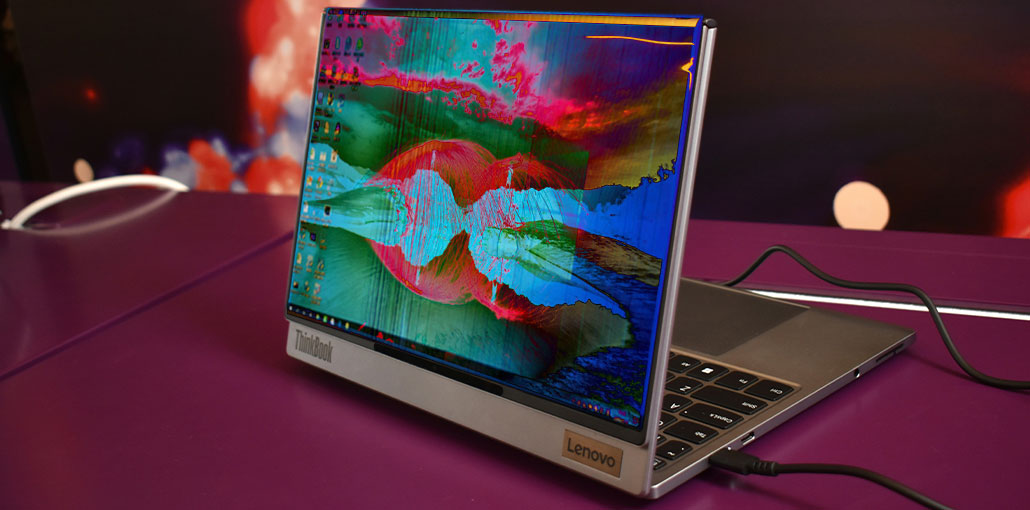
Are you using Lenovo Yoga? Are you experiencing Lenovo Yoga screen flicker problem? This issue can be due to hardware or software. In this article, we provide 6 solutions to resolve this problem.
What Does Screen Flickering Look Like?
Lenovo Yoga screen flicker can appear in different ways:
- Lenovo Yoga screen flashing or blinking
- Screen dimming and brightening repeatedly
- Horizontal lines or distortion
- Flicker only when moving the screen or switching modes (tablet/laptop)
- The screen goes black for a few seconds and comes back on
Understanding when the flicker happens helps identify the root cause.
Common Causes of Lenovo Yoga Screen Flicker
- Outdated or Corrupt Graphics Drivers
- Refresh Rate or Display Settings Issues
- Loose Display Cable (Hardware Issue)
- Power or Battery Problems
- Third-Party Software Conflicts
- Touchscreen or Tablet Mode Glitches
Also read: Monitor Flickering Problem? Try These Simple Fixes
6 Ways to Fix Lenovo Yoga Screen Flicker Issue
Have you experienced the Lenovo Yoga screen flickering problem? If yes, apply the methods below to fix the issue.
1. Change Display Settings
- Press the Windows key + I to open the Settings window.
- Go to System > Display.
- Be sure to change the brightness automatically whenever the lighting option is disabled.
2. Change Intel Graphics Control Panel
This technique may be helpful for specific Lenovo Yoga models like Yoga 2 Pro and Yoga 720, for example.
- Open Control Panel.
- It is accessible via tiny icons.
- Click Intel Graphics Control Panel.
- Click on the power Section (if you don’t see this section, it indicates you aren’t to apply the method).
- Click on Power Usage and then disable Power Saving Technology.
3. Update the Graphics Driver
Recommended by Microsoft. They recommend users try rolling back, updating, or installing the graphics driver. Here is the guideline:
- Press the Windows button + X and then select Device Manager in the contextual menu.
- To expand the display adapters, right-click on the graphics driver and select properties.
- Navigate to the Driver tab and select the Update driver option. Roll back the driver or uninstall the device according to your needs.
- Follow the on-screen instructions to complete the procedure. If you decide to uninstall the driver, you will need to restart your PC later.
4. Uninstall Incompatible Software
Recommended by Microsoft. If you notice that the Lenovo Yoga screen flicker issue happens after installing the third-party software. This problem could be caused by incompatible software. In this case, you could try uninstalling it.
What to do:
- Go to Control Panel and select Programs and Features
- Find recently installed applications
- Uninstall suspicious or recently added software
- Restart your laptop
5. Update BIOS
If you are experiencing the Lenovo Yoga screen blinking and flickering issue, even on the login screen, you can try this technique. For detailed BIOS update steps,
Steps:
- Press Windows + R, type msinfo32, and press Enter to check your System Model.
- Visit the official Lenovo Support website
- Enter your Yoga model number in the search bar and open the Drivers & Software option.
- Look for the latest BIOS/UEFI update available for your device and download it
- Double-click the downloaded file and follow the display instructions.
- Restart your laptop when prompted. The BIOS update will start automatically.
Also read: Orange Spot on MacBook Screen? 6 Easy Fixes You Must Try
6. Fix Cable Issue
If the strategies above don’t work for you, you should consider that the Lenovo Yoga screen flicker issue is caused by a hardware problem. Many users report that the problem originates from a wire that is caught beneath the hinge on the Lenovo Yoga. The PC should be disassembled and the removed cable.
However, please be aware that this process is temporary. When you start using the PC, the cable will get squeezed under the hinge once more, and it will be pinched again until the Lenovo Yoga screen flicker issue happens again. Many people believe that this issue is due to a flaw in the design of PCs, and Lenovo is responsible for the issue.
If you search online issues, you may come across an organization called CSK&D that is examining a potential class action based on claims of Lenovo Yoga 730 notebooks and other models, exhibiting a screen flickering problem.
Contact Lenovo Support
If none of the solutions above solve the Lenovo Yoga screen flicker issue, it might be a hardware problem. If you’re unsure about opening your device, it’s best to contact Lenovo support for help.
You can visit https://www.lenovo.com/us/en/contact/ to get started. Have your product details and bills ready.
FAQs: Lenovo Yoga Screen Flickering
Why is my Lenovo Yoga screen flickering?
Screen flickering can be caused by outdated graphics drivers, incorrect display settings, power management conflicts, or, in some cases, hardware issues like a loose display cable.
How do I know if the flicker is hardware or software?
If the screen flickers only when moving the hinge or in tablet mode, it’s likely a hardware issue. If it happens randomly or after a software update, it’s usually a driver or settings problem.
Can a BIOS update stop Lenovo Yoga screen flickering?
Yes. If the flicker occurs even before Windows loads, updating the BIOS can resolve firmware-related issues. Always download BIOS updates from Lenovo’s official support site and follow instructions carefully.
How do I fix flickering on Lenovo Yoga 720, 730, or Yoga 2 Pro?
For these models, common fixes include updating graphics drivers, changing Intel Graphics power settings, adjusting display settings, or updating BIOS. Hardware issues, like a pinched display cable, may require professional repair.






Leave a comment