

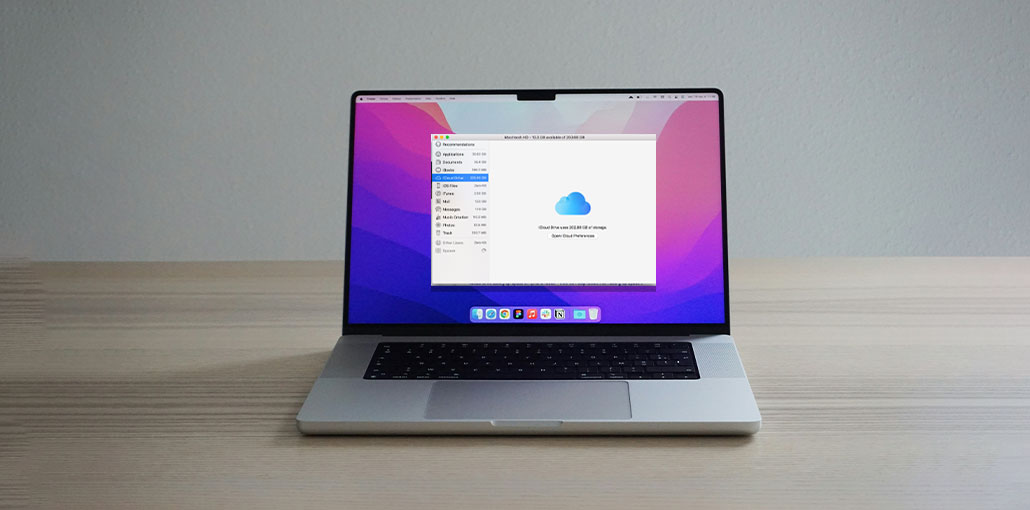
Is it confusing to see the message “some iCloud data isn’t syncing on your Mac? Yes, I’ve experienced it, too. In my personal experience, the issue generally is due to two things:
- Account verification
- Misconfigured app settings
- Stalled sync daemons.
I’ve tried to solve the iCloud sync issue on a MacBook Pro and found reliable methods to force a sync and fix the connection. Here are five solutions that you can apply right now.
Common Reasons for Some iCloud Data isn’t Syncing Issue
The first step is to determine the reason why syncing with iCloud has paused. This is a bit of a disappointment, but there are many reasons this might happen.
It is possible that the culprits could be:
- The iCloud server is down.
- The data isn’t syncing across all of your devices.
- Low iCloud storage
- The network connection is not stable.
- You’re not using the same iCloud account on all your devices.
- Low Data Mode can cause the syncing with iCloud to pause issue
- Your date and time settings do not match across devices.
- The system is crashing.
Let’s look at each of them one at a time to determine where the issue is.
Also read: Top 6 iCloud Drive Alternatives
How to Fix the Some iCloud Data isn’t Syncing Issue
Before we get into fixing the issue, make sure the connection to your network is stable. You can test it using Speedtest. If you have an iPhone, ensure that Low Data Mode is disabled in Wi-Fi and Cellular settings. Turn on iCloud backup.
After reviewing the basics and having a good understanding of them, follow the steps listed below.
1. Verify to see if the iCloud Server is Down
The first step is to confirm that the iCloud services aren’t down. If so, all you have to do is be patient until the issue is solved, since you can’t resolve it by yourself.
Here is how to verify:
- If you are using a browser, you can open Systems Status.
- Search for iCloud services.
- If the symbol that is adjacent to it is red or yellow, you should keep an eye out for Apple to correct it. If you notice green dots, then follow the instructions below, one at a time.
2. Check iCloud Settings on Your Mac
The first step is to ensure your Mac is set up to sync the right apps. Here’s how:
- Open System Settings > Apple Account > iCloud.
- First, check you’re using your correct Apple ID.
- Then, under the saved to iCloud section, click See All.
- Every app you’re struggling with needs to be turned off.
- Spend a few minutes going through and toggling apps that require.
3. Troubleshoot Sync Issues for Specific Apps
If it’s only specific apps that don’t sync, such as Notes, Contacts, and Photos, then it’s typically an issue with the local application or not a system-wide issue. It is possible to force these apps to reconnect to iCloud. Let me take it apart.
For Contacts:
- Open your Contacts application.
- In the sidebar, look for All iCloud. If it’s not there:
- Go to System Settings> Apple Account, and then iCloud> Show All >Contacts. Check you have it turned on.
- Turn off Contacts, wait a couple of minutes, then turn it back on again to restart the connection.
- Relaunch the Contacts app and then wait a few moments for updates.
For Notes:
- Launch the Notes application, then select the top menu bar, Notes > Accounts.
- Choose your iCloud account > Check All.
- You can disable Notes in your account, and then turn it back on.
- This triggers an unintentional sync reset. Your notes will appear within a few minutes.
For Photos:
- Open System Settings, then click the Accounts on Apple Account (top of the bar on the left).
- Select iCloud > Photos.
- Check to see that iCloud Photos is toggled on.
- To force a refresh
Turn off iCloud Photos for about 10 seconds, then switch it back on.
Also read: How to Delete Duplicate Photos on iPhone: 4 Best Methods
4. Force Restart iCloud Sync
You can make iCloud’s primary sync service reboot:
- Open Activity Monitor from Finder > Applications > Utilities.
- Search the bird (the iCloud sync daemon).
- Select it, click the x and verify Force Quit.
- The system restarts the bird automatically, often triggering sync to resume.
The kill-and-restart method is an easy way to clear stuck sync queues.
5. Restart your Mac
Sometimes, everything gets complicated. A fresh restart can help reset the internal state:
- Save your work, and then choose Restart on the Main Apple menu.
- After rebooting, allow iCloud to reconnect and then resume the sync.
I’ve encountered instances where a complete restart caused slow apps to catch up instantly.
6. Log out and log in to iCloud
If all the above fixes have not solved the iCloud syncing paused issue, it’s time to reconnect the connection:
- Go to System Settings > Apple Account.
- Select Sign Out (you’ll be asked if you want to save a local copy of the document; select yes).
- Restart your Mac.
- Log in again using the Apple ID and re-enable all iCloud services.
This can reset internal sync tokens and fix the verification that might have occurred silently.
Also read: Error Connecting to Apple ID Server? 9 Easy Fixes That Work
Special Case: Some iCloud Data isn’t Syncing on the Mac
If you’re using a new Mac or have just installed a significant macOS upgrade, you might notice that some iCloud data isn’t syncing because Apple requires proof of the device (especially for end-to-end data encryption, such as passwords or messages). In these cases:
- Click System Settings, then Apple Account, look for an entry that includes your username, then click the Resume Data Sync button.
- You might be asked for a passcode you used on an earlier device to authorize the syncing of sensitive data.
- After you’ve authorized, the syncing backlog can be cleared immediately.
Final Word
Hope these tips help you resolve some iCloud data isn’t syncing issues; most users have said one of these tricks helped bring them back on their feet. Although iCloud syncing has paused, its compatibility with Apple platforms has made it the preferred choice for many people. You can now use it the way Apple intended.
FAQs: Some iCloud Data isn’t Syncing
What does “iCloud syncing paused” mean?
The “iCloud syncing paused” message means your device has temporarily stopped syncing data. This can happen due to low battery, Low Data Mode, network problems, or pending account verification.
Why does my Mac say “Some iCloud Data isn’t Syncing”?
The message “Some iCloud Data isn’t Syncing” usually appears when your Mac can’t properly connect to iCloud servers. This can happen due to network issues, incorrect settings, low storage, or pending Apple ID verification.
Why is iCloud not syncing across my devices?
This often happens if: Devices are using different Apple IDs Sync is disabled on one device Internet connection is unstable Make sure all devices are properly connected and configured.
Can low iCloud storage stop syncing?
Yes, if your iCloud storage is full, new data won’t sync. You’ll need to free up space or upgrade your iCloud storage plan.
How long does it take to fix “Some iCloud Data isn’t Syncing”?
In most cases, “Some iCloud Data isn’t Syncing” can be fixed within a few minutes after applying basic troubleshooting steps. However, larger data syncs may take longer depending on internet speed.
Can restarting my Mac resolve “Some iCloud Data isn’t Syncing”?
Yes, restarting your Mac often resolves “Some iCloud Data isn’t Syncing” by clearing temporary bugs and restarting background sync services.





Leave a comment