

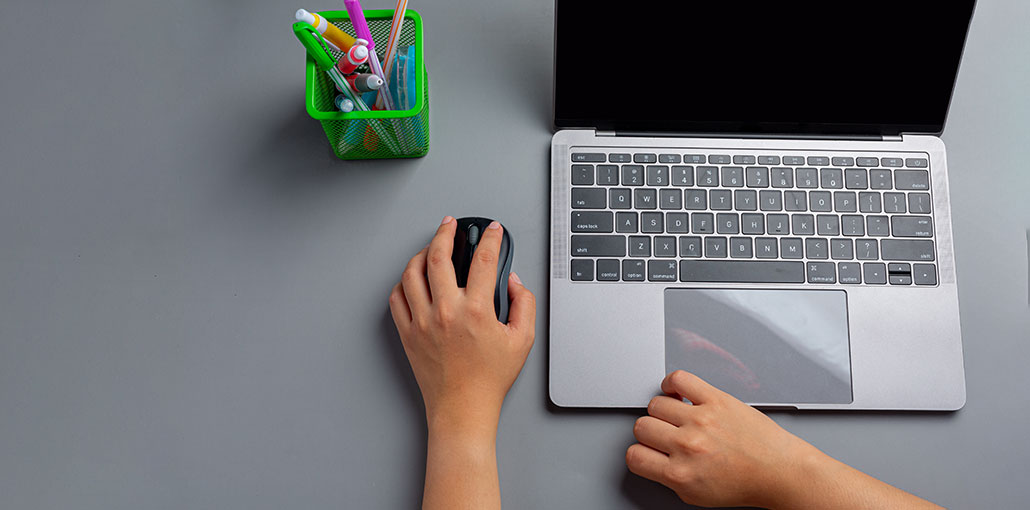
The mouse is among the most crucial peripherals connected to your computer. You can run the computer without a keyboard, but not by mouse. That’s why the hardware manufacturers created a wireless mouse that operates with Bluetooth or batteries. They are indeed superior to wired mice. However, the troubleshooting procedures can be quite complicated when a wireless mouse is not working, even if the light is on.
In this article, we’ve provided a list of various techniques that can be used to resolve wireless mouse not working issues that occur when using Windows.
Common Wireless Mouse Problems on Windows
If you’re using your Windows operating system and you’re having the following issues with your wireless mouse:
- Mouse pointer is moving erratically.
- Mouse pointer won’t respond to your movements.
- Mouse stops working after a set time period.
- Mouse isn’t recognized as a mouse by Microsoft Windows.
There’s no need to be concerned about this issue. This post will help you fix the wireless mouse not working issue. Here are five methods to consider. You can try all the methods and find the right one for you.
Why Is My Wireless Mouse Not Working?
A wireless mouse may stop working due to:
- Dead or weak batteries
- USB receiver issues
- Bluetooth connection errors
- Outdated or corrupted drivers
- Power management settings
- Hardware damage
Let’s fix it step by step.
Also read: Why Is My Laptop Keyboard Not Working? 9 Fixes to Try Today
How to Fix Your Wireless Mouse Not Working Issue
1. Reinstall the Wireless Mouse Driver
Note: Use the Remote Control feature to proceed with the next step.
A primary action you take if a hardware malfunction occurs is to install the driver. Here’s how:
1. Press the Windows logo + R key simultaneously to launch the Run window. Type devmgmt.msc and hit Enter.
2. Expand the mouse and additional devices for pointing. Right-click the wireless mouse, and then click to update the driver.
3. Click Browse my computer for driver software.
4. Click “Let me choose from” the list of device drivers installed on the computer.
5. Uncheck the box Show compatible hardware. Select your device. Next, click Next to continue.
6. Then, wait for it to install and download the most recent driver for your device. Once finished, reboot your device.
7. After restarting, repeat this process one more time. If you get to the next window, check the box to show compatible hardware. Select the appropriate driver to suit your needs. Next, click the Next button to continue.
8. After the installation has completed, you can upgrade your wireless mouse driver using Device Manager. After that, restart your computer.
Check if the wireless mouse not responding issue is solved.
2. Update the Mouse Drivers
If the wireless mouse not working after the method described above, you may be using an incorrect or outdated driver.
You have two options to find the correct drivers for a wireless mouse. You can do it manually or automatically.
Manual driver upgrade. You can upgrade the driver for your wireless mouse by visiting the manufacturer’s official website and finding the most current appropriate driver for it. Ensure you select drivers that work with your version of Windows 10/11.
Automatic driver update. If you’re not have the time or patience to update your drivers manually, you can use a Driver Updater tool such as Driver Easy.
Driver Easy will recognize your computer and identify the appropriate driver for your system. It isn’t necessary to know the exact operating system running on your computer, and you won’t be concerned about the wrong driver; you can download without any issue. Driver Easy software handles all problems.
3. Check your Devices, Hardware, and Wireless Connections
Connect your mouse receiver to another port. If you can, try using the USB port located at the back of your computer, since they generally have more power.
Replace the battery. Be sure to have paired a new battery with your wireless mouse in the correct order. A poor battery can be a reason a wireless mouse keeps disconnecting.
Reestablish wireless connection. Make sure your system is operating. After that, unplug your USB wireless receiver and wait for around 10 seconds before plugging your USB wireless transmitter back into the system.
Try on a different computer. If the same problem occurs on another computer, your wireless mouse could be inoperable. If that is the scenario, you could need to contact the manufacturer of the wireless mouse for more information.
4. Disable Fast Startup in Windows
The fast startup feature is the reason the wireless mouse stopped working. Therefore, you should disable it to test if the issue can be solved:
- Press the Windows logo +R key simultaneously to launch the Run Box. Type Control and click Enter to open the Control Panel.
- Click on System and Security. If you do not see it, be sure you’ve selected the category in the view you’re using.
- Click Power Options.
- On the right side, click Select what power buttons will do.
- Select the Change settings which are currently not available link.
- Uncheck the option for Turn on fast startup. (recommended). Click to save the changes before closing the window.
- Restart your system. The drivers will be initialized on startup. This means that the time it takes to boot your computer may be longer.
Also read: How to Fix Driver Power State Failure in Windows 11/10
5 . Repair System Files
If the wireless mouse not working issue persists, you should check whether the issue is due to a corrupted system file.
Critical system files contain the information that is required for devices and hardware components to function, such as wireless mice. If these files are damaged or disappear, this can cause problems with the connection between the wireless mouse and computer. Repairing corrupted system files can restore them to their original condition and resolve wireless mouse not working issues.
- Press the Windows key, type Command Prompt, right-click it, and choose Run as administrator
- Type the SFC/Scannow, then click Enter.
- It may take some time for the SFC to restore the corrupted system files, if it detects any.
- After the process is completed, restart your computer and verify if the issue is fixed.
Final word
Hopefully, this guide can help you fix your wireless mouse not working issue. If you have any ideas or questions, feel free to drop us a line in the comment section below!
FAQs: Wireless Mouse Not Working
Why is my wireless mouse light on but not working?
If the light is on, the mouse has power, but the issue is usually caused by driver problems, USB port failure, or a lost wireless connection.
How do I reset a wireless mouse?
Turn off the mouse, remove the batteries, wait 30 seconds, reinsert them, and reconnect the mouse to your computer or Bluetooth.
Why does my wireless mouse keep disconnecting?
This happens due to low battery power, USB power management settings, wireless interference, or outdated mouse drivers.
How do I fix a Bluetooth mouse not working?
Turn Bluetooth off and on, remove and re-pair the mouse, update Bluetooth drivers, and restart your system.





Leave a comment