

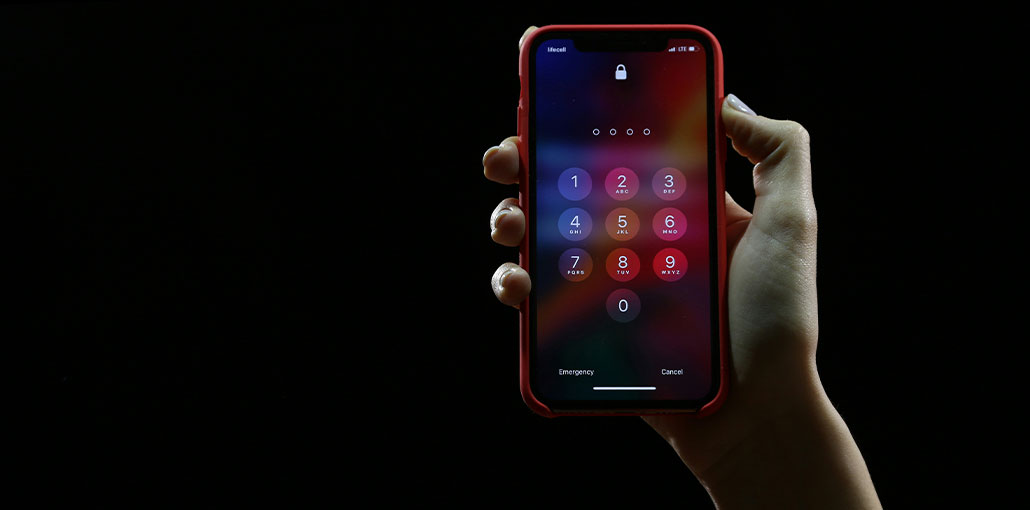
Screen Time is a great tool to monitor all the apps on your phone. Parents in particular appreciate the ability to restrict their children’s iPhone access. It lets you monitor your iPhone’s daily usage, restrict app access, and set custom content restrictions.
What happens if you forget your Screen Time Passcode?
You can bypass screen time without altering the settings. Don’t worry! We’ll address this issue within this post. We’ll give you eight easy steps on how to bypass screen time passcode.” Additionally, when your children are too interested, then we’ll help you figure out how to thwart their efforts and remain in control. Why are we waiting? Let’s start with our first step!
How to Recover Screen Time Passcode via Apple ID
Apple is aware of its customers’ issues. They’ve come up with an option for those who have forgot screen time passcode. It is now possible to modify the passcode even if you forgot it. First, you’ll need to verify your Apple ID credentials.
Let’s take a look at how you can accomplish this. Here is a step-by-step guide on how to bypass screen time passcode.
- Open the Settings app on your iPhone and then click “Screen Time.”
- Click “Change Screen Time Passcode” and then select Change Screen Time Passcode again.
- Enter a wrong passcode five times, then tap the “Forgot Passcode” button.
- Apple ID credentials on the screen.
Then enter the new passcode that you would like to use, and then rent it to confirm.
With your Apple ID credentials, this method is certain to work. If, however, you fail to unlock the secrets, here is a different method to help you.
Also read: 7 Best iPhone Unlockers to Unlock Your Device Quickly and Safely
How to Bypass Screen Time Passcodes with iMessage
YouTube is the most-watched video site. That’s why many parents limit their children’s access to YouTube on their iPhones. Did you know that there’s a way to get around this restriction and still access YouTube? Let’s look at this method. Follow these easy steps to get access to YouTube through iMessage.
- Invite your friend to send the YouTube link via iMessage.
- Open your iMessage app.
- Click the YouTube button to view the video on YouTube.
- So, you can effortlessly enjoy any YouTube video even when your YouTube App is blocked due to screen time.
How to Prevent iMessage Method
To keep your children from taking advantage of this trick, go to your screen time settings, and then tap Content and Privacy Restrictions, Web Content. From you can select the “Limit Adult Website” option you can include the YouTube URL in the “Never Allow” section.
Let’s continue and try the following procedure.
How to Bypass Screen Time Passcode using Contacts App
Making someone else’s messages an essential part of iPhone use. If you find that the message-sending app is blocked due to screen time, there’s no need to fret. There is still a way to send a message to anyone via Contacts. Here’s how to bypass screen time passcode in the Contacts app to send messages.
- Open “Contacts” on your iPhone.
- Search for the contact you want to send a message to, and select it.
- Click on the messages icon to send your message to the selected contact number.
How to Prevent Contacts Method
To stop this attack, you add a limit on the Contacts app in the screen time settings. To do this, visit the screen time settings and then tap Limits on apps > > Add limit. There will be an app called the Contacts app, and you can add a 1-minute timer to it.
Let’s keep this momentum going and look into the next step.
How to Bypass Screen Time Passcode by Changing Date and Time
Do you know that features on the screen are linked to the time on our device? What happens when we alter the time or date on our iPhones? All screen time restrictions are also reset. This is a loophole to get around any screen-time passcode. Follow these easy steps to alter the date and time on your device.
- Open the iPhone Settings and go to General > Date & Time.
- Turn off the “Set Automatically” option from there.
- Then, you can click the date and time shown on the screen and change the date however you like.
How to Prevent Time Change Method
You can open the screen’s time settings. You’ll find the “Location services” in the “Content & Privacy Restriction” section. Select it and then go to”System Services.” Then switch off the “Set Time Zone” button. Be aware that Time & Date settings must be set to automatic.
Let’s move on to the next step. Let’s go!
How to Bypass Screen Time Restrictions by Reinstalling Apps
All the screen time restrictions on apps are linked to the app. Therefore, you can remove those restrictions by uninstalling the app itself. Simple, right? Here are the steps needed to bypass the screen-time passcode by reinstalling new apps.
- To uninstall the app, click on the app icon until the option appears on your screen.
- Then, click the “Remove App” option.
- Then, you can click the “Delete App option.
- Then you must restart the app via the App Store.
How to Prevent App Reinstallation Method
Visit Content & Privacy Restriction >> iTunes & App Store Purchase in the screen time settings. Here, you’ll find three options related to app installation and deletion. You must select “Don’t Allow” in all of these options, and then you’re done. Your children will not be able to uninstall the apps.
Are you ready to move on? Let’s see!
Also read: Best FRP Bypass Tools in 2025: Unlock Any Android Easily
How to Bypass Screen Time Passcode via Apple ID
Are you aware of who the owner of your Screen Time Settings is? That’s the case with your Apple ID. You’ll need an Apple ID before you set up your screen settings. All your limitations are tied to the Apple ID. If we remove your Apple ID from our iPhone, you can bypass the screen time passcode. Follow this step-by-step procedure to take out this Apple ID from your device.
- Go to settings and click Apple ID.
- Scroll down until you click the “Sign In ” or “Sign Out” button.
- Enter your Apple ID password and hit the “Turn Off” button.
- Next, select the data you want to keep on your iPhone and then tap “Sign Out” in the top right corner.
Moving on to the final step of the Screen Time passcode reset process.
How to Bypass Screen Time Passcode with Factory Reset
No matter the issue, we have the most effective method to use as a last resort. It’s to erase all settings and data from the device. I’m talking about it’s the process of factory setting. Follow these steps to bypass the screen time passcode through app installation.
- Open Settings and go to General > Transfer or Reset iPhone.
- Click ” Erase all Content and Settings” and then enter your screen password.
- Allow the iPhone to upload data to iCloud, then enter your Apple ID password.
- Wait for the device to reset and restart, then set it up again from the beginning
Summing Up
Managing your smartphone usage is vital, and Screen Time is a valuable tool for managing that. However, if you forgot the screen time passcode or you want to bypass it for a short period, you can use the following methods.
FAQs: How to Bypass Screen Time Passcode
Can I bypass Screen Time without Apple ID?
No, Apple requires Apple ID verification to reset Screen Time passcode. Without it, you’ll need to recover your Apple ID or contact Apple Support.
What happens if I forget Screen Time passcode?
If you forget your Screen Time passcode, you won’t be able to change restrictions or settings until you reset it using your Apple ID.
How do I bypass Screen Time passcode on iPhone?
You cannot directly bypass the Screen Time passcode. The safest way is to reset it using your Apple ID through the “Forgot Passcode” option in Screen Time settings.
How many attempts do I get for Screen Time passcode?
After multiple incorrect attempts, your device may temporarily lock Screen Time settings, requiring you to wait before trying again.
How to bypass Screen Time restrictions on iPhone?
To bypass Screen Time restrictions safely, you need to reset or modify them using authorized access, such as your Apple ID or Family Sharing controls.






Leave a comment