

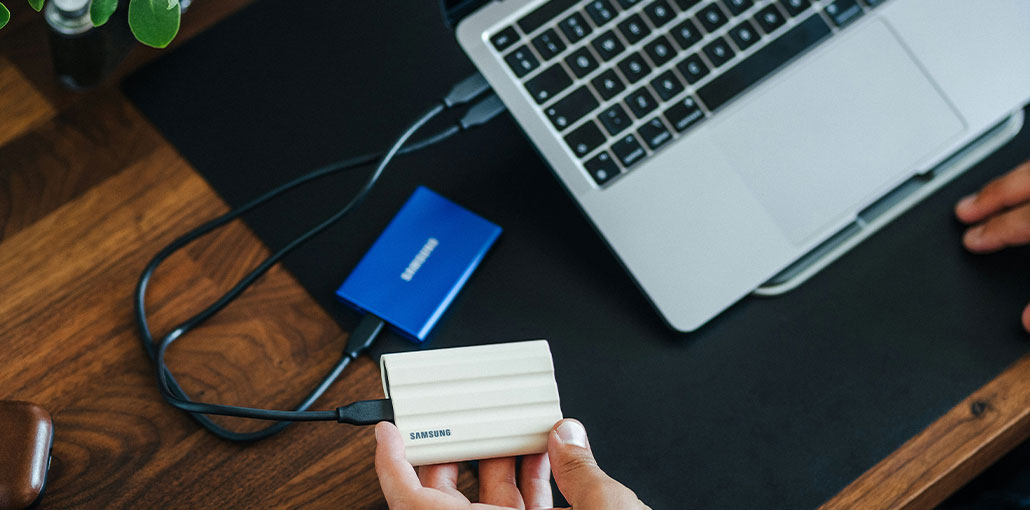
If your SSD is not showing up, don’t panic — it is a common issue on pc that can usually be fixed easily. Whether your SSD is missing in Windows, not detected in BIOS, or not showing in Disk Management. In this blog, we will discuss why SSD not showing up and how to fix it.
Why Is Your SSD Not Showing Up? (Common Causes)
Before fixing the issue, it’s important to understand the possible reasons for the SSD Not Showing Up in the PC:
- SSD not initialized
- Missing drive letter
- SSD not detected in BIOS
- Loose or faulty connection
- Outdated or corrupted drivers
- Partition errors or unallocated space
- Hardware failure (rare)
Don’t worry. Check out this article for solutions to fix SSD not showing up on a Windows PC.
Also read: How to Check SSD Health on Windows 10: Best Methods to Try
First Step: Check SSD in Disk Management
If you cannot see an SSD in File Explorer, the first thing you should do is launch Disk Management to have a further check.
Select the right click “This Computer” and select “Manage”. Next, select “Disk Management”. In this section, you’ll discover the reason why your SSD not showing up in File Explorer.
How to Fix SSD Not Showing Up in Windows
Here are some solutions to try to fix the SSD not showing up issue.
1. Initialize SSD
If you have a new SSD and you notice it’s not appearing on Windows Explorer, the most likely reason is that it’s not properly initialized. A new SSD and any disk can be displayed in File Explorer and put into use after being initialized, partitioned, and formatted.
However, an old SSD could also appear uninitialized on Disk Management.
Whatever situation you’re in, you can help your SSD appear in Windows once more by partitioning, initializing, and formatting it with Windows Disk Management, which is the same as starting up, creating a basic volume for formatting external hard drives.
To initialize SSD in Windows:
- Open Disk Management
- Right-click the SSD → Select Initialize Disk
- Choose partition style: MBR (Master Boot Record) or GPT (Guide Partition Table) as the partition type.
- and Click OK
2. Assign Drive Letter to SSD
When you see that the SSD drive’s name is missing or is the same as another disk, the Windows OS will fail to recognize the SSD. Thus, you are unable to connect to the SSD disk in Windows My Computer.
To resolve this issue, you can assign a new drive name to the SSD.
- Open Disk Management
- Right-click SSD partition
- Select Change Drive Letter and Paths
- Click Change → Assign new letter → OK
3. Fix RAW / Unknown SSD Issue
If your SSD file system is damaged or SSD not recognized by Windows, it will not show up in File Explorer and usually is labeled with an error message in Disk Management, such as RAW, Unknown, or even Free Space (or indicates an insufficient capacity).
4. Create Volume (Unallocated SSD)
Your SSD is designated as an “Unallocated” space since it doesn’t contain any volume. That is why your SSD not appearing.
You can assign at least a volume to the SSD so that it shows up as normal in Windows and is accessible. If the SSD has ever held data, it’s best to restore it before assigning the volume through Disk Management.
- Open Disk Management
- Right-click Unallocated SSD space
- Select New Simple Volume
- Click Next → Set size → Next
- Assign a drive letter → Next
- Format (NTFS recommended) → Finish
5. Bring SSD Online
If the SSD displays “Offline” in Disk Management, the SSD won’t appear within My Computer. To enable the SSD to show in Windows again, you have to bring it back online.
How to do this: Right-click on your SSD, and then click Online to activate it in Windows.
6. Update or Reinstall SSD Drivers
Drivers are software component that lets the OS and devices (like the SSD) communicate with each other. If your SSD not showing up in Disk Management, it could be a driver issue.
Therefore, it is recommended to visit the Device Manager for an examination. Click on “This Computer” and choose “Manage” to open the Computer Management panel. After that, click “Device Manager” on the left sidebar.
If your SSD is experiencing driver issues, it will show in Other devices in Device Manager. Also, it will display with the “!” symbol or a label “Unknown device”.
- Open Device Manager
- Locate SSD under Disk Drives or Other Devices
- If marked with “!” or “Unknown Device”:
- Right-click → Uninstall
- Restart PC
- Update driver automatically
7. Enable SSD in BIOS
If your SSD isn’t showing in Device Manager either (not due to manual hiding), it could not be enabled in BIOS (or UEFI, a version of BIOS). You can enable it again in the BIOS to make it appear in Windows 11/10/8/7.
How to enable SSD settings in BIOS:
- Restart PC
- Press the BIOS key during startup (commonly F2, F10, DEL, or ESC)
- Enter BIOS/UEFI
- Locate storage settings
- Enable SSD or SATA/NVMe port
- Save and exit
Also read: External Hard Drive Not Showing Up? Try These 5 Troubleshooting Steps
SSD Not Showing Up in BIOS – What to Do?
When your SSD isn’t showing up in the BIOS, it might not be able to connect to your PC or might already be damaged.
The following steps to perform a detailed check.
1. Verify SSD Interface Compatibility
External SSDs can be used:
Connect an External SSD in the USB port.
If the SSD not detected, make sure your USB port isn’t working by connecting an external SSD to a different USB port.
Internal SSDs:
Identify your SSD model first. If it’s an M.2 SSD, verify that your motherboard supports M.2 drives. Once compatibility is confirmed, you can proceed.
Connect an external SSD to the appropriate interface (usually that is the SATA interface) on the motherboard.
2. Check Connections
Check if the data cable (for internal SSD) or USB cable (for external SSD) is in good shape by replacing it with a new one. If it’s an internal SSD, then you should seek professional assistance as you test and replace the data cable.
3. Send the SSD to a repair center
If you notice that your SSD isn’t showing up after rechecking and repairing the data cable and interface issues, it is worth determining whether the SSD has any physical issues and attempting to fix it at a local repair shop or replacing it.
SSD Not Showing Up: Problems and Fixes
| Special Case | Cause | Solution |
|---|---|---|
| New SSD Not Showing Up | SSD not initialized | Initialize the SSD in Disk Management |
| BIOS compatibility issue | Update BIOS if required | |
| SSD Not Showing in BIOS | Loose or faulty connection | Check cables and reconnect SSD |
| Compatibility issue (SATA vs NVMe) | Ensure motherboard supports the SSD type | |
| SSD Showing in BIOS but Not in Windows | Partition issue | Create or repair partition in Disk Management |
| Driver issue | Update or reinstall SSD drivers |
Final Thoughts
An old SSD or a new SSD not showing up in Windows is a frequent and complex issue. We hope you can learn more about the root of SSD not showing up in Windows and the most comprehensive solutions to solve the issue in this article.
FAQs: SSD Not Showing Up
Why is my new SSD not detected?
A new SSD usually needs to be initialized and partitioned before it appears in Windows File Explorer or Disk Management.
How do I fix SSD not showing in Disk Management?
Check hardware connections, update drivers, and make sure the SSD is enabled in BIOS. If still missing, test it on another PC.
Can outdated drivers cause SSD not showing up?
Yes, outdated or corrupted storage drivers can prevent Windows from detecting your SSD properly.
What should I do if SSD is showing as “Unallocated”?
You need to create a new simple volume in Disk Management and format it to make it usable.









Leave a comment