

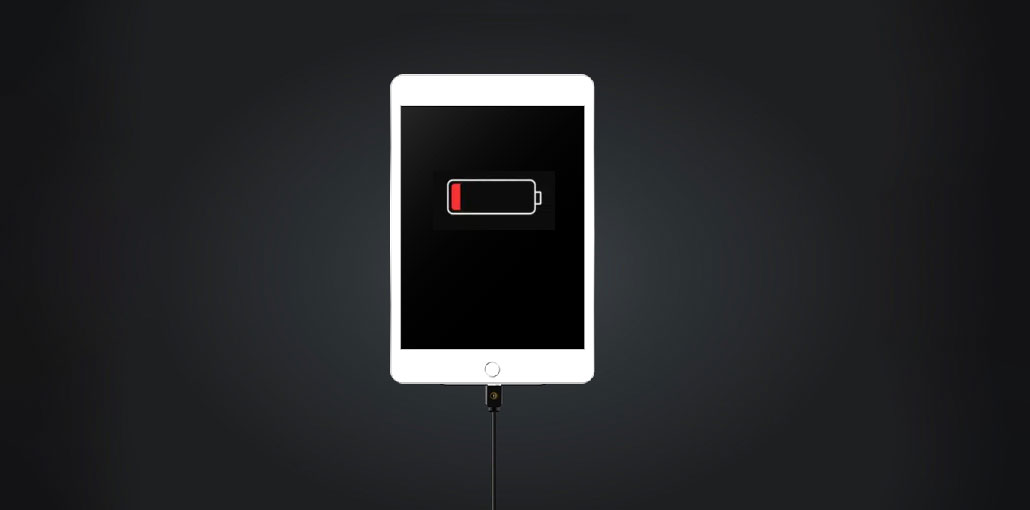
Hello, I’ve discovered that my iPad not charging after connecting to the power. I’ve tried a variety of chargers and wall outlets, but the iPad won’t charge. My battery is now low, and it could shut off at any moment. Has anyone else experienced this before and solved it? Please help us with the problem-solving solution!
A healthy battery is crucial for those who want to continue using their iPad for planned tasks. When the battery gets depleted, it is impossible to continue the task you’re working on. When this happens, you must attach the device to a power source to recharge it, so that it doesn’t shut off.
In standard, your battery level will start to increase. But for some reason, the iPad fails to charge, and the battery level stays stagnant. This could be a hassle; however, you can repair it yourself. Want to know what you can do? Read on to learn 9 methods to resolve iPad not charging issues in this article.
Why Is My iPad Not Charging?
If your iPad is not charging, the issues you’re experiencing do not just happen like this, since Apple Inc always takes its time to develop the most effective product. In this regard,, the staff decided to research to determine the reason for the iPad not charging problem.
Our research findings revealed the following causes:
Incompatible Charging Accessories
Incompatible or defective charging accessories are the most common causes of your iPad not charging when connected to a wall outlet. You must change the accessories, or better buy an Original Apple charger to charge your iPad to avoid issues such as this.
System Glitch or Outdated iOS
The system glitch is one of the most common reasons why your iPad will not charge. If you are running your iPad on an outdated iOS or a beta version, it will malfunction and display issues, such as the iPad not charging after connected to power. The best solution in this situation is to install the latest iOS from the official website. Alternatively, you can use a third-party application, which will certainly repair the firmware and remove any other errors on the device.
Also read: 6 Best Tools to Jailbreak iPad No Computer Needed
Hardware Issues
Issues with hardware, such as damage or fault charging port or flex, could cause your iPad not charging after being plugged into an electrical source. There is no DIY fix you can do to repair this. Instead, you must seek out an experienced engineer who can assist you.
Liquid Detected in Charging Port
Apple smart devices are built so that once liquid is detected in the charging port, they won’t charge at all. The port should be cleaned, or waiting for the fluid dry is the ideal solution for this scenario.
How to Fix iPad Not Charging Issues
Now that you understand the reasons why your iPad not charging, let’s look at how to fix the problem and bring your iPad back to normal charge:
1. Check the Accessories
As your damaged and faulty charging accessories are the reason for the iPad not charging, checking for any cuts or scratches could be useful so that you can repair them as quickly as possible and start charging without hassle.
It is important to check the USB cable, power adapter, and other components. If you see any issues with any accessories, please visit an Apple retail store near you to purchase a genuine charger for your iPad.
2. Try a New Cable/Power Adapter
If you encounter any issues with your power cable adapter, you must switch to a different one. However, make sure your new Cable/Power Adapter is original. If it’s not original, it’s still likely to be unable to charge.
3. Force Restart iPad
A simple force restart can help fix iPad not charging issues. This option resets and refreshes your device, helping you clear all your data, remove clutter from your RAM, and slow down your device.
We recommend this option because it’s simple to implement and won’t result in loss of content. The process required for this differs according to the various iPad models that are available. Here’s the instruction guide for each model:
4. Check for iPad Overheating
Why does my iPad say not charging? Temperature can have an impact on your iPad’s charging. It should not be too hot or cold during charging. If it isn’t, the battery level will not rise.
If you suspect an iPad is overheating, it is recommended disconnect your power supply. Alternatively, you can relocate to another location, where weather conditions can trigger excessive heat.
5. Use an iPad Repair Tool
The iPad will not charge after using the standard methods. You should seek the assistance of an expert iPad repair tool. The program that helps you repair an iPad that won’t charge is just one of them.
iPad repair tool is the perfect solution to ensure that your iPad doesn’t charge without compromising the device. This software can help you get an iPad back to its normal state by performing a quick diagnostic of your system and providing the correct firmware for your device’s specifications to make it work again.
6. Check iPad’s Charging Port
Another method to solve the issue of why your iPad is not charging when connected to a power source is to examine your charging block. There may be odd objects within the ports that can interfere with the connection using your USB cable. We strongly suggest checking the port and removing objects and dust using a soft cloth to prevent damage to the port.
7. Use Wireless Charging
Is your charging port damaged? If yes, use a wireless charger to increase your battery’s capacity. Wireless chargers can help end-users who have damaged ports charge their phones. If you’re facing issues with charging your iPad and you need to charge it, the wireless charger could help.
Also read: 10 Best Ways to Use an Old iPhone or iPad
8. Factory Reset iPad
A factory reset is a reliable solution for fixing your iPad that isn’t charging. This method resets the device and also clears any settings and content that could be causing problems for the system. If you use this method, data loss will likely happen. We strongly suggest backing up your device before resetting it.
9. Contact Apple Support
If your iPad does not charge after trying the above solutions, then please visit the Apple Store closest to you for repairs. The help desk in the store will assist you in fixing the issue, and then your iPad will be charged again.
How to Prevent iPad Charging Problems
- Always use certified chargers
- Clean the charging port monthly
- Avoid charging while gaming
- Don’t let the battery drain to 0% often
- Keep iPad updated
Ending Notes
The iPad’s charging should not have a problem with the method described in this article. All the necessary solutions to fix your iPad charging problems are discussed in detail. Please follow the steps one by one. The best option is iPad repair software. It helps you solve the issue of your iPad not charging and then restores the device to its normal mode.
FAQs: iPad Not Charging
Why is my iPad not charging after plugged in?
Your iPad may not charge due to a faulty cable, incompatible charger, dirty charging port, overheating, or a software glitch.
Why does my iPad say “Not Charging”?
This usually means the power source isn’t providing enough power, especially when connected to a computer USB port.
Is it safe to use third-party chargers for iPad?
Only MFi-certified chargers are safe. Cheap or uncertified chargers may cause charging failures or battery damage.
Why is my iPad charging slowly?
Your iPad may charge slowly due to a low-power charger, damaged cable, overheating, background apps, or poor battery health.
Why does my iPad stop charging at 80%?
iPadOS may limit charging at 80% to prevent overheating and extend battery life.









Leave a comment