

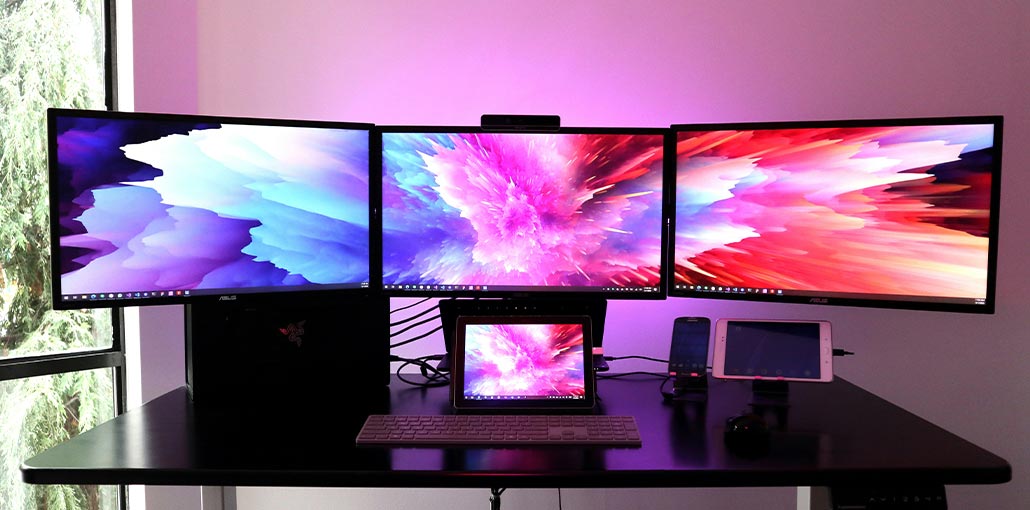
Although gaming monitors are larger and more powerful than ever, there’s an unending demand for top three monitor setups, both among gamers and productivity users. This is why we’ve created this top three monitor setup tutorial to assist you in choosing the perfect displays for your needs, while describing how to setup 3 monitors. For many users, a three monitor setup is the ideal method to enhance their gaming experience and productivity. But the transition from a monitor setup to a triple monitor setup is more challenging than you imagined.
We’re fortunate to have experience in multi-screen setups. We will explore all the information you require to be aware of when it comes to triple monitor setups. We’ll update this page as new monitors are released!
Three monitor setups have been growing in popularity throughout the decades. There’s more to it than gaming, but. Multitaskers, Twitch streamers, and everyone else will benefit from having multiple monitors. Even is more than what top ultrawide displays currently provide. If you have no time to spare, we’d suggest the best monitor.
We’re here to provide you with all you need to know about when you’re searching for a triple monitor setup. We’ll show you how to build a triple monitor setup, which monitors are ideal for multi-screen, and compare triple monitor setups with a dual monitor setup, and more in this easy guide.
What Is a 3 Monitor Setup?
A three-monitor configuration is a type of computer setup that has three monitors used simultaneously. When you have a three-monitor setup, the monitors involved can be placed in any direction, connected via HDMI, DisplayPort, VGA, DVI, or USB-C or Thunderbolt 3.
As you can imagine, a three monitor setup is extremely flexible. It doesn’t matter if you’re into gaming productivity, content consumption, or anything else. Most users can benefit from a triple monitor setup. These are especially useful for people who prefer to have multiple applications and tabs running simultaneously, allowing them to keep productive levels on a second or a third screen.
For Gaming, especially racing simulations, the most commonly used scenario is a three monitor setup. Many games offer multi-screen configurations, which allow you to experience this virtual universe from a completely different perspective.
Pros of a Triple Monitor Setup
- Massive productivity boost: Run multiple apps side by side without switching tabs
- Improved multitasking: Ideal for coding, trading, streaming, and content creation
- More immersive gaming experience: Wider field of view in supported games
- Better workflow organization: Separate screens for tools, timelines, and references
- Greater flexibility than ultrawide monitors: Mix horizontal and vertical layouts
Cons of a Triple Monitor Setup
- Higher cost: Requires multiple monitors, cables, and possibly a new GPU
- More desk space needed: Smaller desks may feel crowded
- Increased power consumption
- Performance demands: High resolutions and refresh rates need a strong GPU
- Potential neck and eye strain if monitors aren’t positioned correctly
Best Monitors for a Triple Monitor Setup
ASUS TUF Gaming VG279QM
If you’re considering an incredibly versatile multi-monitor setup, you’re probably thinking about what the most effective monitors are for the task. This article will begin with the most efficient triple monitor setup for gaming. It’s the ASUS VG279QM is a value for the money, and top-quality gaming capabilities for your triple-monitor setup. It has a refresh rate of 280Hz, a quick response time of just 1ms, and an IPS display technology. This all makes it an excellent option for a set of 1080p displays that perform superbly. Read the ASUS review of the VG279QM for more information!
If you’re planning to purchase new monitors, this is an excellent option to cut costs and offers a good price, but it isn’t the most efficient. If you want to use a cheaper option, VG279Q, which has excellent gaming specifications in its own right, including a 144Hz high refresh rate.
Pros
- Ultra-smooth 280Hz refresh rate
- 1ms response time for competitive gaming
- IPS panel with excellent color accuracy
- Great value for triple 1080p gaming setups
- G-SYNC Compatible for tear-free gameplay
Cons
- Limited to 1080p resolution
- Requires a powerful GPU to reach 280Hz
- No built-in speakers
- Pricier than standard 144Hz monitors
Acer B287K Monitor
We have knowledge regarding monitors and recommend displays for all situations. We’ll examine the top choices for productivity at work, and a 4K display on this monitor.
Acer B287K is a fantastic display for a dual or triple monitor setup. It offers a good range of colors across the sRGB spectrum with decent colors right out of the box, and an sRGB Emulation Preset that is extremely precise. It comes with a response time of 4ms and a low 60Hz refresh rate, and 4k resolution for the scene.
Pros
- Sharp 4K resolution ideal for multitasking
- Accurate sRGB color reproduction
- Factory-calibrated color profiles
- Excellent for office work and content creation
- Works well in dual or triple monitor setups
Cons
- 60Hz refresh rate limits gaming use
- 4ms response time not ideal for fast gaming
- Triple 4K setups require a strong GPU
- Not designed for competitive gaming
Also read: Best Monitor for Mac Mini in 2025: Top 6 Picks Tested
Acer SB242Y EBI
The purchase of three monitors will surely cost you. If you’re looking for a triple monitor setup with the same monitors and need to cut costs, then a budget model might be the best alternative for you. It’s not the most efficient gaming performance or the highest resolution, but it’s a good start.
The SB242Y EBI is an affordable, budget-friendly monitor that, despite the price, still ticks many of the boxes. Although it’s not larger than the other two models, it’s still 23.8 inches. It still offers sufficient screen space in the 3-monitor configuration. It comes with an IPS panel with a low 1ms response time and a 1080p screen resolution, which is a decent combination for daily use. Its 100Hz rate of refresh is a huge plus for a display of this price, as well, which is more than the 60Hz standard.
Pros
- Affordable price point
- 100Hz refresh rate (better than 60Hz)
- IPS panel with wide viewing angles
- 1ms response time for casual gaming
- Compact size fits smaller desks
Cons
- 1080p resolution only
- Limited brightness
- Basic stand with minimal adjustments
- Not suitable for professional color-critical work
How to Set Up 3 Monitors on a Single Computer
If you’re interested in a three-monitor setup, let’s take a close look at the steps to set it up. Setup triple monitor process on your PC is simple. But there are a few basic checks you have to perform.
1. Check Your GPU for Video Outputs
A primary thing you have to check before purchasing new monitors is verify whether your GPU can handle three monitors.
Check the back side of the GPU to determine whether it has three inputs. If so, we’re off to race.
2. Make Sure You Have the Right Cables
The second thing to ensure is that you have all of the required cables to connect your new system. You’ll need to align your cables to the inputs located behind your GPU, since not all GPUs offer the three HDMI or DisplayPort options.
In reality, you’ll see every GPU having a variety of different inputs (HDMI, DisplayPort, VGA, DVI).
3. Check Available Power Sockets
Although this might seem simple, it’s something many people overlook. Make sure that you have all plug sockets before you begin.
4. Connect the Monitors to Your GPU
If you’re equipped with all cables, inputs, and sockets, begin connecting your displays to the GPU near the rear of your computer, typically using HDMI and DisplayPort cables.
At this point, it may be worth marking (sticky label) each cable with a number to make it easy to determine which cable connects to which display.
Although it may sound silly, it can be helpful if you’re required to switch cables, monitors, or simply rearrange your setup.
5. Turn On All Monitors
At this point, all monitors should be able to turn on and show either the black background or your desktop. If the standby light on your second monitor isn’t working or you can see your monitor alternating between inputs to the display, then it’s possible that your computer isn’t seeing it.
If this happens, you might be required to skip the next step and attempt to enable the monitor to register. However, a monitor not working with a PC is rare for me, so I wouldn’t fret about it too much.
6. Configure Displays in Windows Settings
At this point, you’ll need to go to your Window Display Settings (Right-click the desktop and choose the option) to make sure they are properly configured. Unless you’re lucky enough, you’ll usually find that the orientation of your monitors isn’t correct.
For example, the screen to the left of the screen was actually designated the center position, and so on.
Within Window Display Settings, you can drag and drop your monitors in the right orientation.
If you don’t know which monitor you are using, you can identify each monitor using the “Identify” option in the screen configuration section of the Windows display settings.
Also read: Black Line on Monitor? Here’s How to Fix It
7. Save Your Monitor Configuration Settings
You can set the settings in the lower part of the page. If it prompts users to verify the setting, you can confirm it by clicking “Keep changes” before the timer expires.
Common Triple Monitor Problems & Fixes
| Problem | Solution |
|---|---|
| One monitor not detected | Update GPU drivers |
| Resolution mismatch | Set manual resolution |
| Lag or flickering | Check cable quality |
| Apps opening on wrong screen | Set primary display |
Wrap Up
This comprehensive guide to triple monitor setups for your computer. We hope we’ve covered everything you need to know about if you’re thinking of upgrading your gaming system. If you’re searching for the perfect gaming system to triple-up or require assistance in setting it all up properly, we’re sure we’ve helped you in some way!
FAQs: Triple Monitor Setup
Is a triple monitor setup worth it?
Yes, if you multitask heavily, work with multiple applications, or want an immersive gaming experience. It can significantly boost productivity and workflow efficiency.
Triple monitor vs ultrawide monitor: which is better?
A triple monitor setup offers more flexibility and dedicated screens for multitasking, while ultrawide monitors provide simplicity and fewer cables. For productivity and gaming, triple monitors are often better; for limited desk space, ultrawide may be preferable.
Can I run three different resolution monitors together?
Yes, but Windows may scale them differently. It’s best to match resolution and size for a seamless experience.
Do Macs support triple monitor setups?
Mac desktops like the Mac Studio or Mac Pro can support three monitors. MacBooks often require docks or DisplayLink adapters.








Leave a comment